Budgets
The Budgets module lets you set capital spending targets, group them by dimensions such as company, category, department, cost centre or location, and track them against actual and forecast fixed-asset transactions. It is used to plan capital expenditure and monitor spending against approved limits.
Prerequisites
- You must be in the Fixed Asset Management profile (see Fixed Asset Management Profile). Switch profile using the profile name link at the top left of the screen.
- The Budgets module must be enabled (see below).
- Accounting periods must be configured (see Accounting Periods).
Enabling the Budgets Module
Budgets is an optional module. To enable it:
- Click the gear icon in the top-right corner to open Settings.
- Choose Enable/Disable Features.
- Check the Budgets option.
- Refresh the page.
Once enabled, a Budgets entry appears in the left-hand navigation of the Fixed Asset Management profile, with sub-items for slots, forecast assets/transactions, budget totals, and budget vs actuals reporting.
Budget and Forecast Slots
A budget slot is the top-level container that defines a budget period and the dimension(s) its entries are split by. Open Budgets > Budget and Forecast Slots to see a list of slots on the left and the selected slot's details on the right:
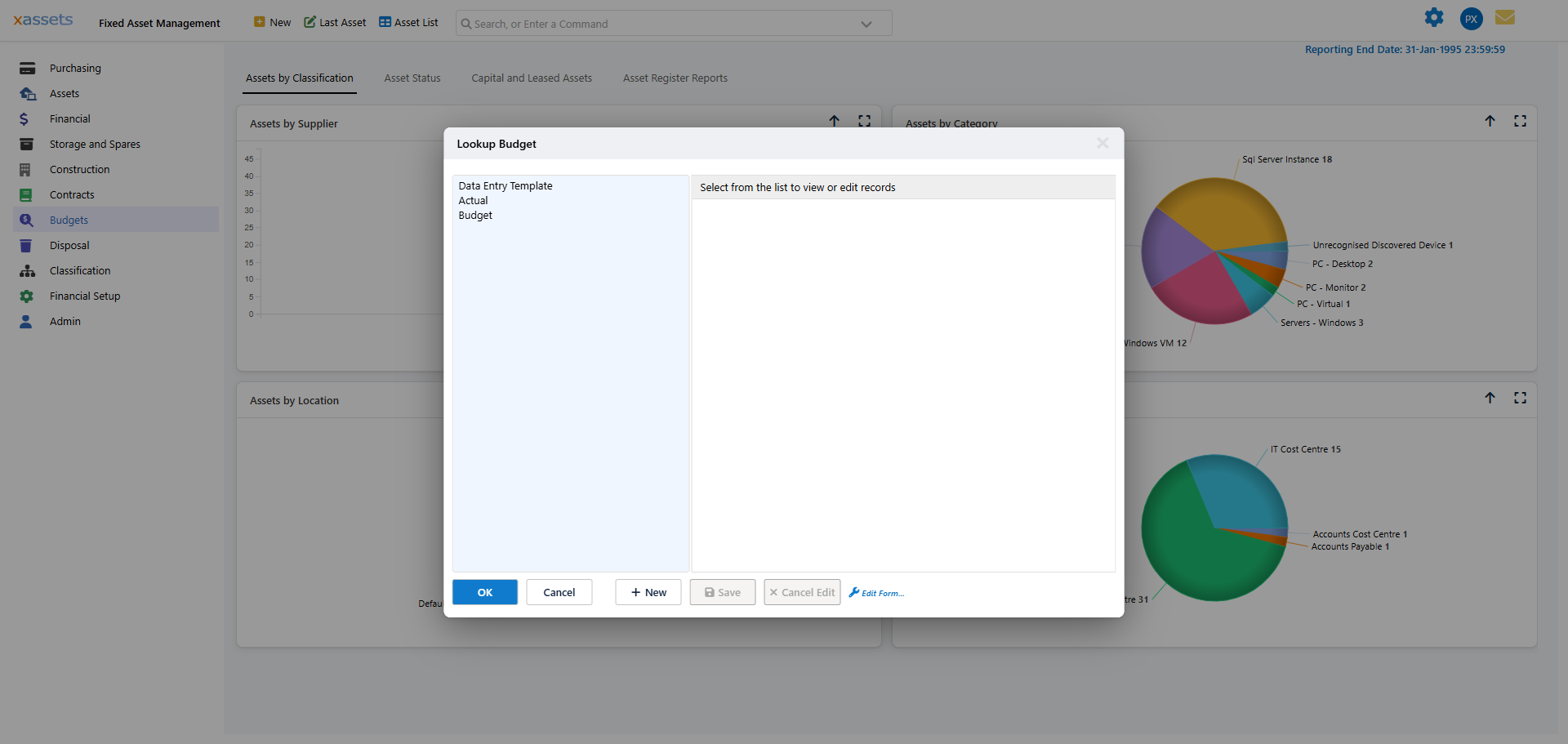
Each slot has:
| Field | Description |
|---|---|
| ID | System-assigned record identifier |
| Budget Slot Name | A descriptive name for the slot |
| Budget Type | The category of budget, e.g. "Confirmed Budget" |
| Split By | The dimension(s) entries are broken down by, e.g. "Company and Category" |
| Start Date | Beginning of the budget period |
| End Date | End of the budget period |
Split By can combine one or more of: Company, Category, Department, Cost Centre, Location. Choose the combination that matches how your organisation approves and tracks capital spending - a single dimension for simple cases, or a combination (e.g. Company and Category) where you need finer-grained targets.
A new install ships with a small number of system slots (for example "Data Entry Template", "Actual" and "Budget") that the forecasting/actuals engine relies on internally. These are marked as system records with an on-screen warning - avoid changing them, and create your own additional slots for the budgets you want to manage. Use New in the slot list to add one.
Creating Budget Entries
From the Budget Records screen (opened via the Budget Totals menu item, see below), open the Budget Actions menu and choose Create Budget Entries to auto-generate budget records for a slot. This opens the Create Budget Records dialog:
| Parameter | Description |
|---|---|
| Budget | The budget slot to create entries for (required) |
| Financial Year | The accounting year the entries are generated against, e.g. "Year Starting: 01-Jan-2026" |
| Per Period | If checked, creates one entry per accounting period (e.g. monthly) instead of a single entry for the year |
| Companies | Which companies to include |
| Categories | Which asset categories to include |
The system generates entries by cross-joining the selected companies, categories, and the dimension(s) named in the slot's Split By setting.
Example
If your budget slot splits by Cost Centre, and you select:
- 2 companies
- 3 categories
- The system has 5 cost centres
Creating entries produces 2 x 3 x 5 = 30 budget records. If "Per Period" is checked and you have 12 monthly periods, that becomes 30 x 12 = 360 records.
Tip: Start with annual entries (Per Period unchecked) unless you need monthly budget tracking. Generating too many entries makes the budget harder to manage, and entries can be broken down into periods later if needed.
Editing Budget Amounts
Budget entries appear as records on the Budget Records screen, reached via the Budget Totals menu item:
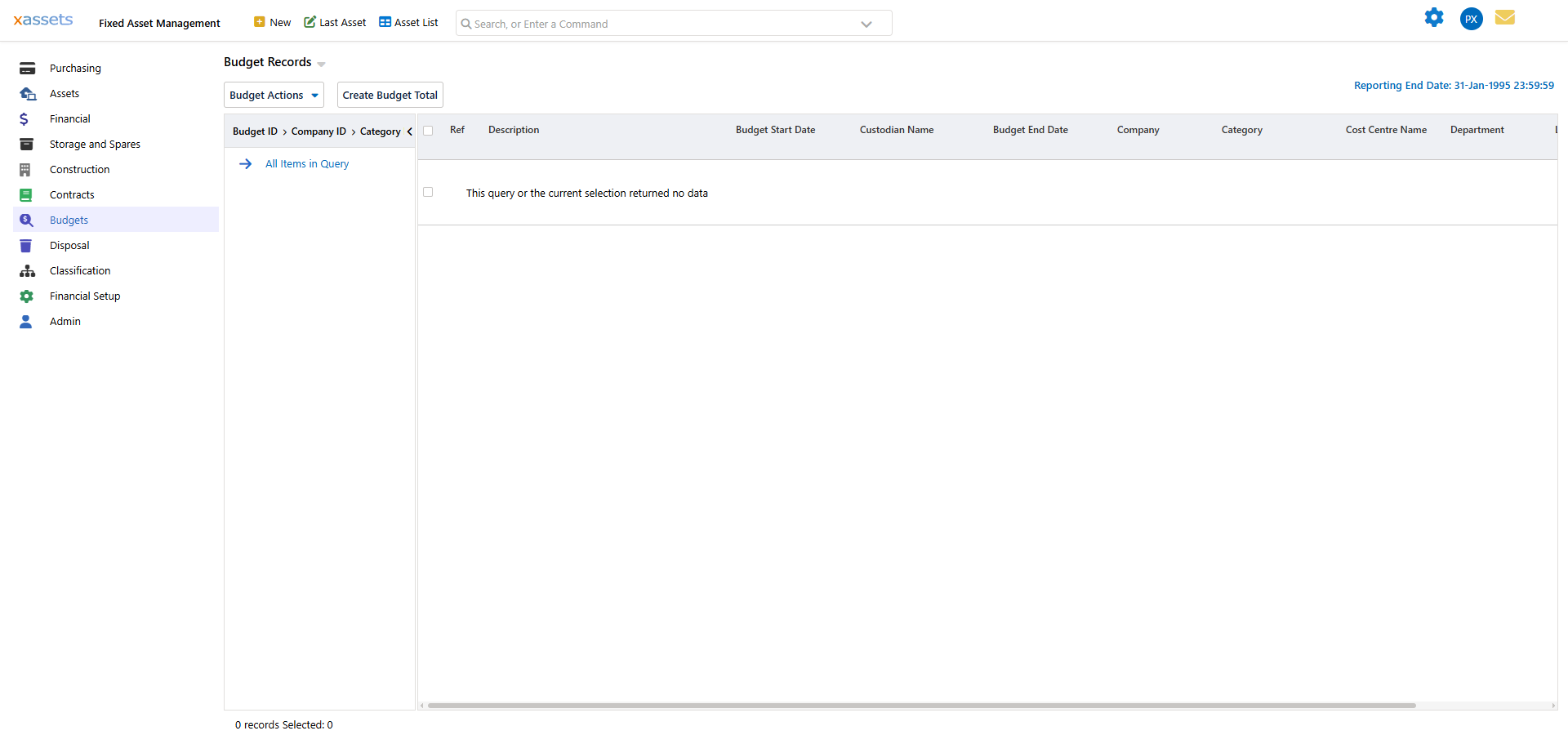
The grid's columns include Ref, Description, Budget Start Date, Custodian Name, Budget End Date, Company, Category, Cost Centre Name and Department, scrolling further right to the budget amount and the actual/forecast transaction totals recorded against each entry. If no entries have been created yet for the current selection, the grid reports "This query or the current selection returned no data" - use Create Budget Entries first.
Click an entry to open it and set the budget amount, custodian, and notes. A separate Create Budget Total button on this screen creates a single ad-hoc budget total record outside the slot-based generation process described above.
Bulk Editing Budget Entries
For efficiency, select multiple rows on the Budget Records grid, open Budget Actions, and choose Bulk Update Budget Entries in a Single Edit to update several budget amounts at once rather than editing each entry individually. This is particularly useful when:
- Setting initial budget amounts across many entries
- Applying a percentage increase to all budgets
- Adjusting budgets after a mid-year review
Use Select All / Deselect All in the same Budget Actions menu to manage the selection first.
Budget vs Actuals Reporting
Each budget entry tracks three values:
| Value | Description |
|---|---|
| Budget Amount | The approved target amount |
| Actual Transactions | Real fixed-asset transactions (e.g. additions) recorded against this dimension |
| Forecast Transactions | Forecasted transaction amounts for the remainder of the period |
Comparing these shows whether spending is on track:
- Under budget - Actual + Forecast is less than Budget Amount
- On budget - Actual + Forecast approximately equals Budget Amount
- Over budget - Actual + Forecast exceeds Budget Amount
Use the Budget vs Actuals menu item (under Budgets) to review these values, either at summary level (totals by company/category) or in detail (individual transactions against each budget entry).
Tip: Review budget vs actuals monthly as part of your period-end process. This helps catch overspending early and allows for corrective action before year-end.
Deleting Budget Entries
On the Budget Records grid, select the entries to remove, open Budget Actions, and choose Delete Selected Budget Entries. This removes the budget entries only - actual transaction records are not affected.
Warning: Deleting budget entries removes the budget targets and any variance tracking for those entries. This cannot be undone. If you need to zero out a budget rather than delete it, edit the entry and set the budget amount to zero instead.
Related Articles
- Accounting Periods - The period structure used by budget entries
- Valuations - Financial values that inform budget planning
- Total Cost of Ownership - Using historical cost data for budget forecasting
- Multi Company Environments - Per-company budget management