Asset Register
The Asset Register is the primary way to browse, search, and report on your fixed asset inventory. Use it to find assets, review their financial status, and produce printable register reports for audits and management review.
Prerequisites
- You must be in the Fixed Asset Management profile (see Fixed Asset Management Profile).
Opening the Asset Register
Click Assets in the left-hand navigation, then choose Asset Register. This opens the Capital Asset Register screen - a query that lists capital assets (by default, assets valued over 1,000) with a Category tree on the left for filtering:
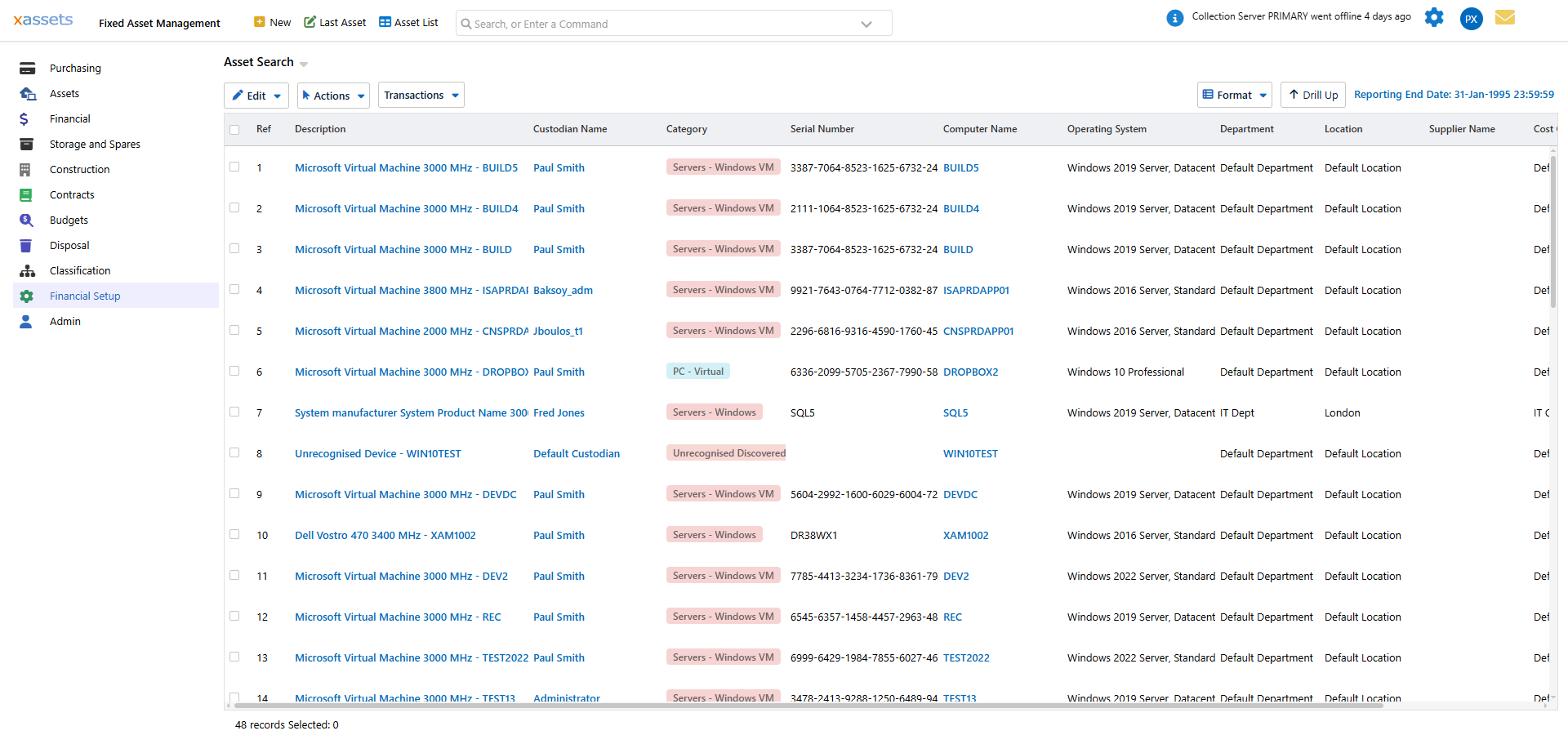
If no assets meet the value threshold in your data, the grid shows "This query or the current selection returned no data" - this is expected on a system with only low-value or non-capitalized assets loaded.
Browsing Assets by Category
The Category tree on the left groups assets by asset type (e.g. Servers, PCs, Software License Asset). Click All Items in Query to see everything the query returns, or drill into a branch to narrow the list to one category or category group.
The same tree-based browsing is also available, unfiltered, from the Asset List button in the top toolbar - this opens All Assets, grouped by Category Group > Category, without the capital-value filter:
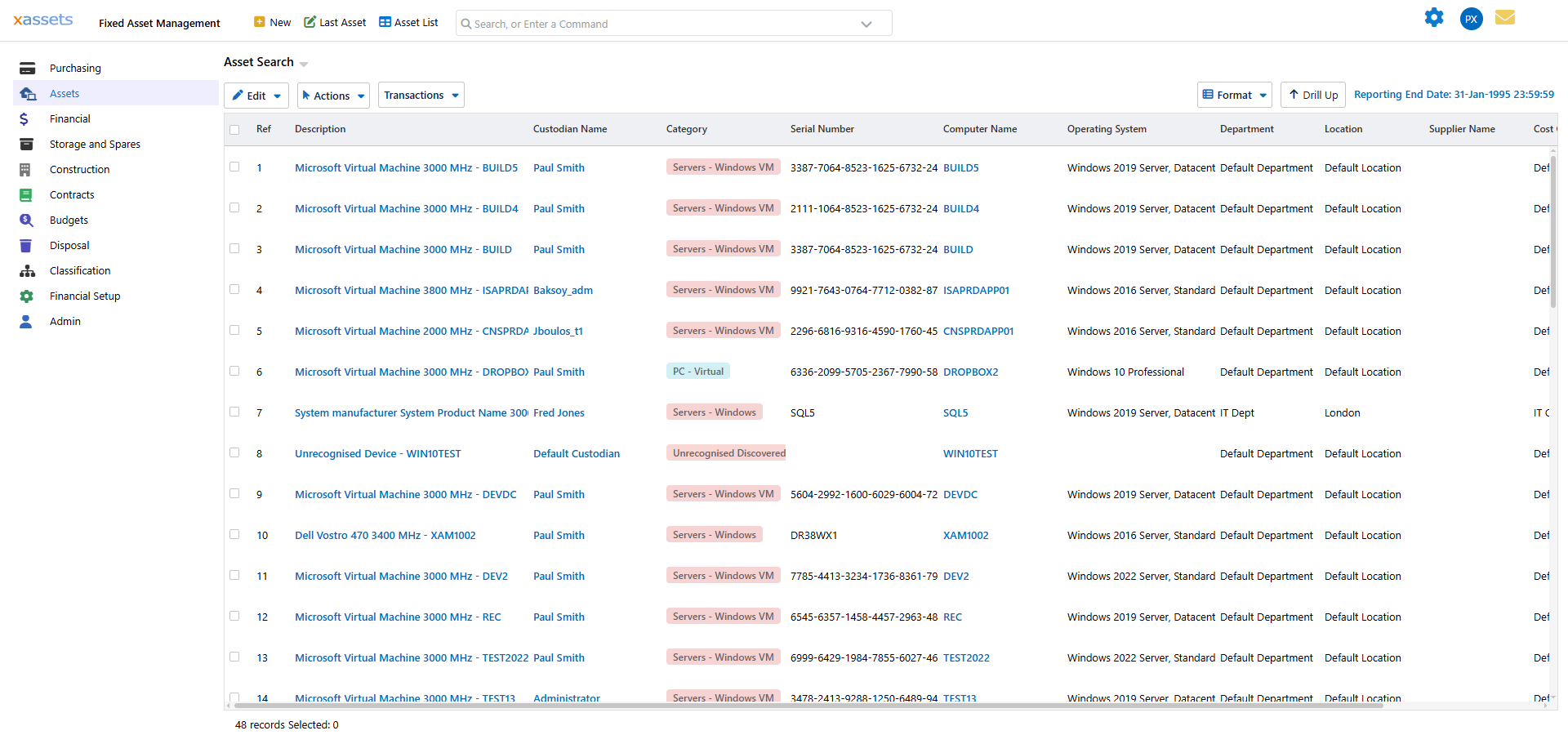
Tip: Use the search bar above the results to filter further within the selected tree node, and click column headers to sort.
Disposal-Related Views
Under the Assets menu you will also find:
- Assets Due for Disposal - Assets flagged for disposal but not yet processed. Reviewing this list regularly helps you identify upcoming replacement needs and plan capital expenditure.
- Disposed Assets - Assets already disposed of. These records are retained for audit trail purposes and can be used to review disposal history, including sale proceeds and gain/loss on disposal.
Printable Register Reports
The Asset Register also provides printable, PDF-format reports that reproduce the register grouped a specific way:
- Asset Register By Category
- Asset Register By Location
- Asset Register By Cost Centre
- Asset Register By Custodian
- Asset Register By Importance
- Asset Register by Department
These are suitable for:
- Audit support - Providing external auditors with a complete asset register at a point in time
- Management review - Distributing PDF reports to managers who do not have system access
- Baseline records - Producing a snapshot of the register at period-end before and after depreciation
Related Depreciation Summary reports (by Category and by Location) are also available alongside these.
Working with Assets
From any asset list view, you can:
- Open an asset - Click the blue link on the asset description to open the asset editing screen. From there, navigate to financial data, depreciation setup, and transactions.
- Select multiple assets - Use Shift+Click or Ctrl+Click to select multiple rows, then use the Actions menu for bulk operations.
- Sort and filter - Click column headers to sort, or use the search bar to filter by keyword. The Format button controls which columns are shown and lets you export the grid.
Tip: If you cannot find an asset, check whether it has been disposed - disposed assets are excluded from the standard asset register views but appear in the Disposed Assets list.
Related Articles
- Financial Asset Information - Viewing financial data on individual assets
- Disposal - Disposing of assets
- Classification Menu - Managing categories, locations, and other reference data