Financial Asset Information
This page explains how to view and manage financial information on individual assets. Every asset in the register has financial data including purchase cost, depreciation charges, net book value, and depreciation setup. Understanding how to access and interpret this data is essential for financial controllers managing the asset register.
Prerequisites
- You must be in the Fixed Asset Management profile (see Fixed Asset Management Profile).
- Assets must already exist in the register (see Receive or Procure).
Accessing Assets
Click Asset List in the header menu bar, or use any asset search, to display the asset list:

The asset list shows summary information for each asset. To view the full financial details, click the blue link on the asset's description to open the asset editing screen.
Navigating Financial Data
Within the asset editing screen, the left-hand navigation panel provides access to financial sections. Under Asset Data you will find Edit Asset, Purchasing, All Asset Data, History and Images and Documents. Below that, at the same level as Relationships, expand Financials to see the financial sections:
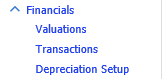
Expanding Financials reveals three links: Valuations, Transactions and Depreciation Setup. Both the navigation links and the screens they display are form-driven and can be customised by an administrator.
Purchasing Information
The Purchasing link under Asset Data shows the core acquisition details:

Key fields include:
| Field | Description |
|---|---|
| Acquisitioner | The person or custodian who requested/acquired the asset. |
| Supplier | The vendor who supplied the asset. |
| Procurement Starts | The date the procurement process began, if raised through a purchase request. |
| Date Purchased | The date the asset was acquired. This is financially significant - it determines when depreciation begins. |
| Quantity | The number of items this asset record represents. A single record can represent multiple identical items. |
| Currency / Amount | The purchase currency and the total purchase price for all items in this record. |
| Company | The owning company, for multi-company estates. |
| Cost Centre | The cost centre the purchase is charged to. |
| PO Number | The purchase order number, if the asset was received through the procurement workflow. |
| Invoice Number | The supplier invoice reference, if recorded. |
Tip: If a single asset record represents multiple items (Quantity > 1), the purchase amount is the total for all items. Depreciation is calculated on the total amount. If you need to depreciate items individually (for example, because they may be disposed of at different times), create separate asset records for each item.
Valuations
The Valuations screen provides a read-only summary of financial values for the selected asset, for the current reporting period:

Key valuation fields:
| Field | Description |
|---|---|
| Original Value | The acquisition cost of the asset. |
| Accumulated Depreciation | Total depreciation charged to date across all periods. |
| Net Book Value | Original value minus accumulated depreciation - the asset's current book value. |
| Net Book Value Forecast / PE | Projected and period-end net book value figures. |
| Depreciation This Period / This Year | The depreciation charge for the current accounting period, and year-to-date. |
| Disposal Cost / Disposal Sale Amount / Gain Or Loss On Disposal | Populated once the asset has been disposed. |
| Replacement Value / Revaluation Value | Alternate valuations used for insurance or revaluation reporting. |
Figures are shown per book (use the Home Currency selector to switch currency) and reflect the last completed period-end depreciation run - they do not update in real time.
Tip: If the valuation figures look incorrect or show zero, check whether depreciation has been calculated for the current period (see The Monthly Accounting Process). A newly-created asset shows zero depreciation until the first period-end run includes it.
Transactions
The Transactions link shows all financial transactions recorded against the asset. This includes purchases, depreciation charges, disposals, and manual adjustments. See the Financial Transactions page for details on viewing, adding, and editing transactions.
Depreciation Setup
The Depreciation Setup link shows two grids:
- Book Membership - which books (for example Corporate, Tax, MACRS, Special) the asset is currently on, with its net book value on each book, and whether transactions on that book are locked.
- Depreciation Profiles - the depreciation rule in force for each book: the from/to date range, the Depreciation Type (for example "Straight Line over Recovery Period", "Standard 20% Declining Balance", "GDS Tables", "No Depreciation"), any manual amount override, and the recovery period.
Use Add Rule / Remove Rule to add a new date-banded depreciation profile section, for example when a tax rule or recovery period changes partway through an asset's life. See Assigning Depreciation Types to Assets for details on configuring the underlying Depreciation Types and Books.
Working with Financial Data Across Multiple Assets
To review financial data across many assets at once, use the query views available from the Financial menu rather than opening each asset individually. Key queries include:
- Depreciation in Current Period - Lists depreciation charges for all assets
- Asset Register by Category - Shows original value and NBV grouped by category
- Depreciation by Cost Centre - Shows depreciation charges grouped by cost centre
For custom views, create a query of type "Asset" and include "AssetValue." prefixed fields (e.g. AssetValue.OriginalValue, AssetValue.NetBookValue).
Related Articles
- Financial Transactions - Detailed transaction management
- Valuations - Understanding valuation reports and fields
- Assigning Depreciation Types to Assets - Viewing and changing depreciation rules on individual assets
- Month End Results - Reports for reviewing depreciation results