Assigning Depreciation Types to Assets
This page explains how to view and change the depreciation settings for an individual asset. While most assets inherit their depreciation rules from their category (see Assigning Depreciation Types to Categories), you can override the rules at the asset level when different treatment is needed - for example, an asset with a shorter useful life than the category default.
Prerequisites
- You must be in the Fixed Asset Management profile (see Fixed Asset Management Profile).
- You should have an asset record open in the editing screen (see Financial Asset Information).
Accessing Depreciation Setup for an Asset
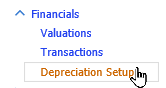
Open the asset's Edit Asset dialog and click Financials in the left-hand navigation panel to expand it, then click Depreciation Setup:
The Depreciation Setup screen has two parts: Book Membership, which lists every Book (Corporate, MACRS, Special, Tax, or whatever Books are configured) and whether the asset is included in each one, and Depreciation Profiles, which lists the actual depreciation rule(s) in effect for the asset, one row per book (or per date-banded rule within a book).
Use the Book dropdown above the Depreciation Profiles grid to filter the list down to a single book. The default, All Books, shows every book's rules together in one grid.
To change which books an asset belongs to, tick the checkbox next to a book in Book Membership and use Add Asset(s) to Selected Book or Remove Asset(s) From Selected Book.
Understanding Depreciation Rules
Each asset's depreciation setup consists of one or more rules (also called profile sections), one per book. Each rule defines the depreciation formula (Depreciation Type) applied during a specific date range. A book can have more than one rule if the depreciation method needs to change during the asset's life - for example, switching from straight-line to declining balance partway through.
Note: The screen displays this reminder: "The First Start date for each book should be 01-Jan-1990, Last End date should be 01-Jan-2099. In-Service dates will override these values." By default a new asset gets a single rule per book spanning this full range; you only need to add extra rules if the method changes mid-life.
Example: Changing Depreciation Method Mid-Life
If a rule needs to change partway through an asset's life - for instance, straight-line depreciation until a point in time, then declining balance afterward - you add a second rule starting on the change date. The system automatically shortens the first rule's End Date to meet the new rule's Start Date, so the two periods never overlap:
| Date Range | Depreciation Type |
|---|---|
| 01-Jan-1990 - (change date) | Straight Line over Recovery Period |
| (change date) - 01-Jan-2099 | Standard 20% Declining Balance |
The system calculates the correct charge for each period based on which rule is in effect on that date.
Rule Fields
Click Edit... next to a rule, or Add Rule, to open the Edit/New Depreciation Rule dialog:
The dialog has these fields:
| Field | Description |
|---|---|
| Book | Which book (Corporate, MACRS, Special, Tax, etc.) this rule applies to. |
| Start Date / End Date | The date range this rule is in effect. A new rule defaults to starting now and ending 01-Jan-2099; adding a rule automatically trims the end date of the preceding rule so ranges never overlap. |
| Depreciation Type | The depreciation formula, selected from the list of defined Depreciation Types. This is a required field. |
| Recovery Period | The useful life in periods (months). Used by formulae like straight-line. |
| Salvage Currency / Salvage Value | The currency and residual value at end of life. Formulae that reference salvage value will depreciate down to this amount rather than zero. |
| Depreciation Rule | An optional named rule applied after the formula calculates a value, for cases the formula alone cannot express. |
| Apply Indexation | Whether annual indexation is applied to the depreciable base. Typically used for property assets. |
| Manual Amount / Manual Dep Flag | A fixed charge amount, and a flag to force the engine to use it instead of calculating from the formula. |
| Max Depreciation Rule / Max Depreciation Parameter 1 / Max Depreciation Parameter 2 | An optional cap applied after the formula and any Depreciation Rule - for example, statutory luxury-vehicle depreciation limits, with the parameters supplying the limit values. |
| Percent Business Use | The percentage of business use (0-100%). Formulae that reference this field prorate the depreciation charge accordingly. |
| Force Currency / Fixed Exchange Rate | Overrides the currency and exchange rate used for this rule, for assets whose depreciation needs to be calculated in a currency other than the book's default. |
Tip: Recovery Period, Percent Business Use, and Salvage Value only take effect if the chosen Depreciation Type references them. If you set a salvage value but the formula does not use it, the system depreciates to zero. Check the formula definition if values are not behaving as expected.
Adding a Rule
To add a new depreciation rule to a book:
- Click Add Rule on the Depreciation Profiles grid.
- Confirm the Book the rule belongs to.
- Select the Depreciation Type (required).
- Set the Start Date for the new rule.
- Enter the recovery period, salvage value, and other parameters as needed.
- Click OK, then Save on the asset.
The system automatically adjusts the date ranges of existing rules in the same book so that no rules overlap. If you insert a new rule that starts before an existing rule's End Date, the existing rule's End Date moves back to meet the new rule's Start Date.
To remove a rule, tick its checkbox in the Depreciation Profiles grid and click Remove Rule.
Editing a Rule
Click Edit... next to an existing rule to change its parameters. You can change the Depreciation Type, Recovery Period, Salvage Value, and the other fields described above. Changes take effect from the next depreciation calculation.
Warning: Changing depreciation rules on an asset that has already been depreciated affects future calculations but does not retroactively change past transactions. If you need to correct past depreciation, use the Rewind function (see The Monthly Accounting Process) to recalculate from the period where the change should take effect.
When to Override at the Asset Level
Common reasons to override the category default include:
- Shorter useful life - A vehicle with high mileage that will be replaced sooner than the category default
- Different salvage value - An asset with a known resale value different from the category default
- Partial business use - An asset used partly for personal purposes, requiring a reduced depreciation charge via Percent Business Use
- Policy change for existing assets - When a depreciation policy change applies to specific assets but not all assets in the category
- Different book membership - Removing an asset from a book it should not be depreciated under (or adding it to a book it was missed from) via Book Membership
Related Articles
- Assigning Depreciation Types to Categories - Setting category-level defaults
- Assigning Depreciation Types to Many Assets - Changing rules for multiple assets at once
- Depreciation Types - Defining the formulae
- Reviewing Depreciation Setup - Verifying the configuration