The Monthly Accounting Process
At each period end, you calculate depreciation for all assets. This produces the depreciation transactions and the journal files you export to your accounting system. This is the core recurring process in fixed asset management and typically runs once per month (or once per accounting period). This page walks through each step, explains what happens behind the scenes, and covers error recovery.
Prerequisites
- You must be in the Fixed Asset Management profile (see Fixed Asset Management Profile).
- Your financial setup must be complete: books, depreciation types, accounting periods, and nominal codes (see Financial Setup Introduction).
- Depreciation rules should be reviewed before calculating (see Reviewing Depreciation Setup).
The Monthly Workflow
The standard period-end workflow is:
- Review setup - Check that depreciation rules are correct and any new assets have been properly configured.
- Calculate depreciation - Run the calculation for the current period. This produces both the depreciation transactions and the journal files for that period.
- Review results - Check reports to verify the figures before relying on them.
- Rewind and recalculate - If you find an error, rewind the period and correct the setup before recalculating.
- Export journals - Send the produced journal files to your general ledger.
Calculating a period automatically advances the "current period" pointer to the next one - there is no separate step to manually close a period.
Accessing Period End Processing
Navigate to Financial > Period End Processing (in the Fixed Asset Management profile):
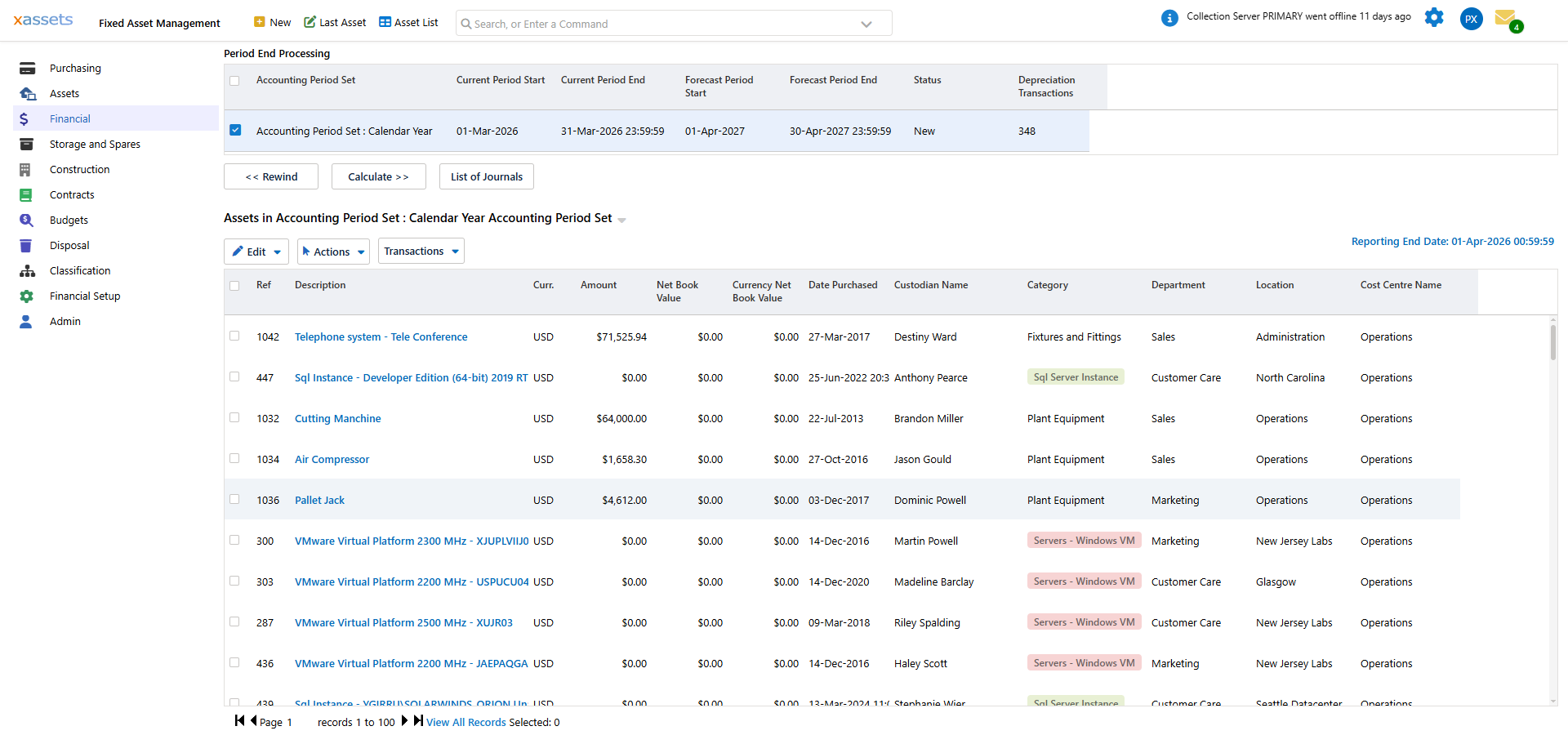
The screen lists each accounting period set with its current and forecast periods and its status (e.g. "New" if the current period has not yet been calculated), and three buttons: << Rewind, Calculate >> and List of Journals. Select the period set's checkbox, and the register of assets in that period set is shown below with their current net book values.
Step 1: Calculate Depreciation
Select the accounting period set and click the Calculate >> button to open the Calculate Depreciation dialog:

The dialog confirms the accounting period set, its current status, and the period(s) it will calculate to. You can adjust Calculate to Period Ending and Forecast to Period before confirming with Calculate Period >>, or Cancel to back out without making any changes:

What Happens During Calculation
The system processes every asset in every book:
- For each asset, it identifies the depreciation rule in effect for the current period (based on the rule's date range).
- It applies the depreciation formula using the asset's current values (original cost, accumulated depreciation, salvage value, recovery period, etc.).
- It creates a depreciation transaction for each asset-book combination.
- It updates the asset's accumulated depreciation and net book value.
Only assets that are eligible for depreciation are processed:
- Assets with a depreciation type of "No Depreciation" are skipped.
- Assets whose status does not match the depreciation type's basis (e.g. "In Service" vs. "In Existence") are skipped.
- Fully depreciated assets (NBV already at salvage value) are skipped.
Processing Time
After you confirm Calculate Period >>, the batch job runs on the server. While it is running, the screen shows a transient processing indicator and the Calculate and Rewind buttons are unavailable until it completes:

Processing time depends on the number of assets and books. A register of a few thousand assets typically completes in under a minute. Larger registers may take several minutes.
Tip: Do not close the browser during calculation. Although the batch job runs on the server and will complete regardless, keeping the page open lets you see the completion status and proceed to review.
Step 2: Review Results
Once calculation is complete, review the results before producing journals. See Month End Results for the available reports and queries.
Key checks:
| Check | What to Look For |
|---|---|
| Total depreciation | Does the total charge look reasonable compared to last month? A significant change may indicate a configuration error. |
| Individual outliers | Are there assets with unusually high or low charges? Check their depreciation setup. |
| New assets | Did recently added assets depreciate correctly? Check that they inherited the right formula. |
| Disposed assets | Were disposed assets excluded from the calculation? |
| Zero-charge assets | Are there assets that should be depreciating but show a zero charge? They may have a missing or incorrect formula. |
Warning: Always review depreciation reports before producing journals. Once journals are exported and posted to your accounting system, reversing them requires manual adjustments in both systems.
Rewinding Depreciation
If you find errors after calculating, click the << Rewind button to open the Rewind Depreciation Calculations dialog:

The dialog confirms the period set and its current status, and requires you to choose a Rewind to Period before << Rewind Period(s) is actioned. Use Cancel to back out.
What Rewind Does
- Deletes all depreciation transactions for the current period.
- Resets accumulated depreciation and net book values to their pre-calculation state.
- Returns the period to a "not yet calculated" state so you can make corrections and recalculate.
When to Rewind
- A depreciation type was assigned incorrectly and needs to be changed before journals are produced.
- A new asset was added with the wrong purchase amount.
- A disposal should have been processed before the calculation but was missed.
Rewind Limitations
- Rewind only affects the current period. You cannot rewind a period that has already been advanced past (i.e. a period for which journals have been produced and the system has moved to the next period).
- Rewind does not undo journals. If you have already produced and exported journals, rewinding the depreciation in xAssets does not reverse the entries in your general ledger. You would need to post manual reversals in the GL.
Tip: If you discover an error in a past period (one that has already been closed), the recommended approach is to make the correction and let it flow through as an adjustment in the current period. Do not attempt to reopen and rewind past periods unless your administrator supports it and your auditors approve.
Step 3: Journal Files
Journal files are produced automatically as part of the Calculate batch job - there is no separate "produce journals" step to run. Once calculation is complete, use the List of Journals button on the Period End Processing screen to view and manage the generated files:
Journal file format and content are controlled by a journal transformation, configured to match what your accounting system expects (CSV, XML, fixed-width, etc.). Transformation configuration is covered in the Configuration Guide under Data Transformations.
Accessing Journal Files
Journals are normally written to a journals directory published by your system administrator. When a calculation has produced journal files for the current period set, they also appear in a contextual Journal Files list below the Rewind / Calculate / List of Journals buttons on the Period End Processing screen:
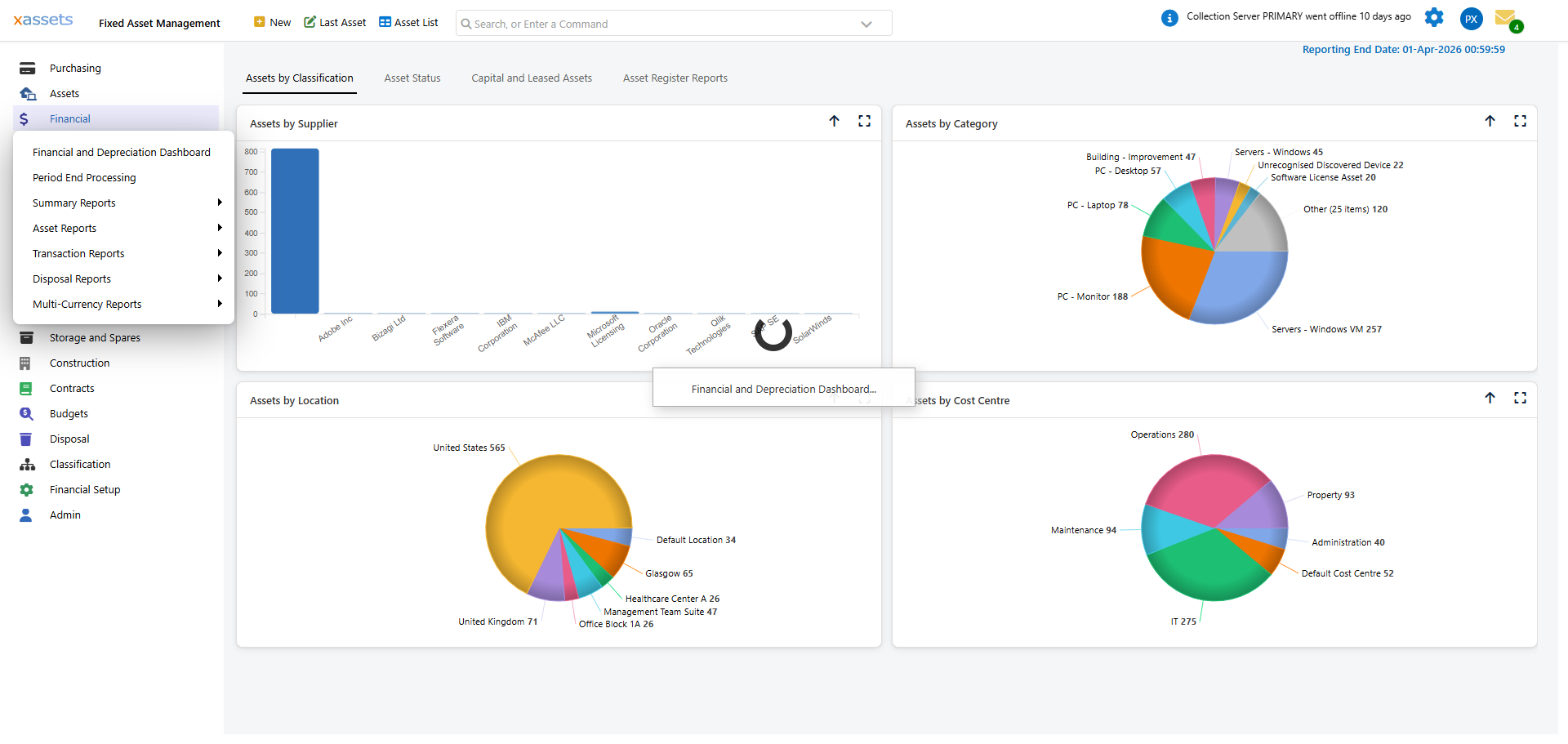
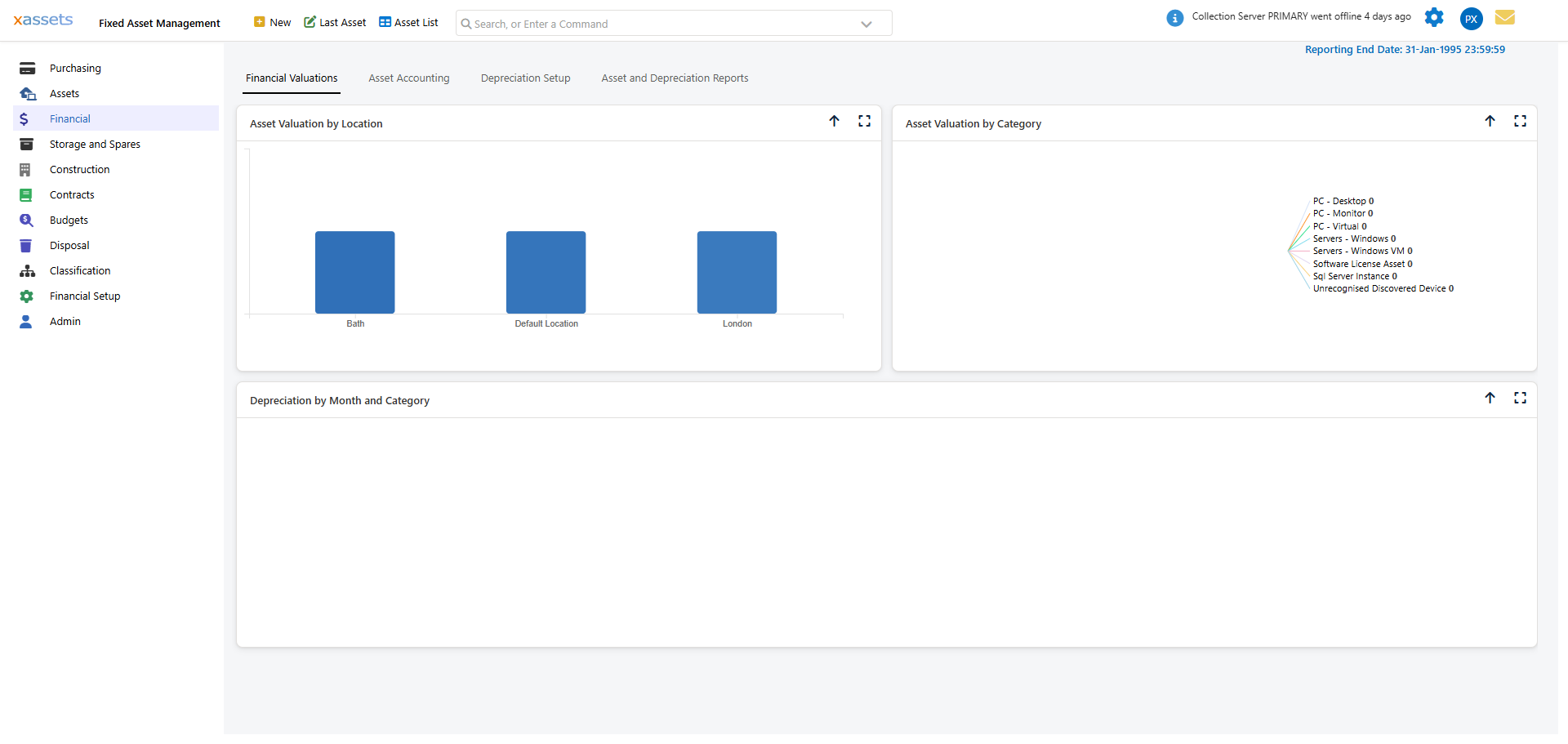
Alternatively, view all journal files from Financial > List of Journals, which opens the same Journal Files list directly:
What Happens If You Skip a Month
If you miss a period-end calculation (for example, you do not calculate July's depreciation before August arrives):
- The system still tracks which period is "current." It does not automatically advance.
- When you next run the calculation, it processes the current period (July in this example).
- You then need to run the calculation again for the next period (August), and so on until you catch up.
Each period must be calculated in sequence - you cannot skip ahead to the latest period. This ensures the financial trail is complete and each period's opening balances match the previous period's closing balances.
Warning: If multiple periods are outstanding, you must calculate each one in order and export its journals before moving to the next. Do not attempt to make a single large adjustment to "catch up" - this breaks the period-by-period audit trail.
Checklist: Period-End Processing
Use this checklist each month:
- Review depreciation setup for new or changed assets
- Ensure all disposals for the period have been processed
- Calculate depreciation
- Review total depreciation and check for outliers
- Verify new assets depreciated correctly
- Rewind and recalculate if corrections are needed
- Review the journal files produced by the calculation (List of Journals)
- Export journals to the general ledger
Related Articles
- Month End Results - Reports for reviewing depreciation after calculation
- Reviewing Depreciation Setup - Pre-calculation review
- Disposal - Processing disposals before period-end
- Accounting Periods - Period structure and status
- Nominal Codes - How journals map to your general ledger