Analysing Discovered Data
After discovery completes and data is loaded into the database, the Discover module's dashboard gives you a set of tabs for reviewing what was found, running discovery-specific reports, and checking the overall accuracy of your inventory. This page explains how to use those tools to analyse your discovered estate and identify areas that need attention.
Prerequisites
- At least one discovery run has completed and data has been loaded into the database.
- You are logged in with a profile that has access to the Discover module (for example, IT Asset Management).
The Discovered Assets Tab
Open Discover on the left-hand navigator, then click the Discovery Dashboard menu item. The dashboard opens with several tabs across the top: Getting Started, Discover, Discovered Assets, Discovery Reports, Inventory Accuracy, and Integrations.
The Discovered Assets tab is the best starting point for analysis. It shows:
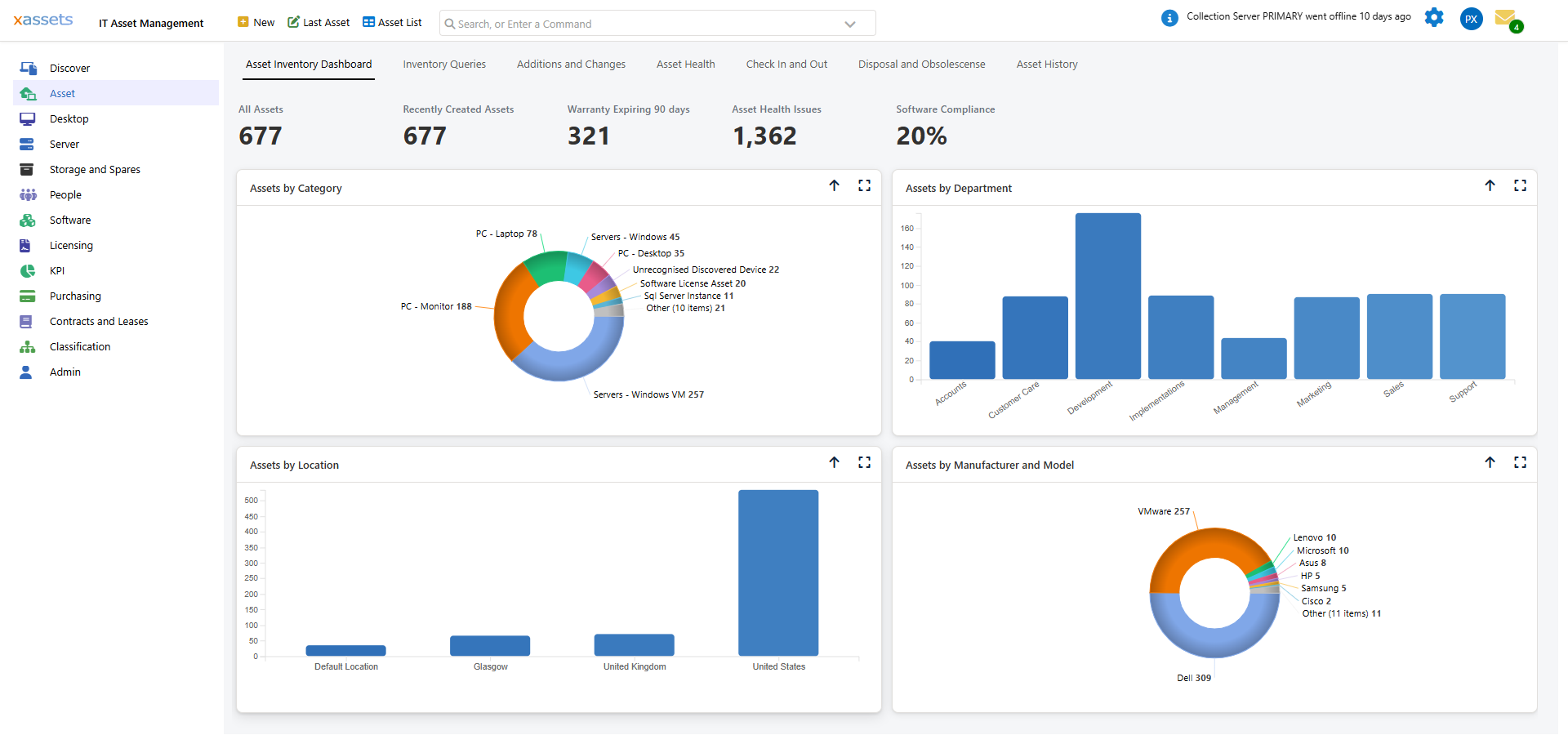
- Discovery Load Analysis -- a summary table of key counts: Total Discovered Assets, Total Discovered Assets In Service, IP Addresses Discovered, Unrecognised Discovered Devices, Undiscovered VMs detected, Computers Partially/Fully Discovered, and Disposed Assets.
- Discovered Assets by Category -- a donut chart breaking discovered assets down by category (for example PC - Desktop, Servers - Windows, Servers - Windows VM, PC - Monitor).
- Discovered Assets by Location -- a bar chart of discovered assets by location.
- Discovery Run Date Statistics -- a grid listing each discovery run date with the number of devices last discovered, devices first discovered, and AD/fully-discovered computer counts.
- Discovery Analysis by Domain -- a grid summarising discovery totals and failures per AD domain.
Each panel has an up-arrow icon to collapse it and a full-screen icon (top-right of the panel) to expand it for a larger view.
Expanding a Chart
Click the full screen icon (the expand icon in the top-right corner of any chart) to open it in a larger view. In full screen mode, a category tree appears on the left showing every asset category in the system:
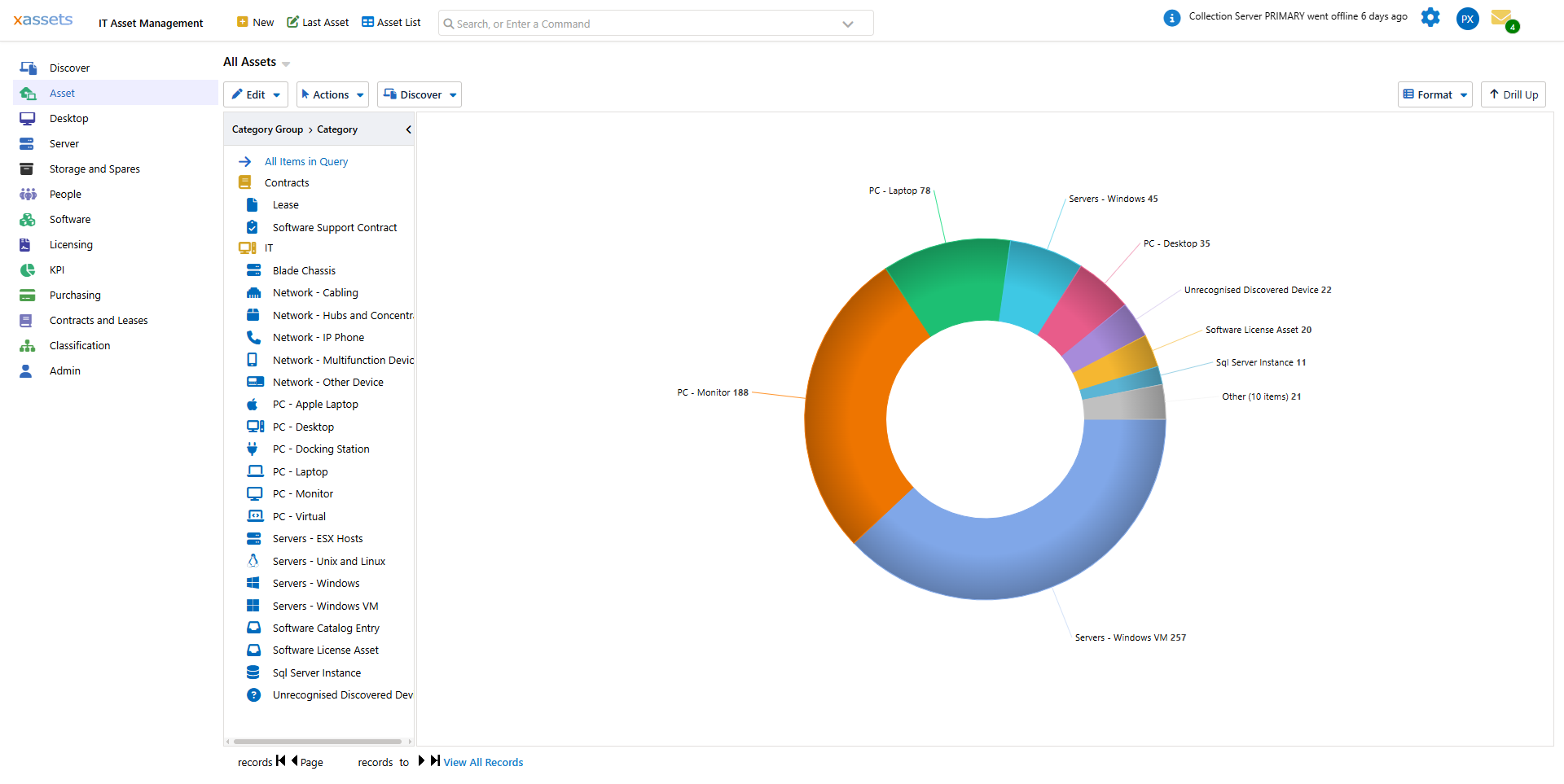
From this view you can:
- Click a chart segment to filter the results to that category only.
- Click an item in the category tree on the left to jump directly to a specific asset type.
- Click "All Items in Query" at the top of the tree to return to the unfiltered view.
- Use the paging controls at the bottom to navigate through large result sets, or click View All Records to see everything at once.
Discovery Reports
Click the Discovery Reports tab for a library of pre-built discovery reports, organised as clickable links:
- Status and accounting -- Discovery Status Report (Summary / Assets / Exceptions Only), Node Accounting Report (Summary / Detailed), Discovery Run Date Statistics.
- Breakdowns -- Discovered Assets by Category, Discovered Assets by Location, Incomplete Computers By Domain, Discovery Analysis by Domain.
- Duplicate and change detection -- Duplicates by Computer Name, Duplicates by Serial Number, Duplicates by IP Address, Computers with Name Changes.
- Ignored Assets -- devices that have been excluded from discovery processing.
Click any report name to run it. Below the report links, the Newly Discovered Assets grid lists assets first seen in the last 30 days (Ref, First Seen, Discovery Run Date, Description, Custodian, Category); it shows "No Assets have been Discovered in the past 30 days" when nothing new has come in.
See Hardware Analysis by Attribute for detailed descriptions of related hardware queries.
Inventory Accuracy
Click the Inventory Accuracy tab to run the Inventory Accuracy Report -- a single checklist that is the fastest way to see what needs attention after a discovery run. Each row is a Description, a Requires Attention count (or Yes/No), and an Action link that jumps straight to the relevant screen:
| Check | Action link |
|---|---|
| Collection Servers exist | Setup a Collection Server |
| Discovery Credentials Exist | Manage Credentials |
| IP Address Ranges not mapped to a location | Manage Locations and IP Ranges |
| IP Ranges associated with the Default Location | Manage IP ranges Mapped to Default Location |
| Assets associated with the Default Location | Show Assets in Default Location by IP Range |
| Unrecognised Discovered Devices Exist | Show Unrecognised Discovered Devices |
| Discovered Devices with Exceptions | Discovery Status Report - Exceptions Only |
| Virtual Machine hosts without a guest / guests without a host | Show VM Hosts without a guest / Show VM guests without a host |
| Monitors not connected to a PC | Show Orphaned Monitors |
| Duplicate Assets by Serial Number | Manage duplicate Assets |
| Assets without a responsible custodian | Show Assets without a Responsible Custodian |
| Locations with no map coordinates | Show Locations with no map coordinates |
| Discovered assets not seen for over 30 days | Show Assets Last Seen More Than 30 Days Ago |
| Discoverable Assets Not Yet Discovered | Show Discoverable Assets Not Yet Discovered |
Work through any row that shows a non-zero count or "Yes" under Requires Attention -- clicking the Action link opens the underlying list or setup screen so you can resolve it directly.
Tips for Effective Analysis
- Start with Inventory Accuracy. It is the fastest way after a new discovery run to see exactly what needs attention, with a direct link to fix each item.
- Check "Unrecognised Discovered Devices." These are devices that could not be automatically classified into a category -- review and reclassify them so they are not missing from your counts.
- Compare asset counts against expectations. If you expected 500 desktops but Discovery Load Analysis only shows 300, some machines may be offline, firewalled, or in a subnet that was not scanned.
- Use Discovery Reports for recurring checks. Duplicates by Computer Name/Serial Number/IP Address and Computers with Name Changes catch data-quality issues that accumulate over multiple discovery runs.
- Compare over time. Re-run the same reports after each discovery to track trends, such as a growing number of assets in a location or a rising duplicate count.
Related Articles
- Asset Inventory Overview - the main dashboard layout and KPI tiles
- Hardware Analysis by Attribute - detailed hardware queries
- Discovered Data for a Single Asset - viewing all discovered data for one asset