Discovered Data for a Single Asset
To view the full discovered data for a single asset, open the Edit Asset dialog by clicking the asset description (the blue link) in any query result or asset list. This page describes the information available in the dialog's left-hand menu and how to move between the different data screens for a discovered computer.
Opening an Asset
Click any asset description in a query result, dashboard chart drilldown, or asset list -- for example, from Asset > Asset List. The Edit Asset dialog opens showing the asset's core details:
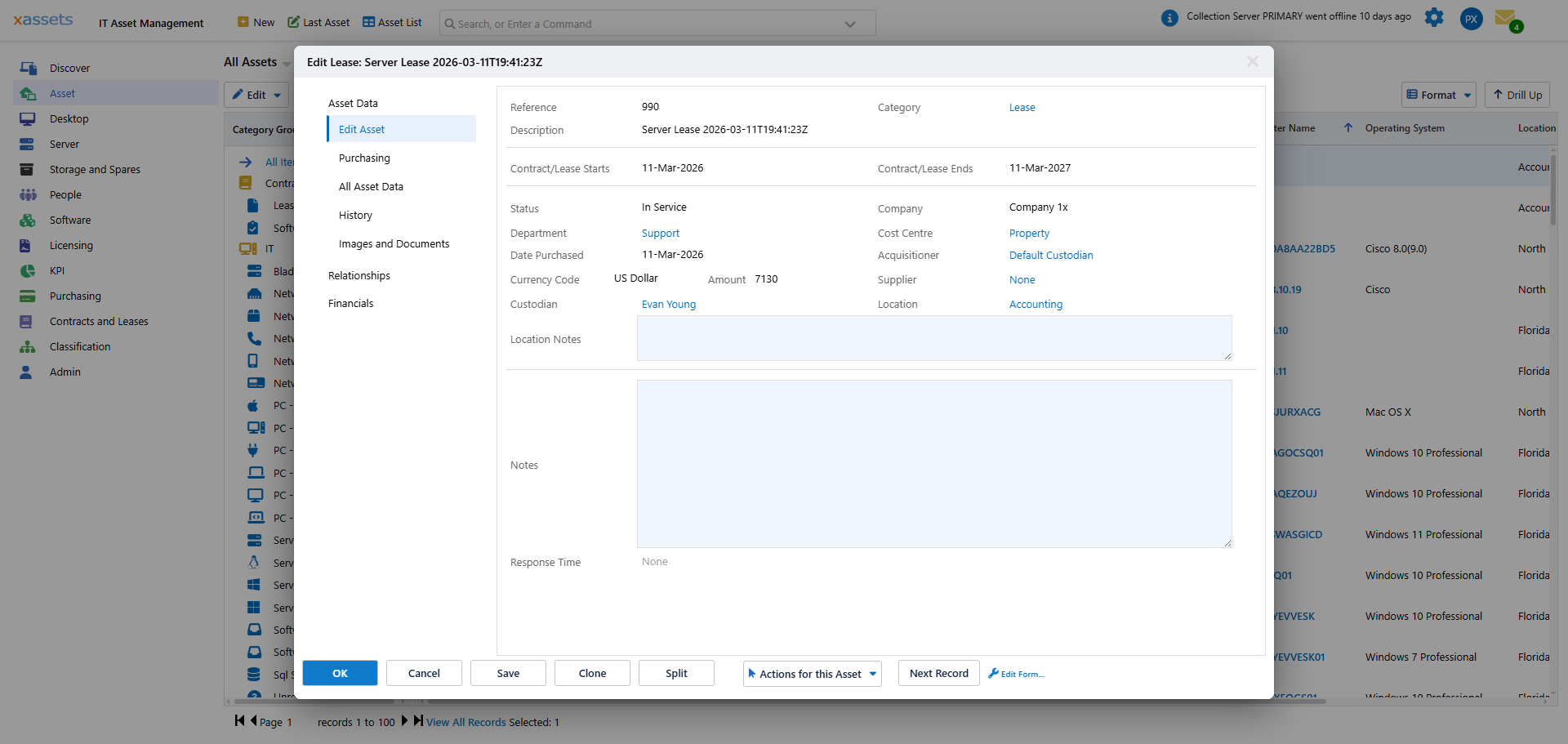
The main form shows the asset's reference, description, serial number, category, barcode, date purchased, status, manufacturer, and model, along with collapsible sections for Organization (company, department, custodian, responsible person, location, supplier), Warranty and Servicing, Computer Details (computer name, IP address, domain name, CPU speed, memory, operating system), and Discovery Details.
Left-Hand Menu
The left-hand menu inside the Edit Asset dialog is organized into collapsible groups. Click a group heading to expand it and reveal its items. The groups and items available for a discovered computer (a PC/Desktop or Server category asset) are:
Asset Data
| Menu Item | Type | What It Shows |
|---|---|---|
| Edit Asset | Form | The main asset record -- reference, category, status, custodian, location, warranty dates, and computer details |
| Purchasing | Form | Purchase order and procurement details linked to this asset |
| All Asset Data | Form | Every field on the asset record in a single scrollable view -- useful for reviewing all data without switching tabs |
| History | Query | A chronological log of all changes made to this asset, including who made each change and when |
| Images and Documents | Form | Attached photographs, documents, and files. See Attaching Images and Documents. |
IT Asset Management -- Data Collected by Network Discovery
| Menu Item | Type | What It Shows |
|---|---|---|
| Operating System | Form | OS name, version, service pack, architecture, installation date, Windows product key, disk drive letters and sizes |
| Hardware | Form | Manufacturer, model, serial number, screen resolution, video card, motherboard details, CPU summary, total memory, BIOS version |
| Device Manager | Query | All hardware devices detected on the machine, similar to the Windows Device Manager display |
| Firewall | Query | Firewall rules configured on the machine |
| CPU | Query | Detailed information for each processor slot (speed, cores, architecture) |
| Memory | Query | Individual memory modules with size, speed, type, and slot location |
| Disk | Query | Physical and logical disk details including capacity, free space, and partition information |
| Network | Form | Network adapter details, IP addresses, MAC addresses, DNS settings |
| Printers | Query | Printers installed on the machine (both local and network) |
Software -- Installed Software, Licensing, and Monitoring
| Menu Item | Type | What It Shows |
|---|---|---|
| Software Titles | Query | All software products discovered on this machine, with version and publisher |
| Licensable Products | Query | Software that has been matched to a licensable product in the software catalogue |
| Software Licenses | Query | Licence records held for this machine |
| Software Keys | Query | Product keys discovered on this machine |
| Reliability | Query | System reliability and uptime data |
| Patch | Query | Installed Windows updates, patches, and hotfixes |
| Auto Run | Query | Programs configured to start automatically at boot or login |
| Services | Query | Windows services, their status, and startup configuration |
| Assigned Licenses | Query | Software licences allocated to this asset by the licensing engine |
Relationships
| Menu Item | Type | What It Shows |
|---|---|---|
| Related Assets | Query | Parent, child, and sibling asset relationships. See Parent Child Relationships. |
| Contracts & Leases | Query | Contracts and lease agreements linked to this asset |
| Assigned Licenses | Query | Software licences allocated to this asset (same data as under Software) |
Financials
| Menu Item | Type | What It Shows |
|---|---|---|
| Valuations | Query | Depreciation and valuation history for this asset |
| Transactions | Query | Financial transactions (purchases, transfers, disposals) recorded against this asset |
Maintenance
| Menu Item | Type | What It Shows |
|---|---|---|
| Service Data | Query | Service and maintenance history for this asset |
| Service Plans | Query | Service plans scheduled or applied to this asset |
Check Out
A single screen for checking this asset out to, or back in from, a custodian.
Forms vs. Queries
The menu items open either a form or a query:
- A form is displayed when the information is one-to-one with the asset -- for example, a computer has one operating system, one computer name, and one serial number. Forms allow you to view and edit the data directly.
- A query is displayed when the information is one-to-many -- for example, a computer has many installed software titles, many devices, and many memory modules. Queries show a sortable table of results.
Tip: The "All Asset Data" form is useful when you need to see everything at once without clicking through multiple tabs. It displays every field on the asset record in a single scrollable page.
Navigating Between Assets
Use the Next Record button at the bottom of the dialog to step forward to the next asset in the current list without closing and reopening the dialog. A Previous Record button appears alongside it once you are past the first record in the list. This is useful when reviewing a series of assets from a query result.
The Actions for this Asset dropdown at the bottom provides additional operations: Dispose of or Delete this Asset, Transfer this Asset, Open the Purchase Order for this Asset, Clone This Asset, Split This Asset, and New Incident for This Asset.
Tip: If you are reviewing multiple assets from a query, use Previous/Next to move through them sequentially rather than closing and reopening the dialog each time. This is significantly faster.
Tip: The groups and items visible in the left-hand menu depend on the asset's category. A software licence asset, for example, will show different items than a discovered computer. If an item you expect is not visible, it may not be relevant to the current asset category.
Related Articles
- Asset Inventory Overview — the main dashboard and its components
- Analysing Discovered Data — using charts and queries to analyse your estate
- Editing Assets — editing asset fields and using the editing screen
- Hardware Analysis by Attribute — queries for analysing hardware specifications