Contracts
Contracts in xAssets track agreements such as hardware maintenance contracts, software support and licence agreements, leases, and service level agreements. Use the Contracts and Leases module to monitor start and end dates, link contracts to the assets they cover, and get advance warning of upcoming expirations.
Why Track Contracts
Without centralised contract tracking, organisations risk:
- Missed renewals -- contracts expire without notice, causing gaps in coverage
- Unnecessary spending -- contracts auto-renew for assets that have been disposed of
- Audit failures -- inability to demonstrate that assets are covered by valid agreements
- Operational risk -- hardware maintenance lapses on business-critical servers
Viewing Contracts
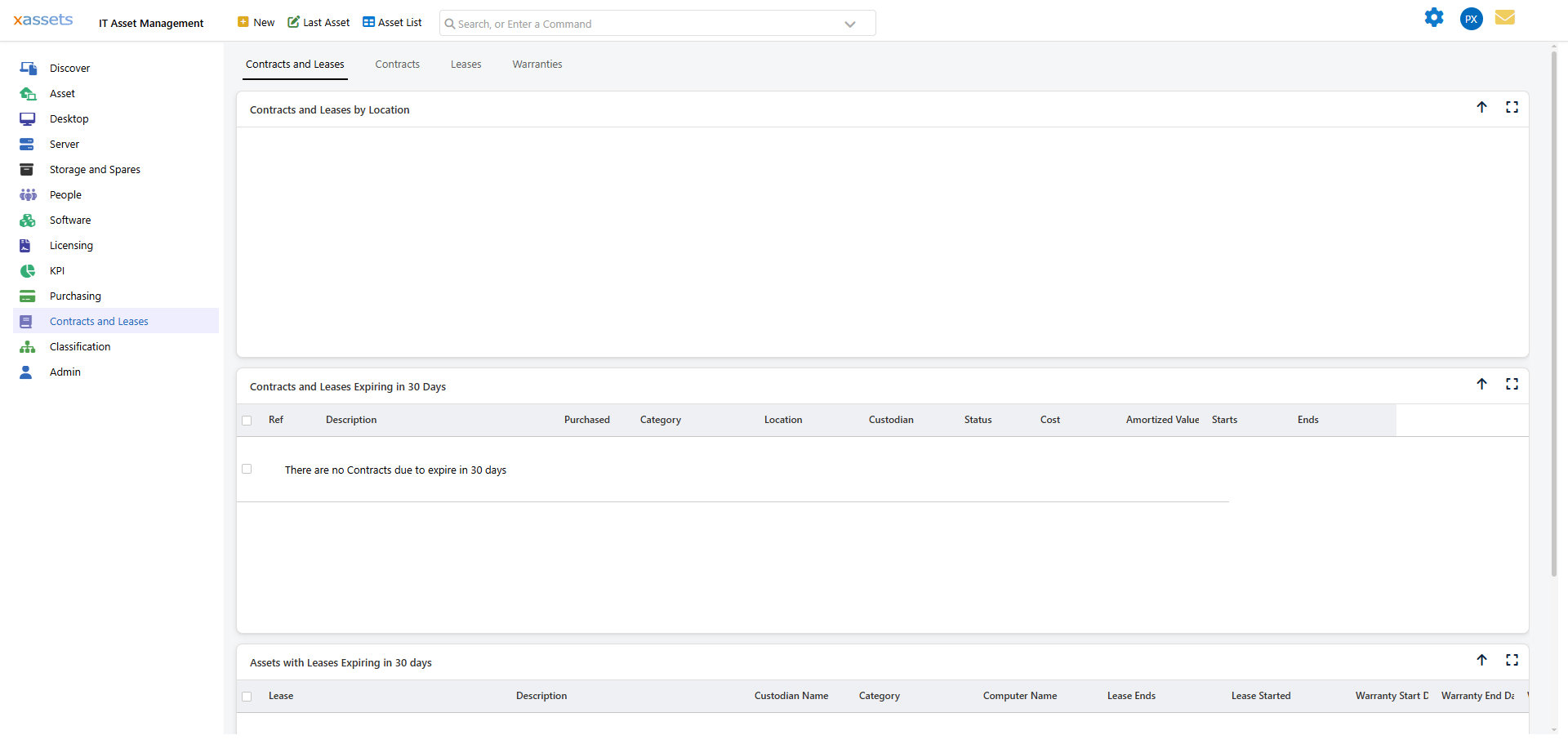
Navigate to Contracts and Leases in the left-hand navigation to open the Contracts Dashboard. The dashboard has four tabs -- Contracts and Leases, Contracts, Leases, and Warranties. The default tab gives a combined overview, including a "Contracts and Leases by Location" chart and a grid of contracts and leases expiring in the next 30 days:
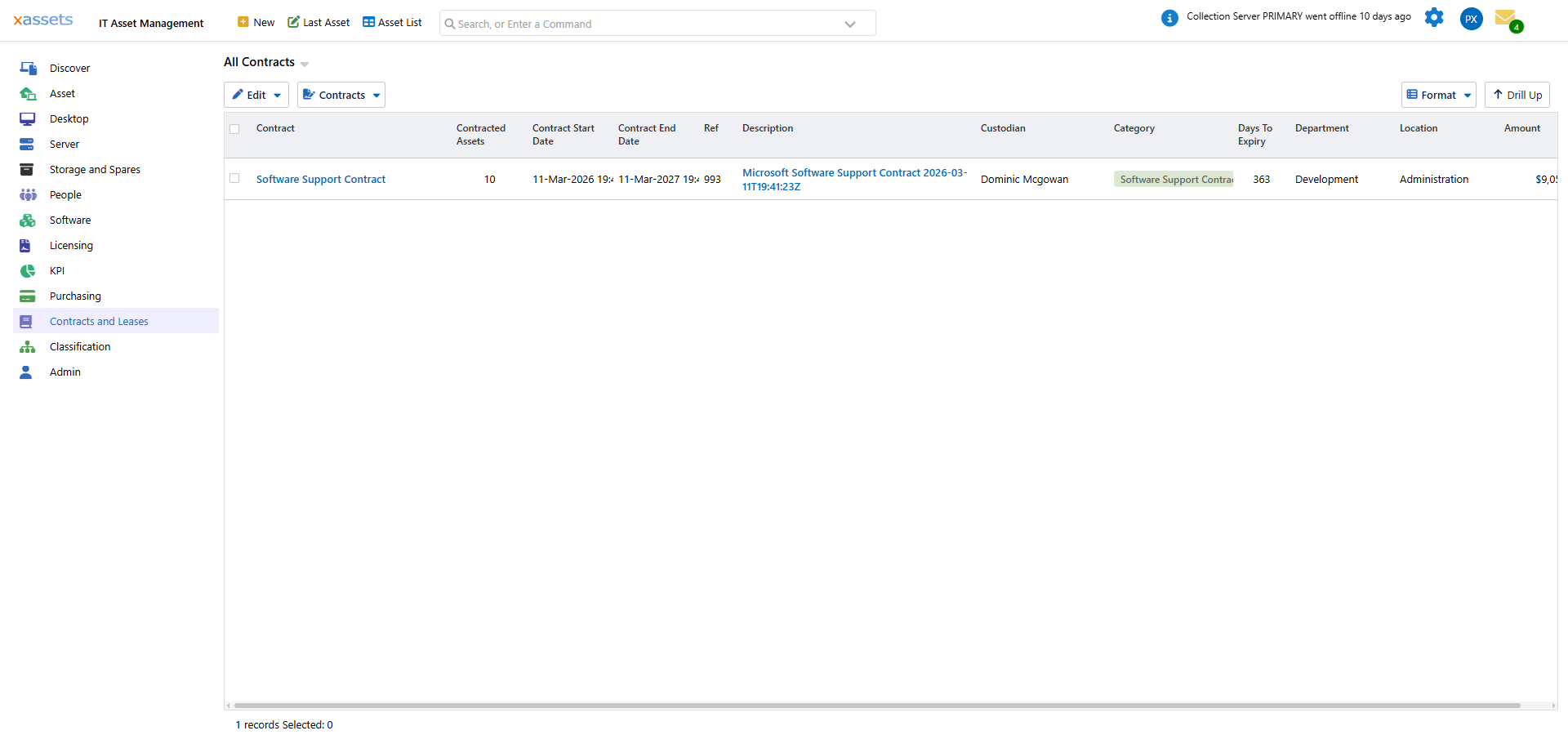
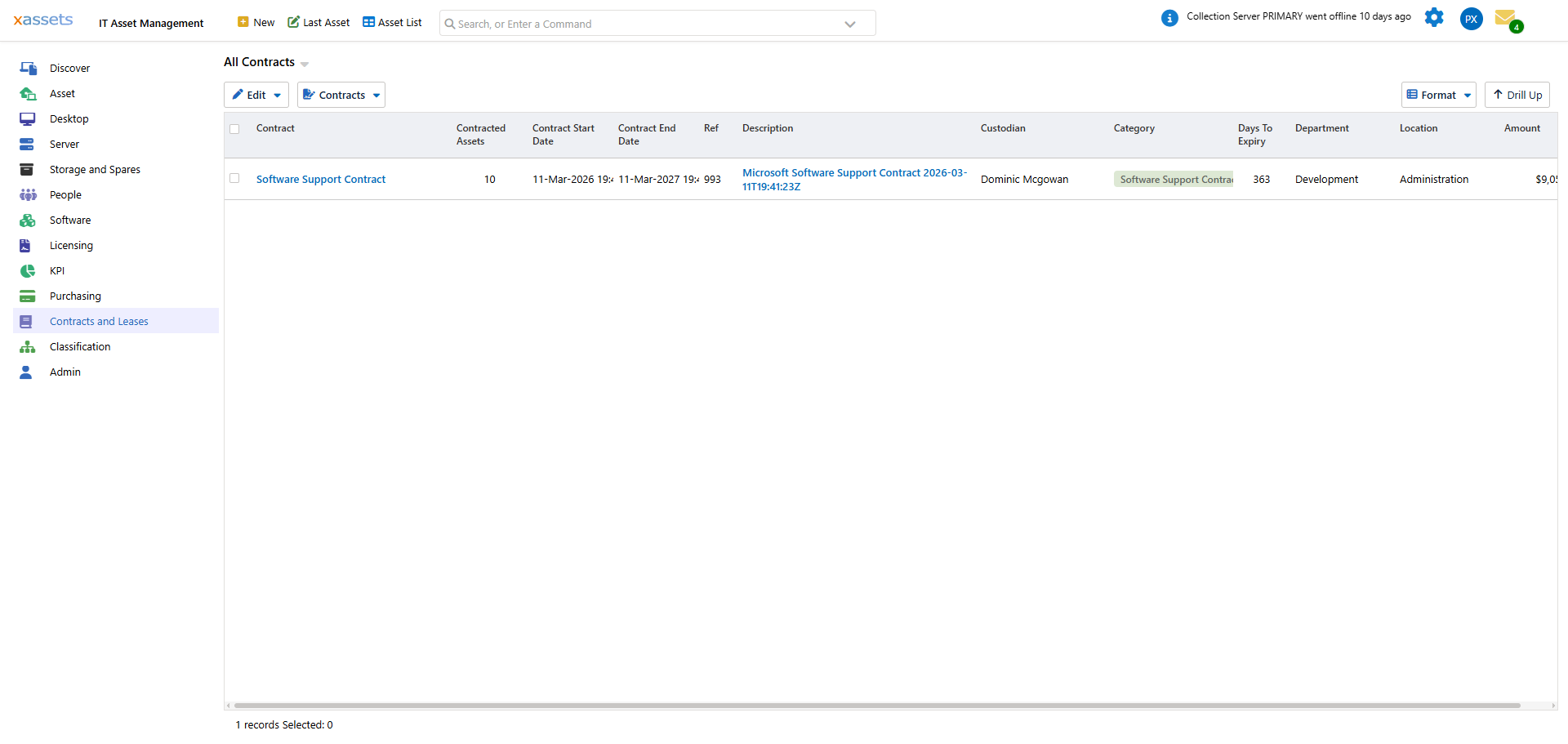
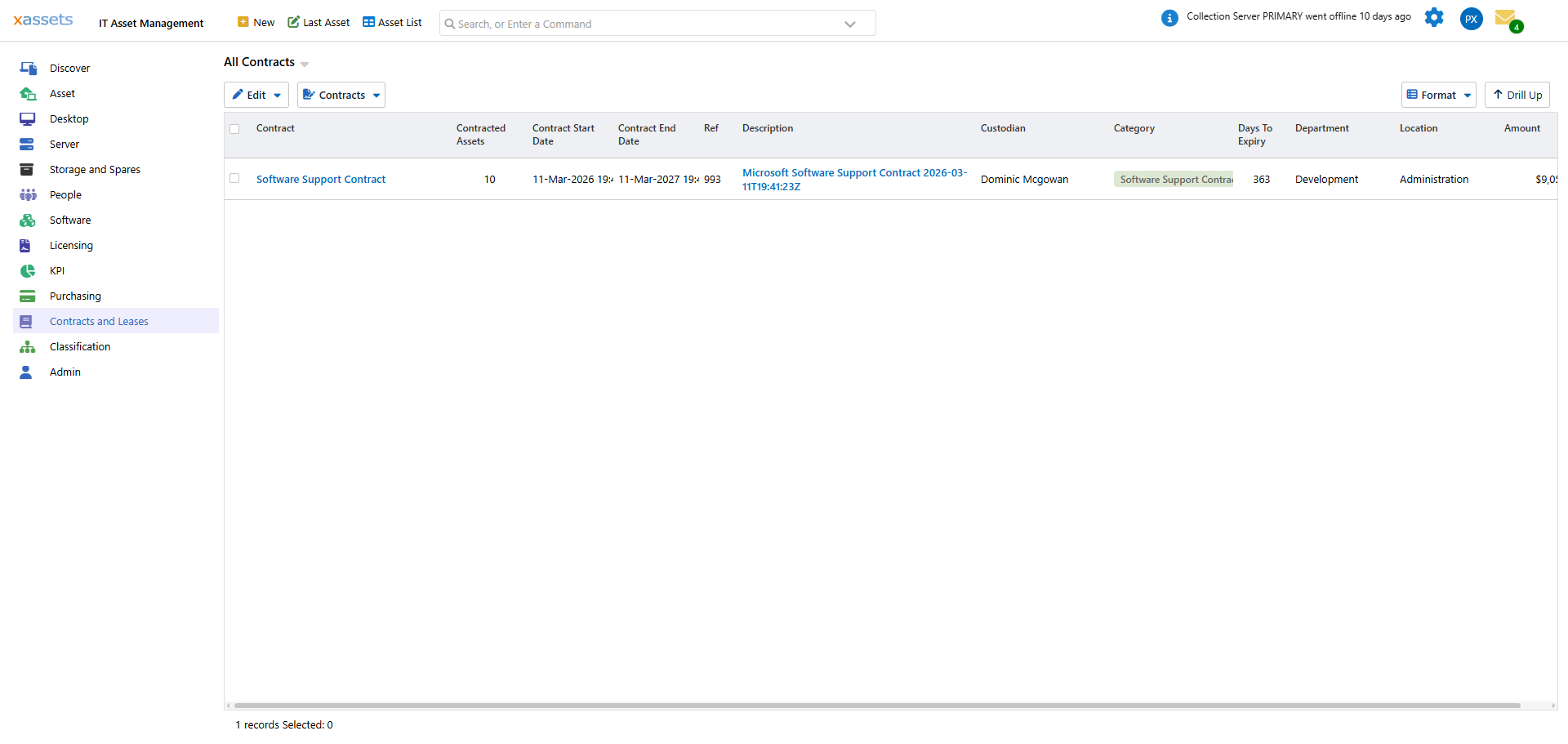
Click the Contracts tab (or the Contracts menu item) to see a flat list of all contract records, with columns for Contracted Assets, Contract Start/End Date, Custodian, Category, Days To Expiry, Department, Location, and Amount:
Click a row in the list to open that contract. The editor has sections down the left for Asset Data (Edit Asset, Purchasing, All Asset Data, History, Images and Documents), Relationships (Related Assets, Contracted Assets) and Financials:
Key Contract Fields
| Field | Purpose |
|---|---|
| Reference / Description | Identifies the contract or agreement |
| Category | Type of contract (Standard Contract, Hardware Maintenance Contract, Software Support Contract, Lease, Service Level Agreement, Software License Agreement, etc.) |
| Supplier | The vendor or provider |
| Contract/Lease Starts / Contract/Lease Ends | The contract term |
| Amount | The contract value, in the record's Currency Code |
| Status | e.g. In Service, Disposed |
| Department / Cost Centre / Custodian / Location | The owning business unit and the person and place responsible for the agreement |
Contract Expiry
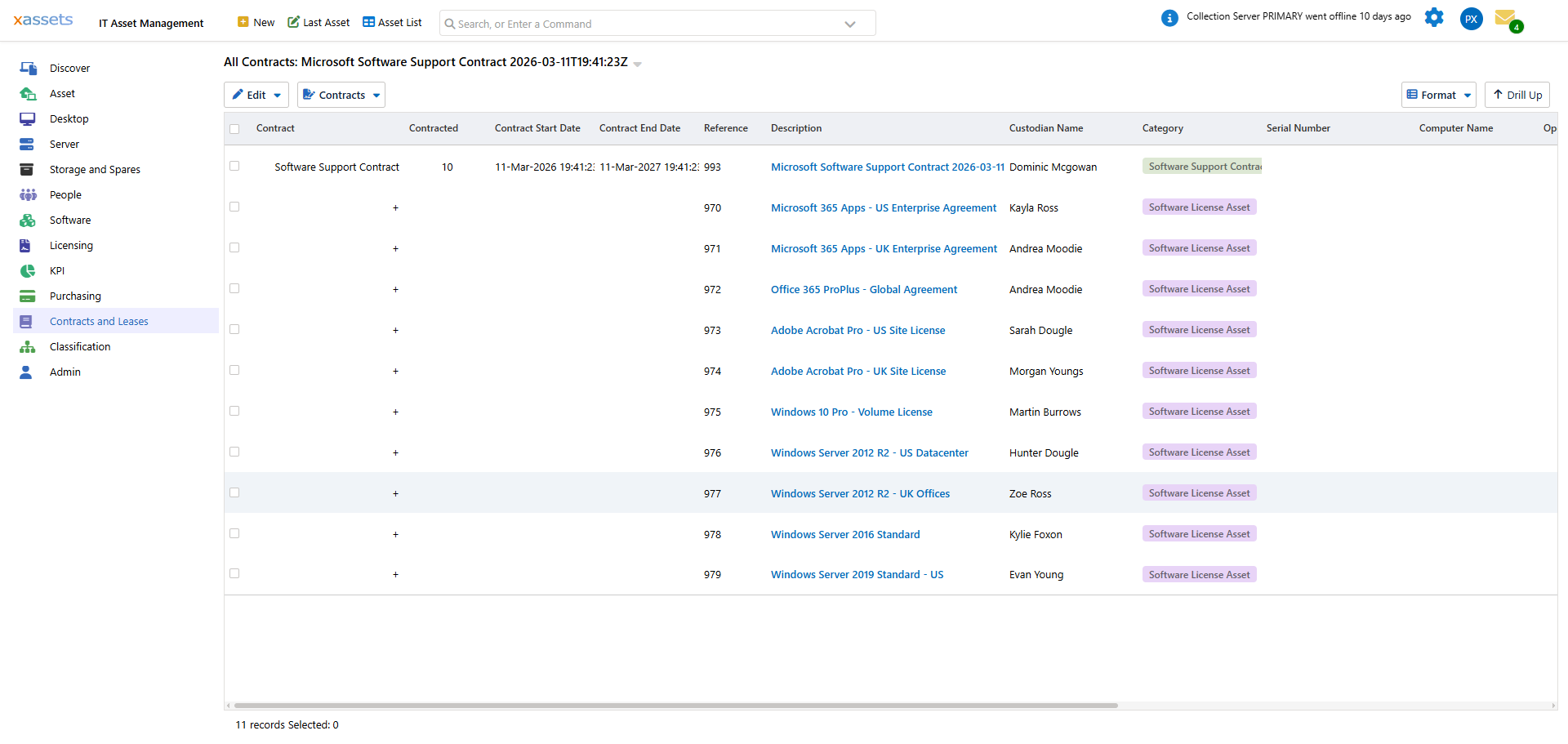
The Contracts and Leases dashboard highlights contracts and leases due to expire, and the module includes dedicated menu items -- Contracts Expiring in 30 Days, Contracts Expiring in 90 Days, Leases Expiring in 30 Days and Leases Expiring in 90 Days -- for closer review. The All Contracts list also carries a Days To Expiry column:
Tip: Set up email notifications (see Email Notifications) to receive automatic alerts when contracts approach their expiry date. This removes the need to check the dashboard manually.
Creating and Managing Contracts
Use New Contract (or New Lease for leases) from the Contracts and Leases menu to create a record. The New Contract dialog asks for the category first -- Lease, Operational Level Agreement, Service Level Agreement, Software License Agreement, Software Support Contract, Standard Contract or Underpinning Contracts -- and optionally a template to copy from. Click Create Asset to open the editor, which is the same form used when editing an existing contract:
To retire a contract, open it and set its Status, in the same way as any other asset record.
Leases
Leases are managed the same way as contracts -- a lease is simply a record with the Category set to "Lease". To create one, use New Lease from the Contracts and Leases menu:
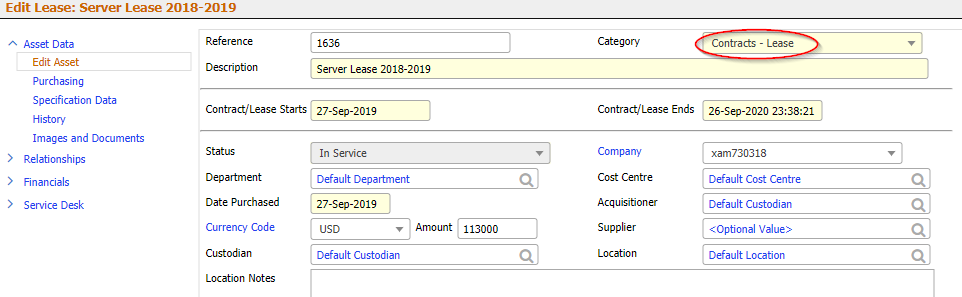
The New Lease form pre-selects the Lease category and otherwise uses the same fields as any other contract (Description, Contract/Lease Starts and Ends, Department, Cost Centre, Custodian, Location, Supplier, Amount). Its Financials section adds Valuations, Transactions, and Depreciation Setup tabs for tracking the lease's asset value over time.
Linking Assets to Contracts and Leases
To associate physical assets with a contract or lease, use one of these methods:
Method 1: Drag and Drop
Drag assets from a query results screen directly onto the contract record.
Method 2: Copy and Paste
- Select the assets you want to link from a results screen
- Choose Query > Copy -- a dialog confirms the copied records

- Open the contract or lease record

- Choose Paste Children...
- Select the appropriate Dependency Type (e.g., "Is Lease For" for leases, "Is contract for" for other contract types):

- Click OK
After linking, the Contracted Assets count in the All Contracts list updates to reflect the associated assets.
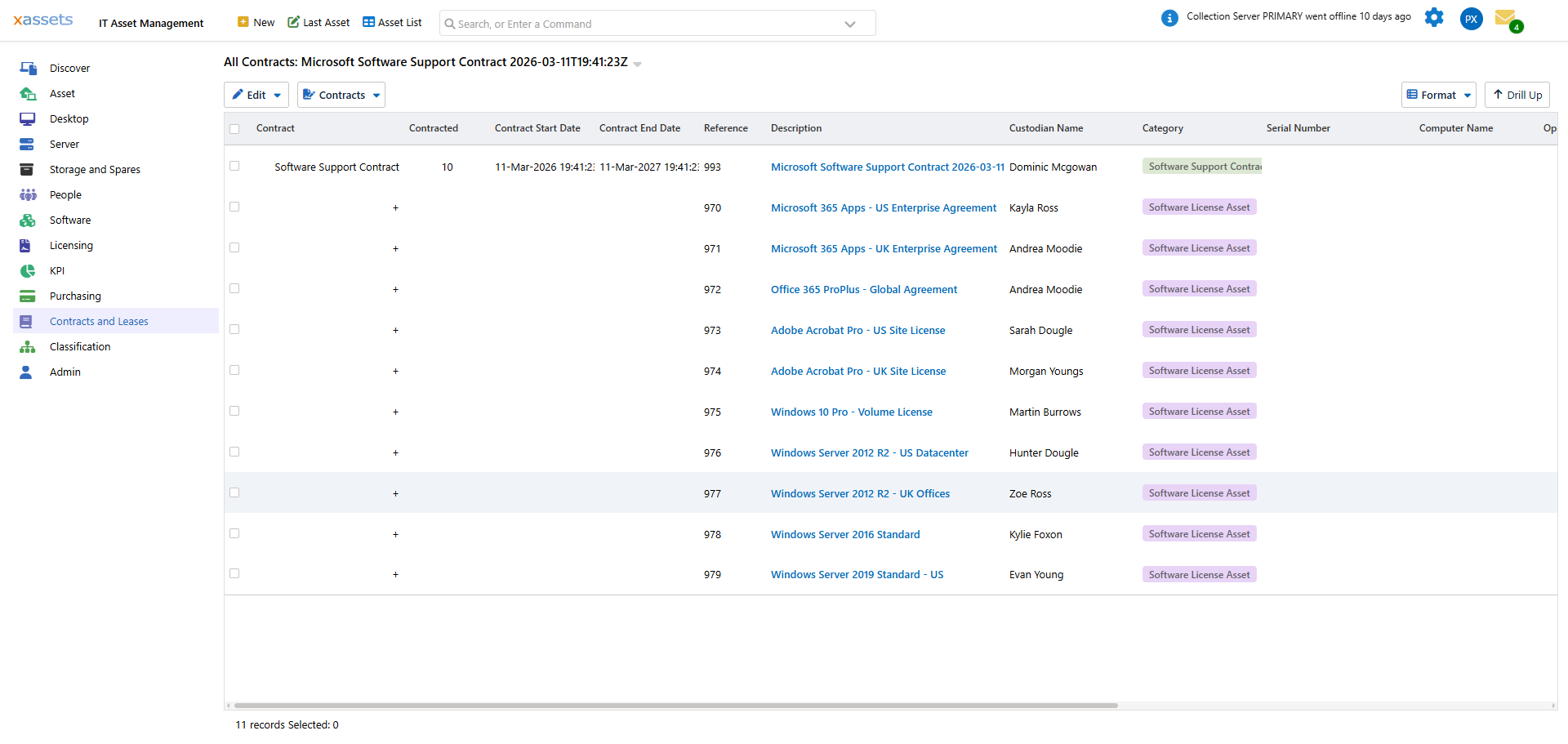
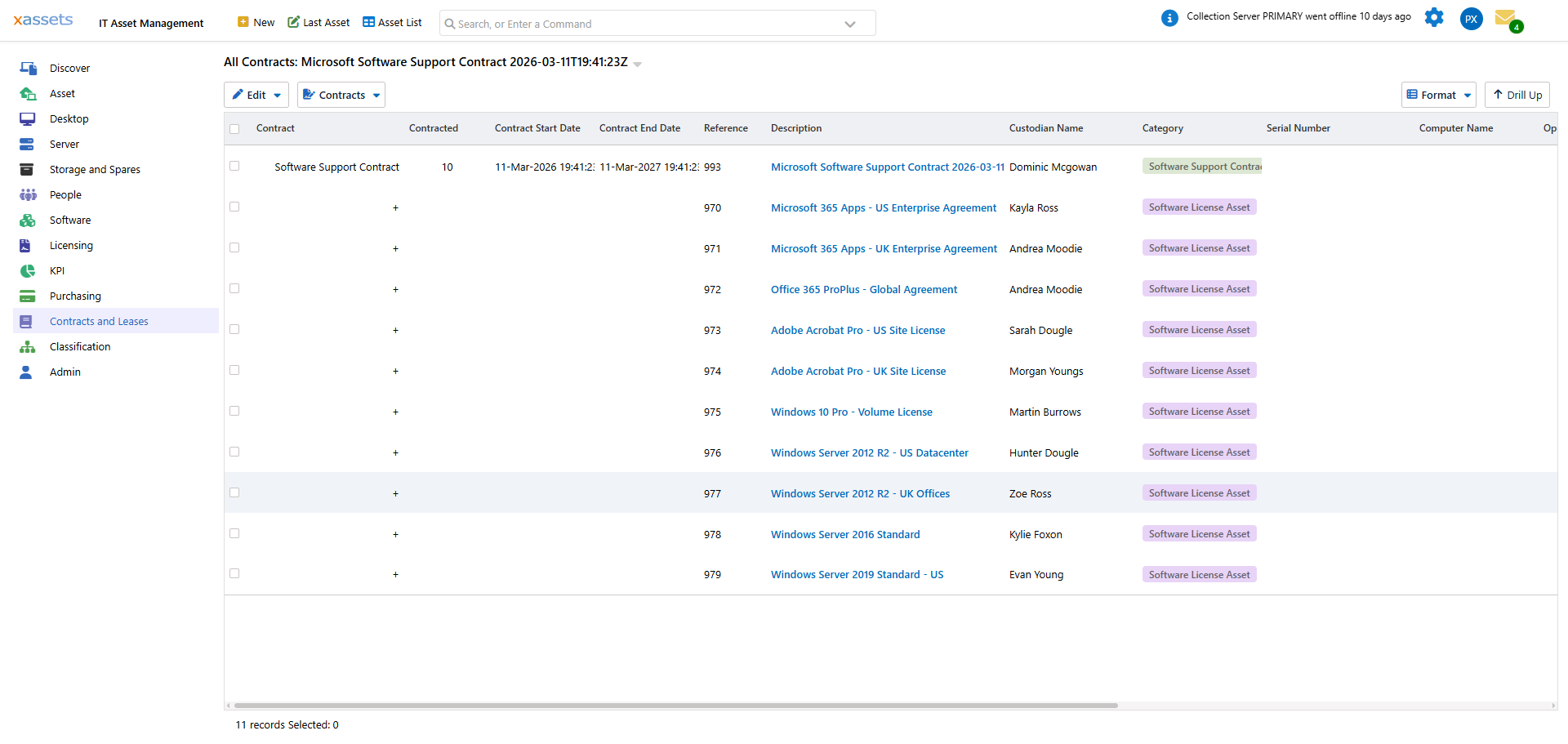
Open the contract and go to Relationships > Contracted Assets to see which assets it covers, with the start and end date, amount and notes of each link. Add Asset, Paste Asset(s) and Remove Asset(s) maintain the list from here:
This same approach works for all contract types, including hardware maintenance contracts.
Lease Expiry Reports
The Leases Expiring in 90 Days menu item, under Contracts and Leases, identifies leases (and the assets on them) approaching the end of their term, with the cost and amortized value of each:
Combined View
The Contracts and Leases tab of the dashboard (the first screenshot in this article) shows both contracts and leases together, including the "Contracts and Leases by Location" chart. Click a location in the chart to drill down to the individual contracts and leases at that location. Use the up arrow 
Tips
- Link all assets to their covering contracts -- this enables you to quickly assess the impact when a contract expires
- Review the expiry views (Contracts Expiring in 90 Days, Leases Expiring in 90 Days) monthly and plan renewals at least 90 days in advance
- When disposing of assets, check whether they are linked to contracts that should be adjusted or terminated
- Use the Related Assets relationship to link related contracts (e.g., a master agreement with sub-contracts)
Related Articles
- Warranties -- tracking manufacturer warranty coverage
- Email Notifications -- automated expiry alerts
- Software Licenses -- license records linked to agreements