Software Licenses Overview
Each Software License record represents a single purchase: a specific number of seats of a specific product, bought at a specific time, from a specific supplier. This chapter covers everything about the license record itself — creation, updates, agreements, pools, and the special cases like upgrade and OEM licenses.
Viewing Licenses
To list all software licenses, choose Licensing → Licenses from the navigation menu:
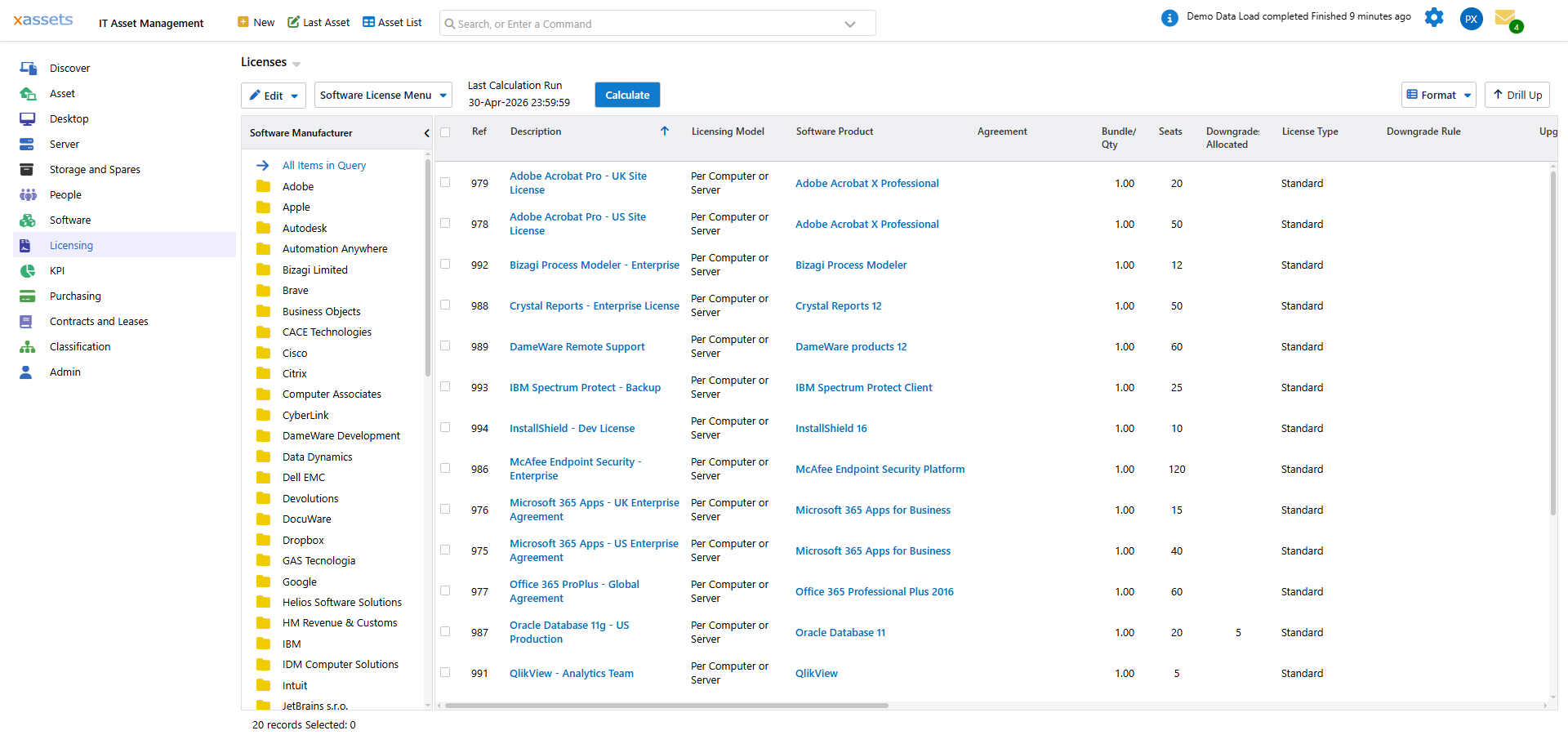
The query shows every license with its key fields. Use the manufacturer tree on the left to filter; use the column headers to sort.
The most useful columns:
| Column | Meaning |
|---|---|
| Description | The visible name of the license |
| Software Product | The catalog entry this license attaches to |
| Seats | Capacity in metric units (users, computers, cores, processors) |
| License Type | How consumption is metered |
| Allocated | How many of the seats are currently in use |
| Date Purchased | When the license was acquired |
What's in This Chapter
| Page | Covers |
|---|---|
| Creating a License Record | The single-record entry workflow |
| License Status Codes | In Service, Out of Service, Upgraded — what each means for the engine |
| Upgrade Licenses | Recording an upgrade purchase against an existing license |
| Downgrade Rights | Configuring downgrade rules per license |
| Agreements | Linking licenses to a parent agreement (EA, ELA, VIP) |
| Subscription Licenses | The right way to model SaaS subscriptions |
| License Pools | Grouping licenses for allocation purposes |
| OEM Licenses | Pre-installed OS and software licenses tied to hardware |
Where Licenses Come From
In a typical SAM rollout, license records arrive from three places:
- Bulk import from spreadsheets — see Importing Licenses for the standard path and the per-vendor pipelines (MLS, Adobe).
- Manual entry — for one-off purchases or licenses you have not put into a spreadsheet. See Creating a License Record.
- Auto-creation from OEM hardware — when discovery finds an OS that is OEM-licensed, the engine can create the license record automatically. See OEM Licenses.
After Creating Licenses
Licenses do not affect the licensing position until you recalculate. After adding or changing licenses:
- Run Licensing → Calculate Licensing Position (see Licensing Position: Running the Calculation).
- Open the Licensing Position and verify the products show the expected seat counts.
Related Reading
- Importing Licenses — bulk loading
- Software Catalog — what licenses attach to
- Concepts: License Metrics — picking the right License Type
- Allocation — how licenses get matched to consumptions