Creating Software Titles Manually
In most implementations, software titles, product catalog entries, and software-to-asset relationships are all created automatically by the "Load Now" process after a network discovery run or an integration (e.g., Microsoft Intune or SCCM). This page documents the manual creation process for situations where automatic loading is not an option.
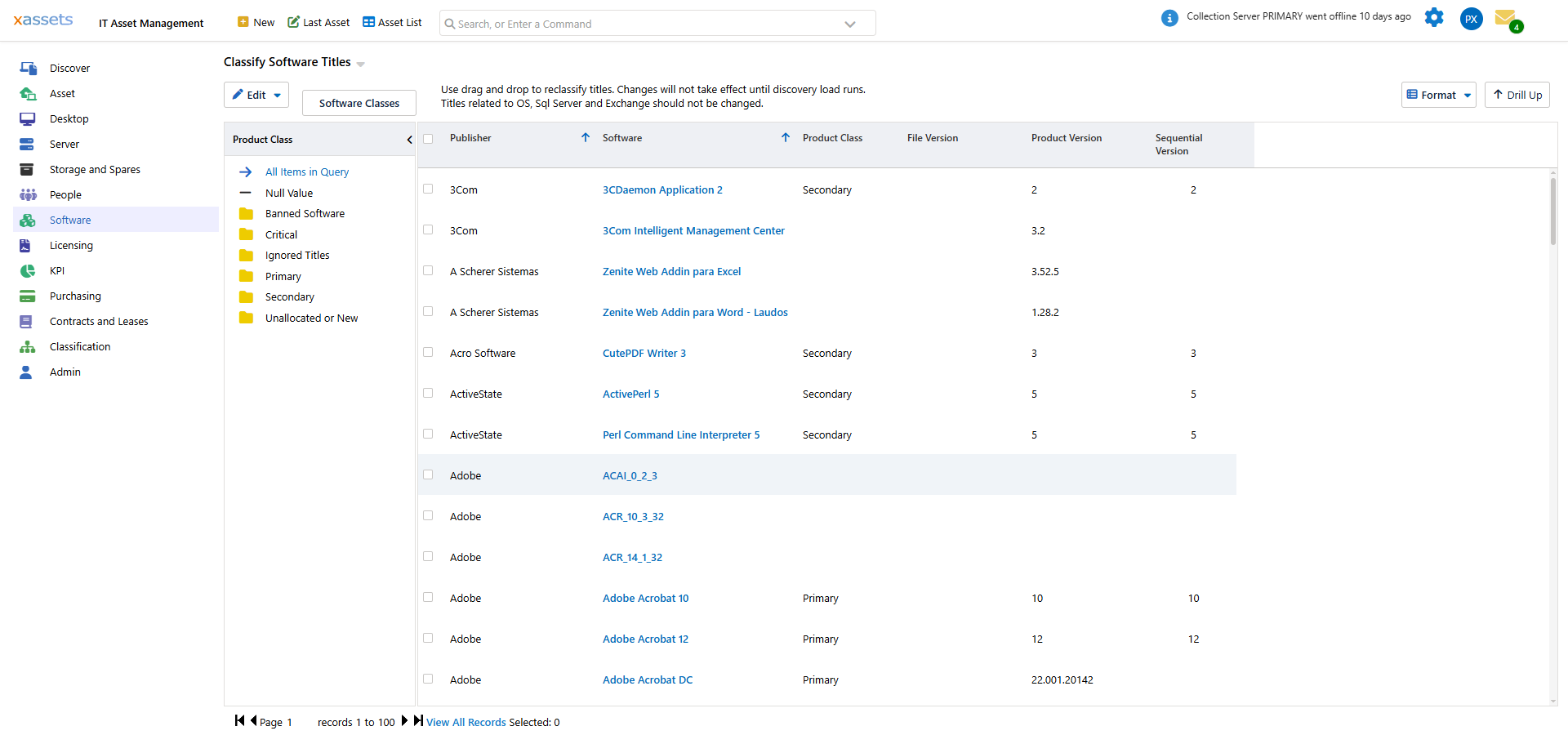
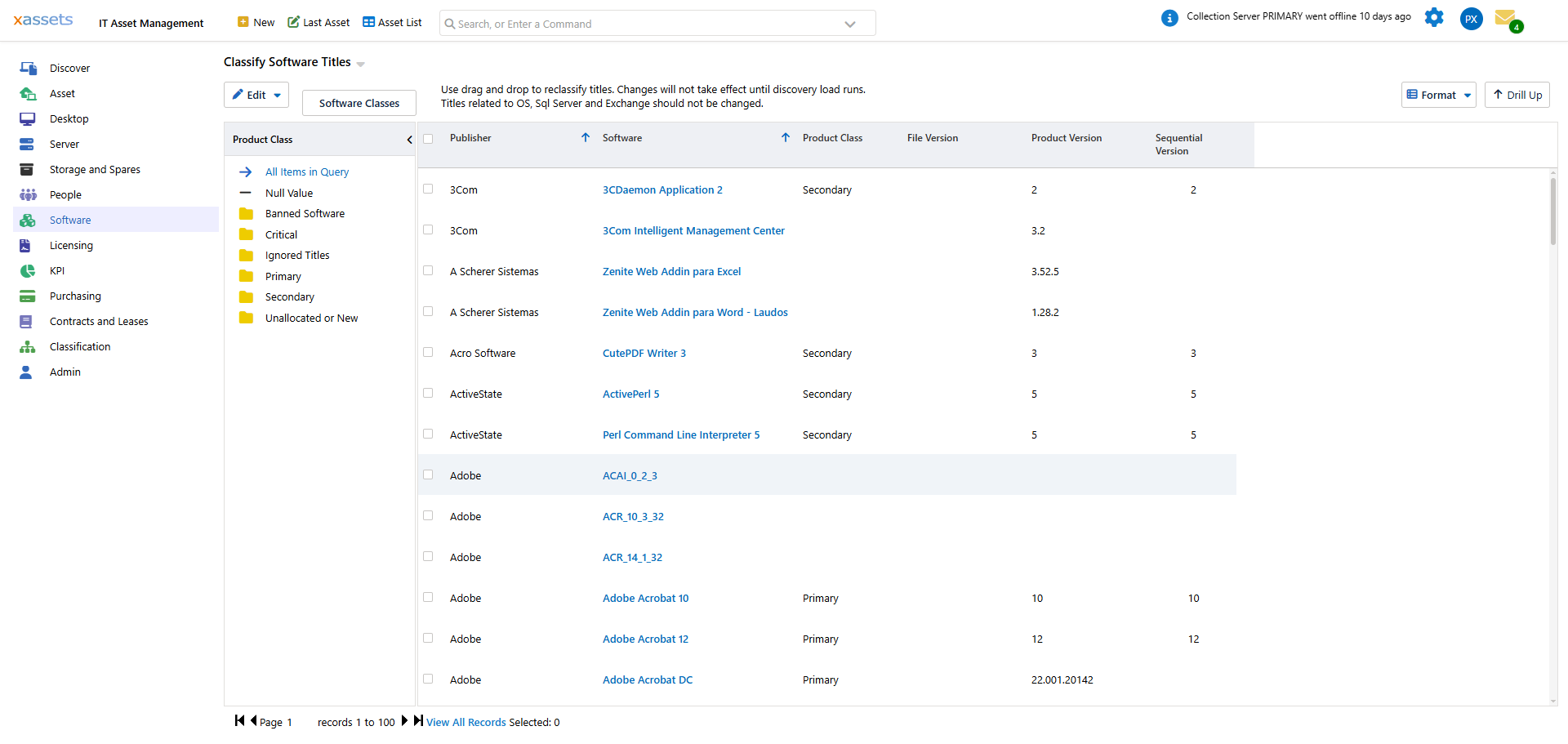
Prefer the xAssets recognition service for commercial software. Recognition records you create locally do not flow back to other customers, and a future recognition update may classify the same title differently. For commercial software you cannot find in the recognition database, submit it via the Unrecognized Software workflow. Manual recognition is the right path for genuinely internal software (in-house tools, custom builds) or when discovery is not available at all.
When to Use Manual Creation
Manual creation is only necessary when:
- You need to track software that was not discovered (e.g., software on air-gapped machines)
- You are importing software data from a non-standard source that cannot be loaded through the discovery holding area
- You need to create license and compliance records before discovery data is available
- The software is genuinely internal and will never appear in the central recognition database
Tip: If you are importing software titles in bulk, the best approach is usually to import into the discovery holding area and then let the "Load Now" process handle recognition and record creation. Manual creation should be a last resort.
Understanding the Data Model
The system maintains three tables for software titles:
| Table | Contents | Usage |
|---|---|---|
| Installed Software | Titles found in "Programs and Features" (Add/Remove Programs) | Raw discovery data — input to recognition |
| Full Software | Titles found in EXE file headers | Raw discovery data — input to recognition |
| Software | System-calculated merge of both tables above | The recognized software table used in reports. Do not enter records directly — the load process may delete them. |
Raw titles reach the Installed Software and Full Software tables through discovery or the discovery holding area, and the load process generates everything downstream of them. Software that has not been discovered is handled at the catalog level instead, as described next.
Recommended Route: Create the Catalog Entry First
For software that has not been discovered yet -- a licence bought ahead of deployment, an air-gapped machine, an internal application -- the supported route is to create the software catalog entry directly and attach the licence to it. Nothing needs to be typed into the raw software tables:
- Open Licensing > Licensing Position and choose Software Licensing > Create a new Software Catalog Entry. Fill in the description, product code, publisher and license type as described in Creating a Catalog Entry.
- Create the licence against that entry -- see Creating a License Record.
- Run Calculate Licensing Position. The product shows as owned with no installations until discovery finds it; when the software is later discovered and recognised, the installs attach to the same catalog entry and the licence is allocated on the next calculation.
Titles created this way are matched to discovered software by recognition, so give the entry the same description the recognition rule produces (see Defining Titles for the naming the rules use).
Where Discovered Titles Live
Each computer's discovered software is under IT Asset Management > Software > Software Titles on the asset editor. The grid shows every title recognised on the machine with its publisher, install date, first and last seen dates and version. The Selected Title menu shows the other computers that carry the same title, and Export sends the list out:
These rows are maintained by the load process. They are the right place to look, not the place to type: a title entered here by hand is replaced the next time the computer is discovered.
Importing Software Data in Bulk
When the software inventory comes from a source that is not a discovery integration -- a spreadsheet from a supplier, an export from another tool -- import it into the discovery holding area rather than the software tables. The Load Now process then recognises the titles, creates the catalog entries and links them to the computers exactly as it does for discovered data. See Software Updates for how recognition is applied.
After the Titles Exist
- Create the licence records -- Licensing > Licenses > New License -- with the seats purchased, the license class and the purchase date.
- Run the calculation from the Licensing Position screen:
- When the batch job completes the licence is allocated and the product appears in the licensing reports.
Things to Check
| Issue | Consequence | Fix |
|---|---|---|
| Entering records directly into the Software table | Records may be deleted by the next Load Now run | Create a catalog entry, or import through the discovery holding area |
| Recognition class not set to Primary | The title does not appear in the product catalog or licensing reports | Edit the recognition record and set the class to Primary |
| Asset category missing NetworkDiscoveryCode | The asset is not treated as a discoverable endpoint | Ensure the asset's category has a valid NetworkDiscoveryCode (not "SW") |
| Forgetting to run Load 900 | No product catalog entry is created | Queue the Load 900 transformation after creating recognition records |
Related Reading
- Software Catalog — the product catalog that manual titles feed into
- Software Licenses — creating license records
- Licensing Position — verifying compliance after manual creation
- Unrecognized Software — an alternative to manual recognition