Loading Discovery Data
After a discovery scan completes, the collected data (PCA, PCZ, PCV, and PCS files) must be loaded into the xAssets database before it appears in reports and dashboards. This page explains how the data loader works and how to trigger it manually.
How Data Loading Works
The data loader reads discovery output files from the PCAnalyser share (netdiscover folder), processes them through the recognition engine, and writes the results into the xAssets SQL Server database. During loading:
- Hardware data (manufacturer, model, serial number, CPU, memory, disk) is matched to existing asset records or new records are created
- Software titles pass through the recognition engine, which classifies them and determines whether they require a licence
- Location assignment is applied based on the IP range-to-location mappings you configured
- Change history is recorded for any assets whose data has changed since the last load
Automatic Loading
By default, the data loader runs automatically after each discovery. In most installations, no manual action is required.
In larger installations (typically those with more than 1,000 assets), the data loading may be configured to run overnight rather than immediately after discovery, to avoid impacting system performance during business hours.
Manual Loading
If you need to trigger the load process manually -- for example, after importing PCA files from a USB stick or after a scheduled load was missed -- use one of these methods:
Method 1: From the Discover Menu
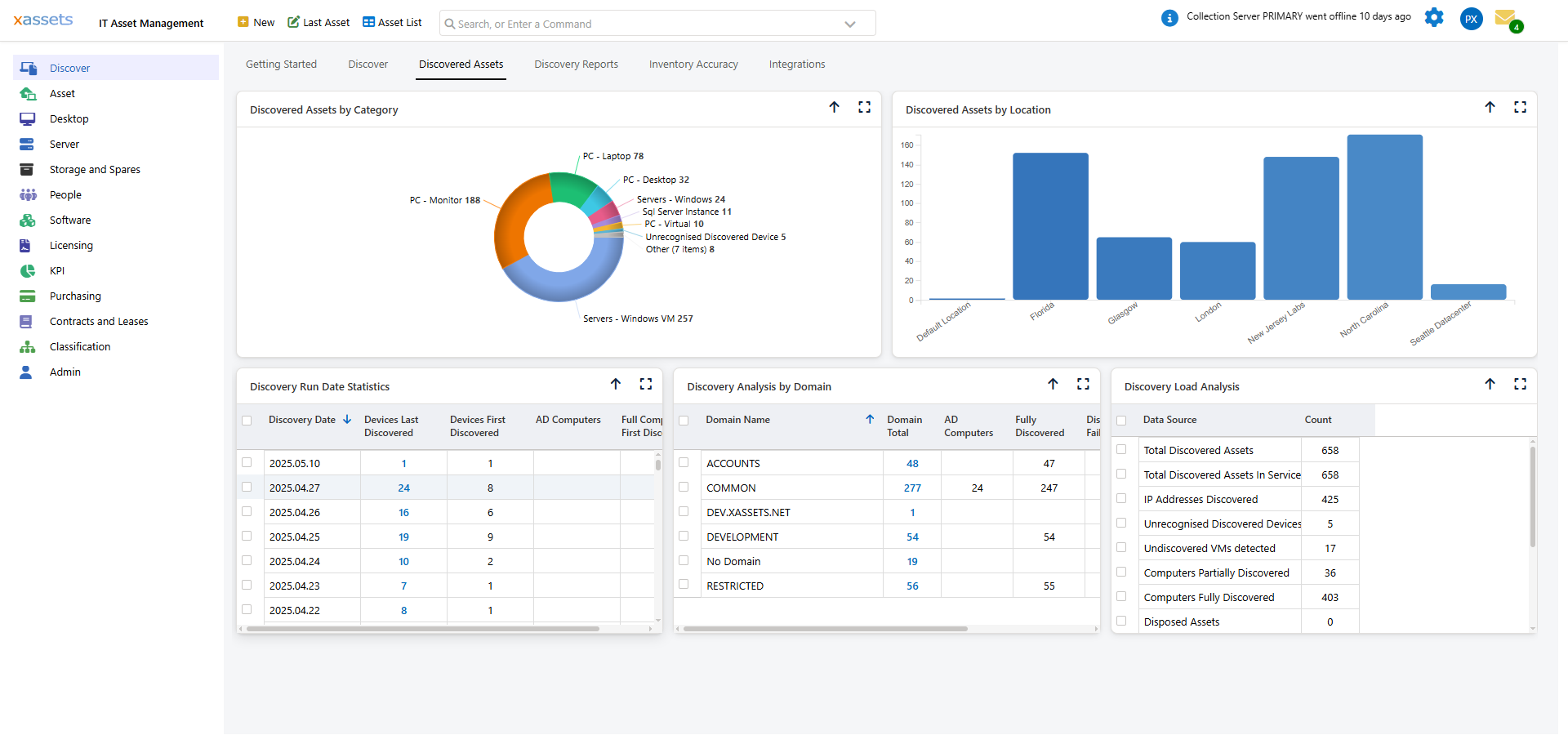
Select Discover > Load Now from the Standard Menu:
Method 2: From the Transformations Menu
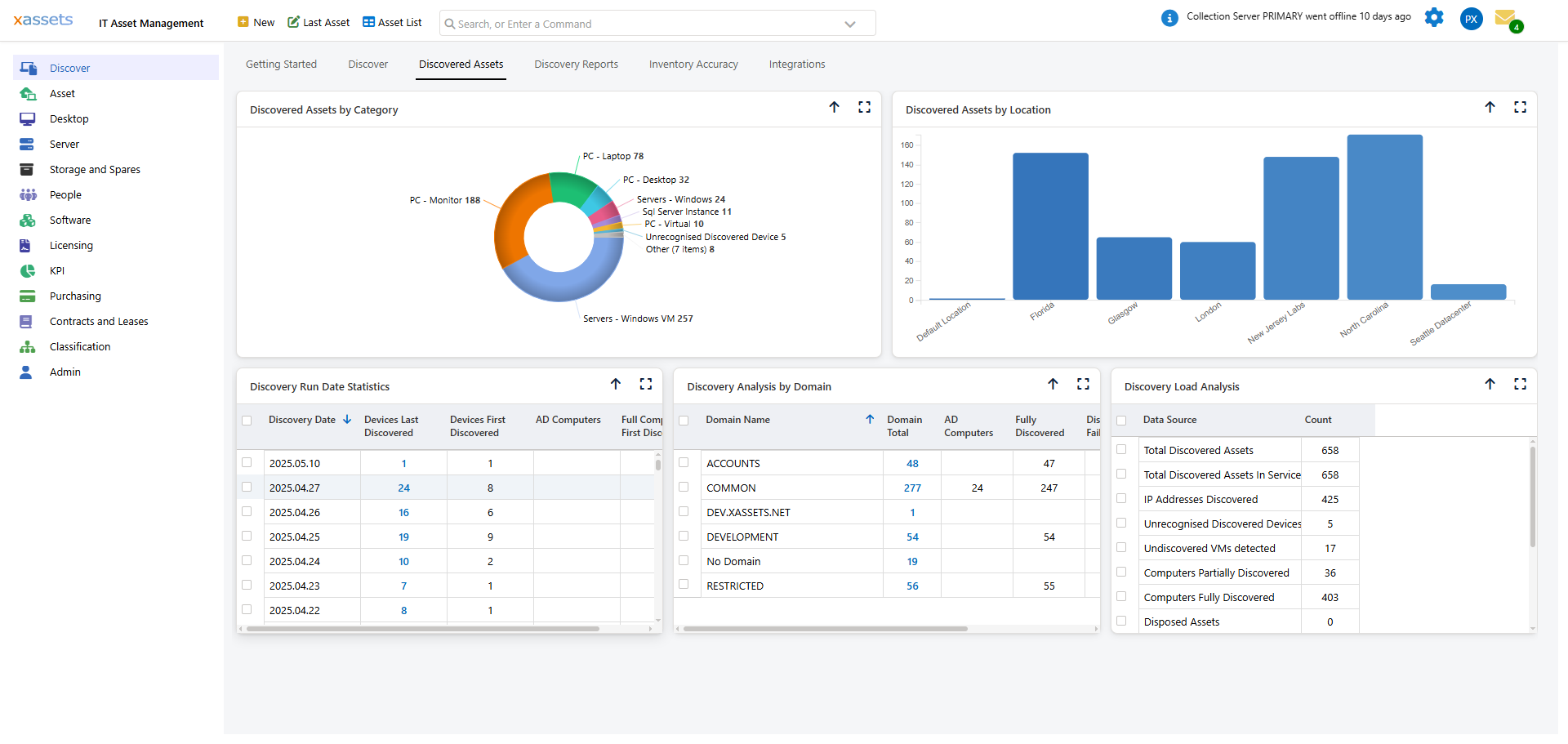
- Navigate to Admin > Transformations > Network Discovery > Load Data From Discovery Tools
- Select the Synchronise with xAssets Discovery transformation
- Click Queue... to submit it as a batch job
Tip: Use Queue rather than Run for the data load, especially in larger databases. Queuing runs the process as a background batch job, which is more reliable and does not tie up your browser session.
Monitoring the Load Process
Check the progress of a running data load from Admin > Batch > Batch Jobs or from the Recent and Running Batch Jobs link on any dashboard. The batch job entry shows the start time, current status, and any errors encountered.
What Happens During Loading
| Step | What Happens |
|---|---|
| File Processing | Each PCA/PCZ/PCV/PCS file is read and parsed |
| Asset Matching | The loader matches discovered devices to existing asset records by hostname, serial number, or MAC address |
| New Asset Creation | Devices not matching any existing record are created as new assets |
| Software Recognition | Software titles are matched against the recognition database and classified |
| Location Assignment | IP addresses are matched to location records via the IP range mappings |
| Change Detection | Fields that have changed since the last load are recorded in the asset history |
Common Issues
| Problem | Cause | Solution |
|---|---|---|
| Data not appearing after discovery | Load process has not run | Use Discover > Load Now to trigger manually |
| Some assets not loaded | PCA files corrupted or missing from the netdiscover folder | Check the PCAnalyser share for files; re-run discovery for the affected machines |
| Software titles showing as "Unrecognised" | Recognition database does not include those titles yet | See Unrecognized Software for how to submit titles for recognition |
| Load process running very slowly | Large number of assets or software titles to process | Run as a scheduled overnight batch job rather than during business hours |
Related Articles
- Running Discovery — launching a discovery scan
- Analysing Discovery Problems — troubleshooting when data is missing
- The PCAnalyser Folder — understanding where discovery files are stored
- Software Updates — keeping the recognition database current