Credential Packs
Credential Packs are encrypted files stored on the Collection Server that contain login credentials for target computers and network devices. They allow the discovery service to authenticate against machines without exposing passwords in plain text or requiring the service account to have universal admin access.
Why Use Credential Packs
By default, discovery uses the Windows account under which the xAssets Discovery Service runs. This works well when the service account has administrative access to all target machines. However, you need Credential Packs when:
- Different segments of your network require different credentials -- for example, the server team uses different admin accounts from the desktop team
- SNMP devices require community strings or SNMPv3 authentication (see SNMP Discovery)
- Linux/Unix machines require SSH credentials and possibly root/sudo access
- SQL Server discovery requires DBA credentials
- Security policy requires that the discovery service account does not hold universal admin rights
Creating a Credential Pack
Credential Packs are created on the Collection Server itself, not through the web interface.
- On the computer where the Collection Server software is installed, navigate to the xAssets Start Menu group in Windows
- Click Collection Server Viewer (use the Run as administrator option)
- Select Security > Save a Credential Pack
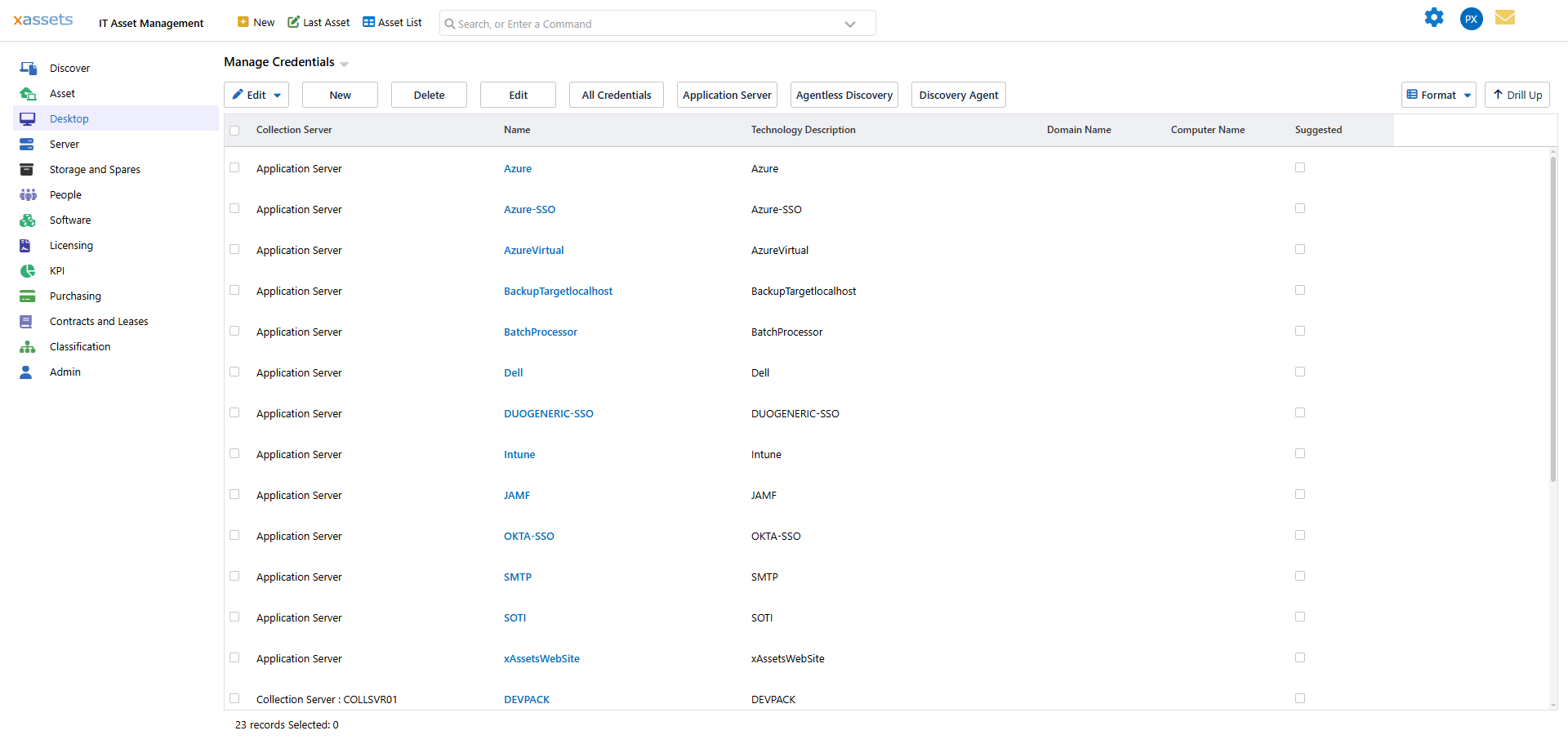
- Enter the following information:
- Pack Name -- a descriptive name with no spaces (e.g.,
ServerAdminorSNMPv2Public) - Domain -- the Windows domain name (or
.for non-domain credentials like SNMP) - Username -- the account username (or
.for SNMP v1/v2) - Password -- the account password (or the SNMP community string for SNMP v1/v2)
- Pack Name -- a descriptive name with no spaces (e.g.,
- For SNMP v3, additional fields are available for authentication and privacy algorithms
- Click Save to create the encrypted credential file
Using Credential Packs
Once created, Credential Packs appear in the Credentials drop-down throughout the discovery interface:
- When running discovery from Discover > Discover a Location or Discover a Computer or IP Range
- When configuring IP range mappings under Discover > Prepare > Manage IP Ranges and Locations
- When scheduling discovery scripts
Selecting "Default Credentials on server <CollectionServer>" uses the Discovery Service account instead of a Credential Pack.
Credential Pack Naming for Unix/Linux Root Access
For Unix and Linux discovery that requires switching to root, you need two Credential Packs:
| Pack | Purpose | Naming Example |
|---|---|---|
| SSH login pack | Connects to the target machine via SSH | UX |
| Root pack | Provides root credentials for privilege escalation | UXRoot |
The root pack name must be the SSH pack name followed by the word "Root" with no space. Alternatively, create a pack of type "Unix and Linux Switch User" that is matched automatically.
Tip: If the root Credential Pack uses the username
sudo, the system usessudoinstead ofsufor privilege escalation, responding to each sudo prompt automatically.
Security Considerations
- Credential Pack files are encrypted and stored locally on the Collection Server -- they are not transmitted over the network or stored in the database
- Only administrators with access to the Collection Server can create or modify Credential Packs
- Review your Credential Packs periodically and update them when passwords change
- Remove Credential Packs for decommissioned networks or accounts
Related Articles
- Running Discovery — using Credential Packs when launching a scan
- SNMP Discovery — configuring SNMP-specific credentials
- Choosing a Discovery Strategy — when different credential strategies are needed
- Preparing for Discovery — assigning Credential Packs to IP ranges