Preparing for Discovery
Before running network discovery, you need to tell xAssets which parts of your network to scan and how to map IP addresses to physical locations. This preparation ensures that discovered assets are automatically assigned to the correct location in your asset register.
Overview
Preparation involves two main steps:
- Enter or import location records -- create the locations that assets will be assigned to
- Attach IP ranges to locations -- map IP address ranges to those locations so discovery knows where each device belongs
Prerequisites
- The xAssets Collection Server must be installed and the Discovery Service must be running
- You need Configuration User or Administrator access to manage locations and IP ranges
- If you plan to use Active Directory integration, run that first so locations and departments are pre-populated (see Active Directory Integration)
Step 1: Enter or Import Location Records
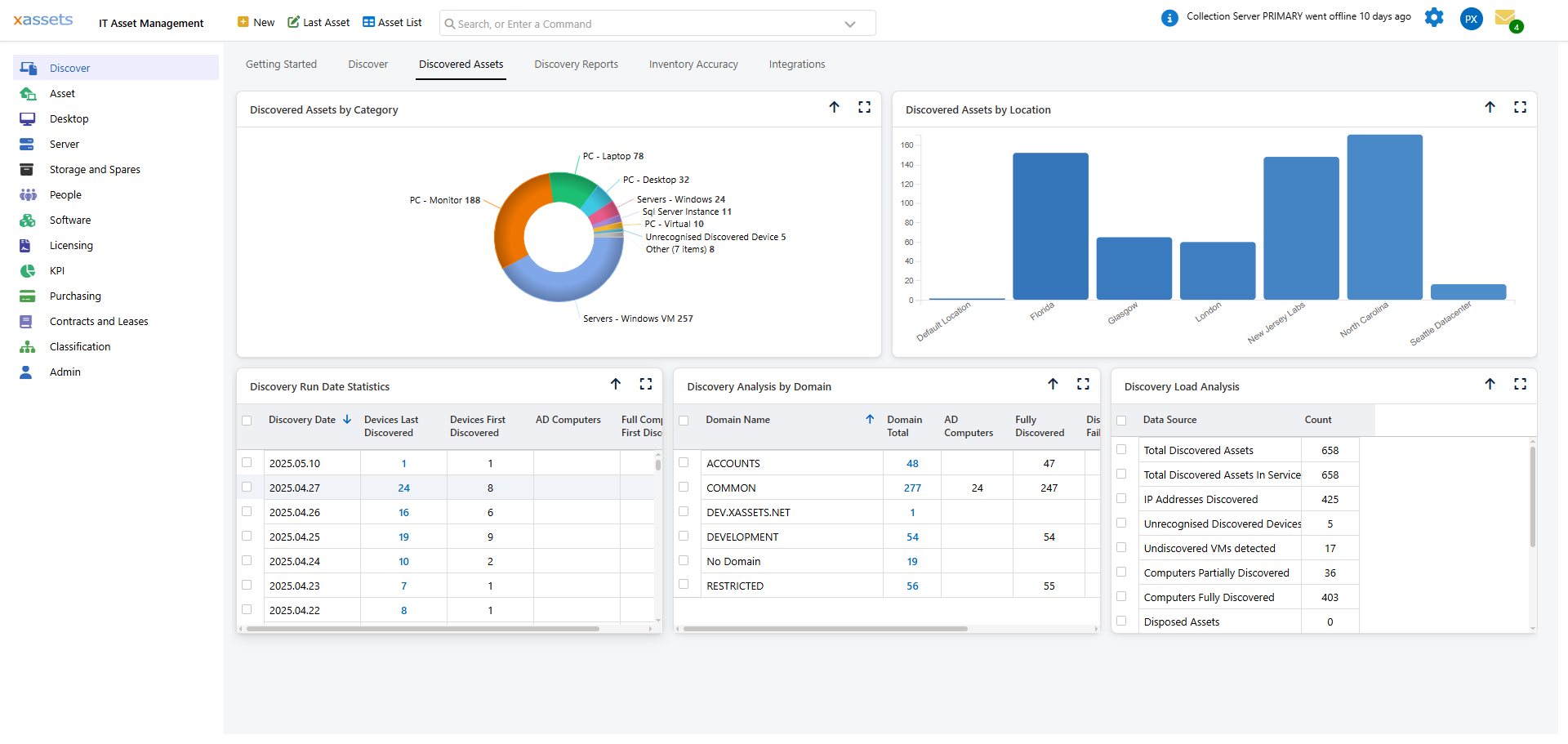
- From the left-hand menu choose Discover > Manage IP Ranges and Locations. The screen lists every IP range mapping with its location, platform, collection server and credential pack, and the toolbar carries New, Clone, Edit, Delete, Locations, Import, Discover and Schedule Discovery:
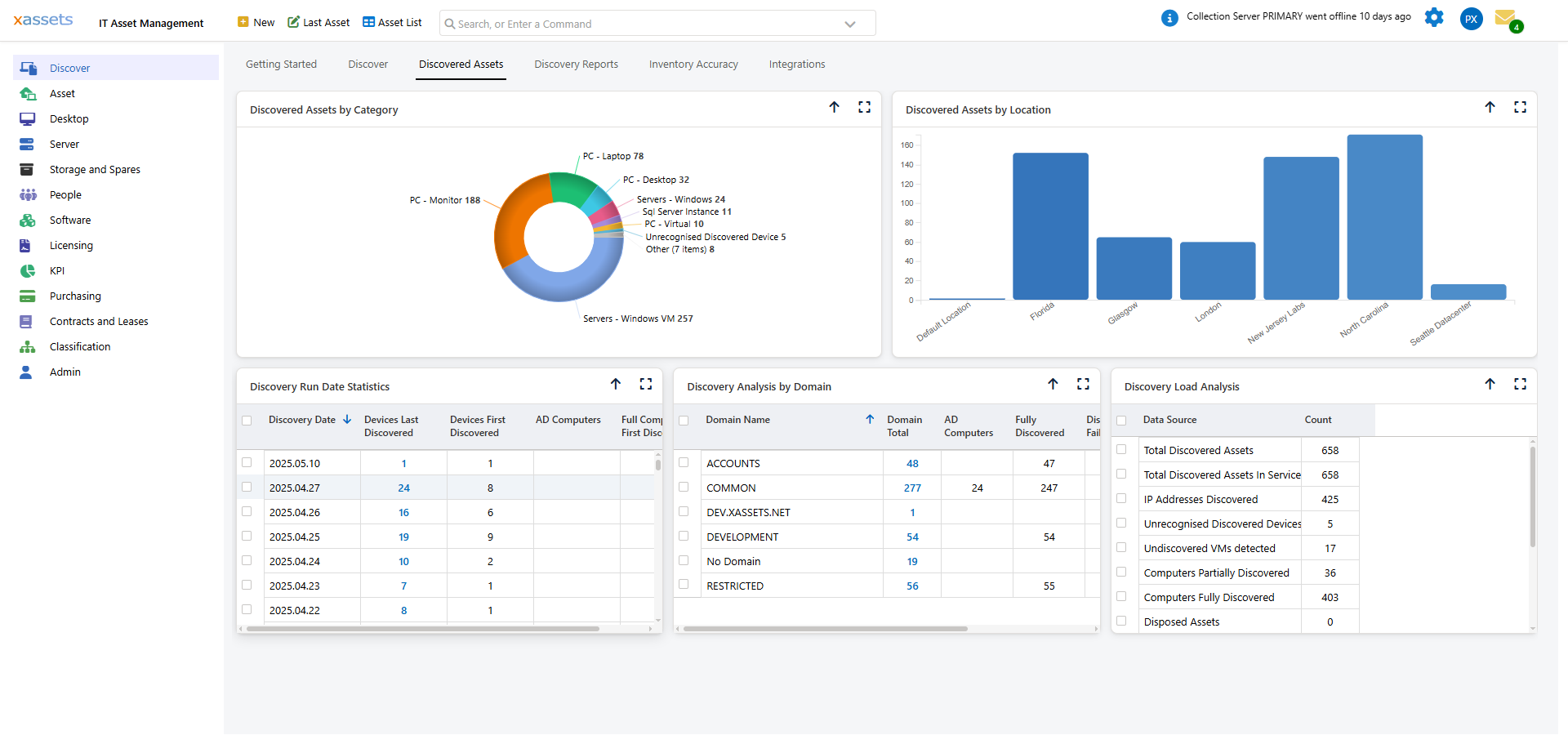
- Click Locations to open the Location Search list of existing locations. Open any location to edit it, or use Edit > New to create one
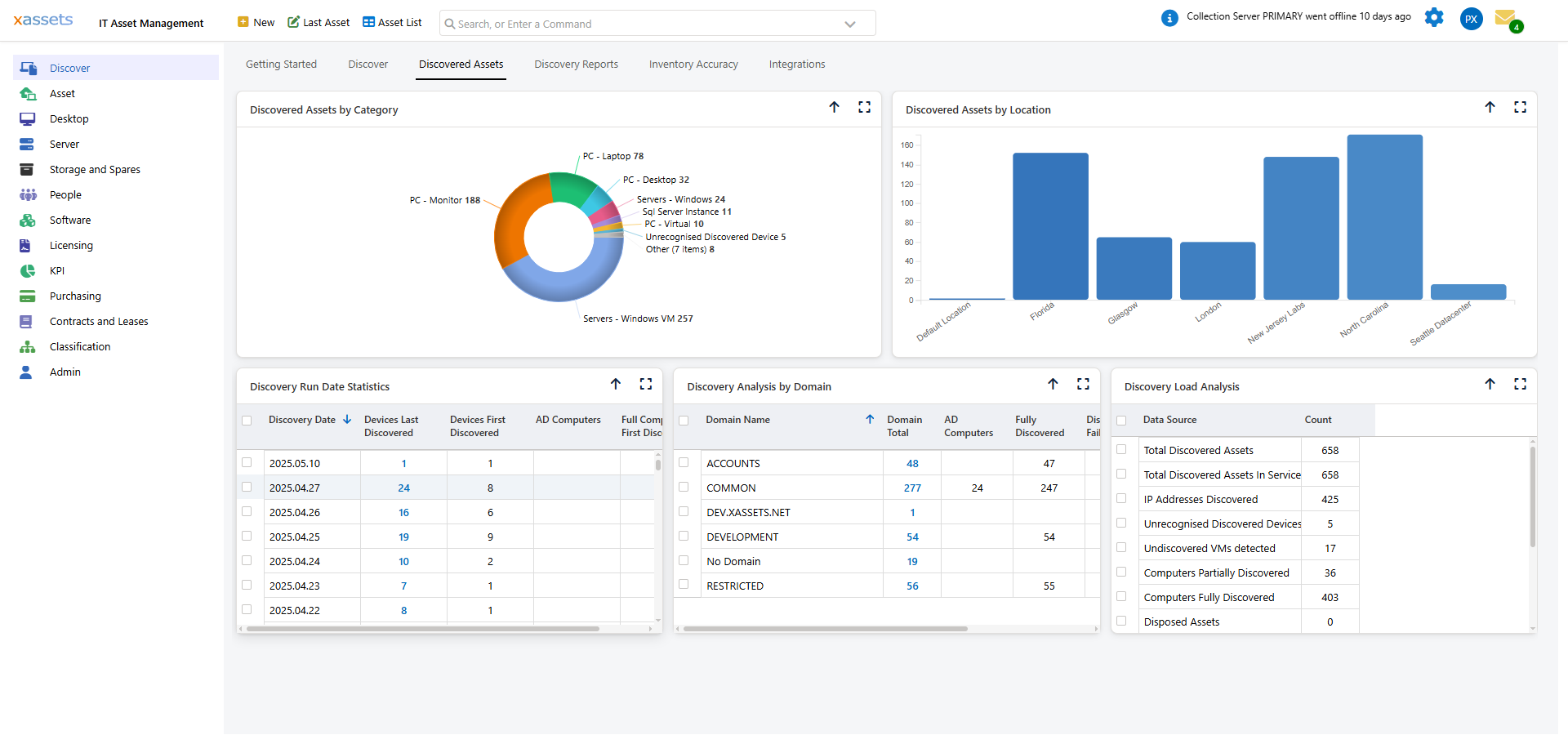
- Enter the location name and any additional details (code, type, address) and click OK to save the location
Tip: If you have many locations to set up, use the Import button to download a sample spreadsheet template. Fill it in with your location data and import it to create locations in bulk rather than entering them one at a time.
Step 2: Attach IP Ranges to Locations
- Return to Manage IP Ranges and Locations
- Click New to create a new IP range mapping. The IP To Location dialog opens:
- Enter the Start IP using wildcard notation (e.g.,
192.168.1.*for the entire 192.168.1.0/24 subnet), or a Start IP and End IP for an explicit range - Select the Location the range maps to, and optionally a Platform (Production, Development, QA / Test and so on)
- Choose the Collection Server that will scan the range if you have more than one, and expand Credentials to attach a specific Credential Pack. If left at the default, discovery uses credential matching and the account configured for the xAssets Discovery Service
- Click OK to save the mapping
Tip: The Import button on this screen also supports bulk import of IP range mappings from a spreadsheet, allowing you to create both locations and IP ranges at once. Discover and Schedule Discovery run or schedule a scan of the selected ranges without leaving the screen.
What Happens Next
Once locations and IP ranges are configured:
- You can run discovery by location, which scans all IP ranges associated with the selected locations
- Discovered assets are automatically assigned to the correct location based on their IP address
- If no IP range mapping matches, the asset is still discovered but assigned to the default (or no) location
Common Mistakes
| Mistake | Consequence | Fix |
|---|---|---|
| Overlapping IP ranges assigned to different locations | Assets may be assigned to the wrong location | Review your IP range mappings and remove overlaps |
IP range too broad (e.g., 10.*.*.*) |
Discovery takes much longer and may scan unintended subnets | Use specific ranges like 10.15.13.* |
| No Credential Pack and wrong service account | Discovery cannot authenticate to target machines | Create and assign a Credential Pack, or ensure the Discovery Service runs under an account with admin access to target machines |
Related Articles
- Credential Packs — creating encrypted credential files for different networks
- Running Discovery — launching a discovery scan
- Setting up Reference Data — managing locations, departments, and other classification data