Running Discovery
This page explains how to launch a discovery scan, monitor its progress, and review the results. Discovery can target a specific location, a single computer, or an entire IP range.
Prerequisites
- Locations and IP ranges must be configured (see Preparing for Discovery)
- The xAssets Discovery Service must be running on the Collection Server
- You need an account with administrative access to the target machines, either through the service account or a Credential Pack
Starting a Discovery
Everything starts from the Discover tab of the Discovery Dashboard (Discover > Discovery Dashboard, then the Discover tab). The tab shows the discovered-asset counters, the launch buttons and, underneath, View Discovery Script Progress - the recent batch job history for discovery runs:
Click Discover (also available as Discover > Discover in the left-hand menu) to open the Discover Assets dialog. It has three tabs: Discover Device or IP Range, Discover Locations and Load Discovered Assets.
Discovering by Location
- Open the Discover Locations tab
- Tick one or more locations in the tree, or tick Discover All Locations. Each location is scanned using the IP ranges mapped to it (see Preparing for Discovery)
- Leave Credentials on Use credential matching and IP mappings unless a specific Credential Pack is needed
- Click Start
Tip: Tick Schedule This Process to turn the same selection into a recurring discovery instead of running it once. IP to Location Mapping opens the mapping screen without leaving the dialog.
Discovering a Computer or IP Range
- Open the Discover Device or IP Range tab
- Enter computer names, IP addresses or IP ranges, in any combination, separated by commas:
10.55.238.*-- scans the entire subnet10.55.238.33-10.55.238.63-- scans a portion of a subnet10.5.1.0/24-- CIDR notationComputerName1,ComputerName2-- named machines Or tick Discover Entire Network to scan every mapped range.
- Select the applicable Credential Pack from the Credentials drop-down, or leave the default to let credential matching and IP mappings choose
- Click Start. The run appears in View Discovery Script Progress on the Discover tab
Warning: Discovery requires that the xAssets Discovery Service is running and that the service account (or the credentials you select) has administrative access to the target machines. If discovery returns no results, check the service status and credential permissions first.
Monitoring Discovery Progress
From the Web Interface
To view progress while discovery is running, open the settings (gear) icon and choose Batch Jobs. The list shows each running or recently finished job with its status and last update, and the toolbar lets you Restart or Abort a selected job. Older runs are under the Batch Job Management dropdown:
From the Discovery Dashboard
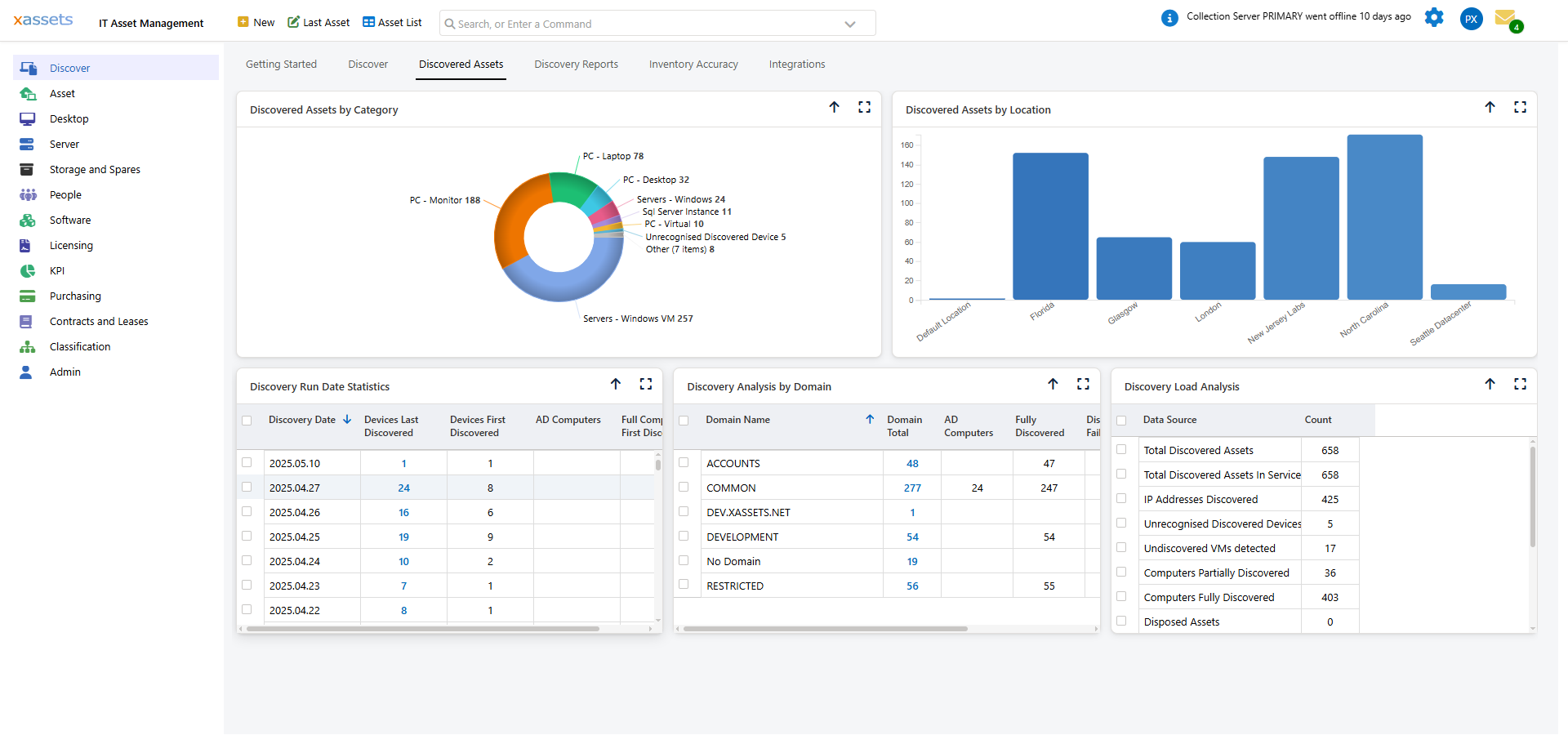
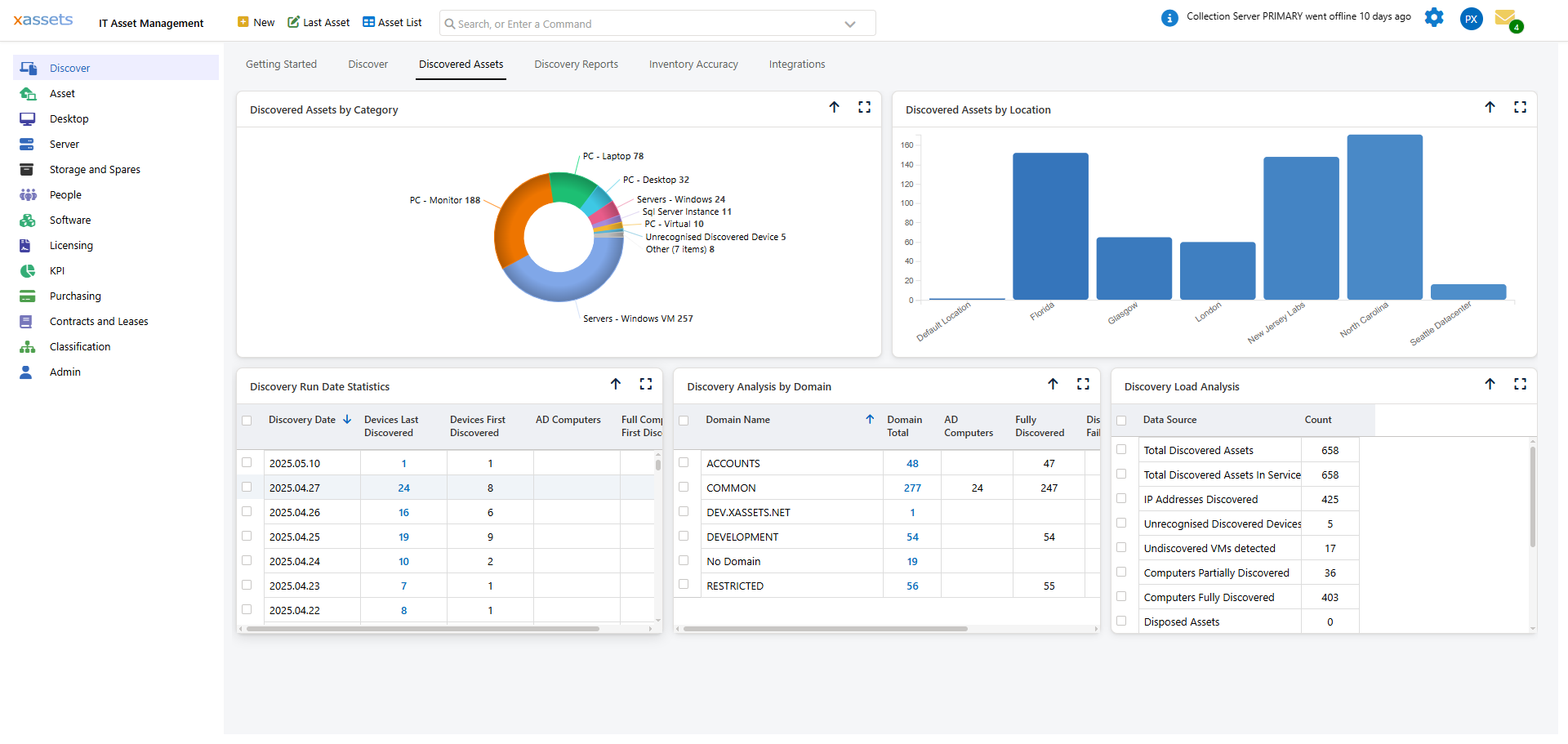
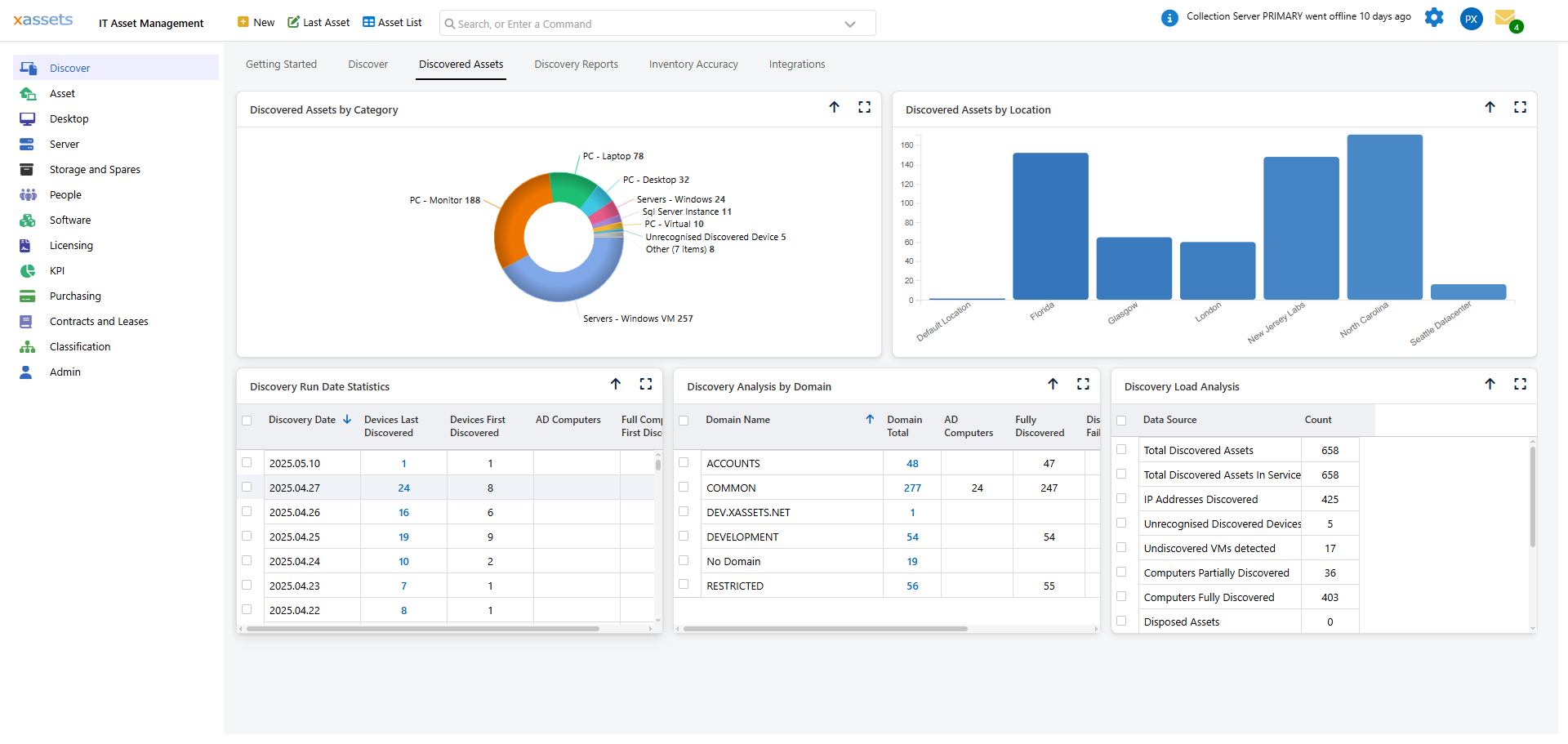
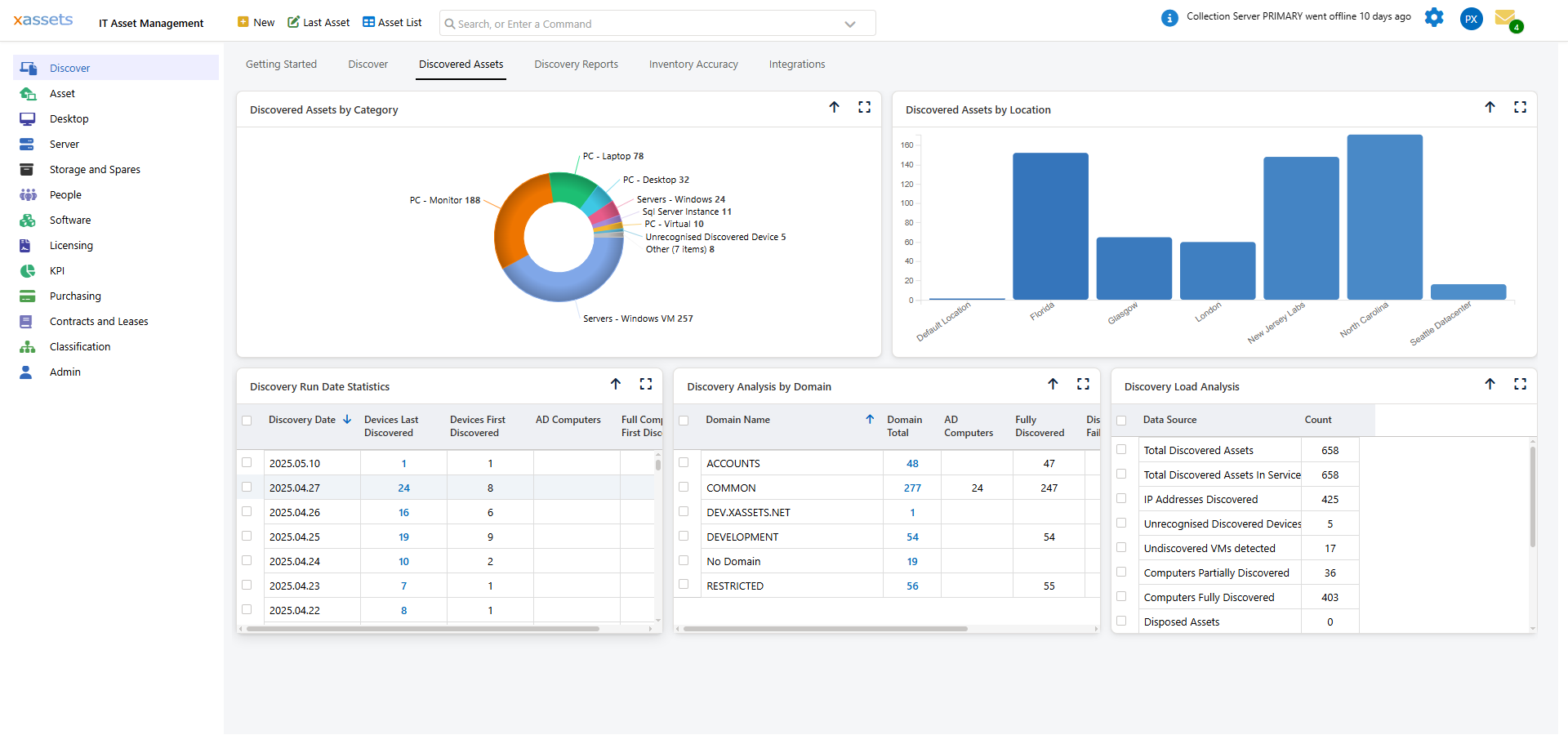
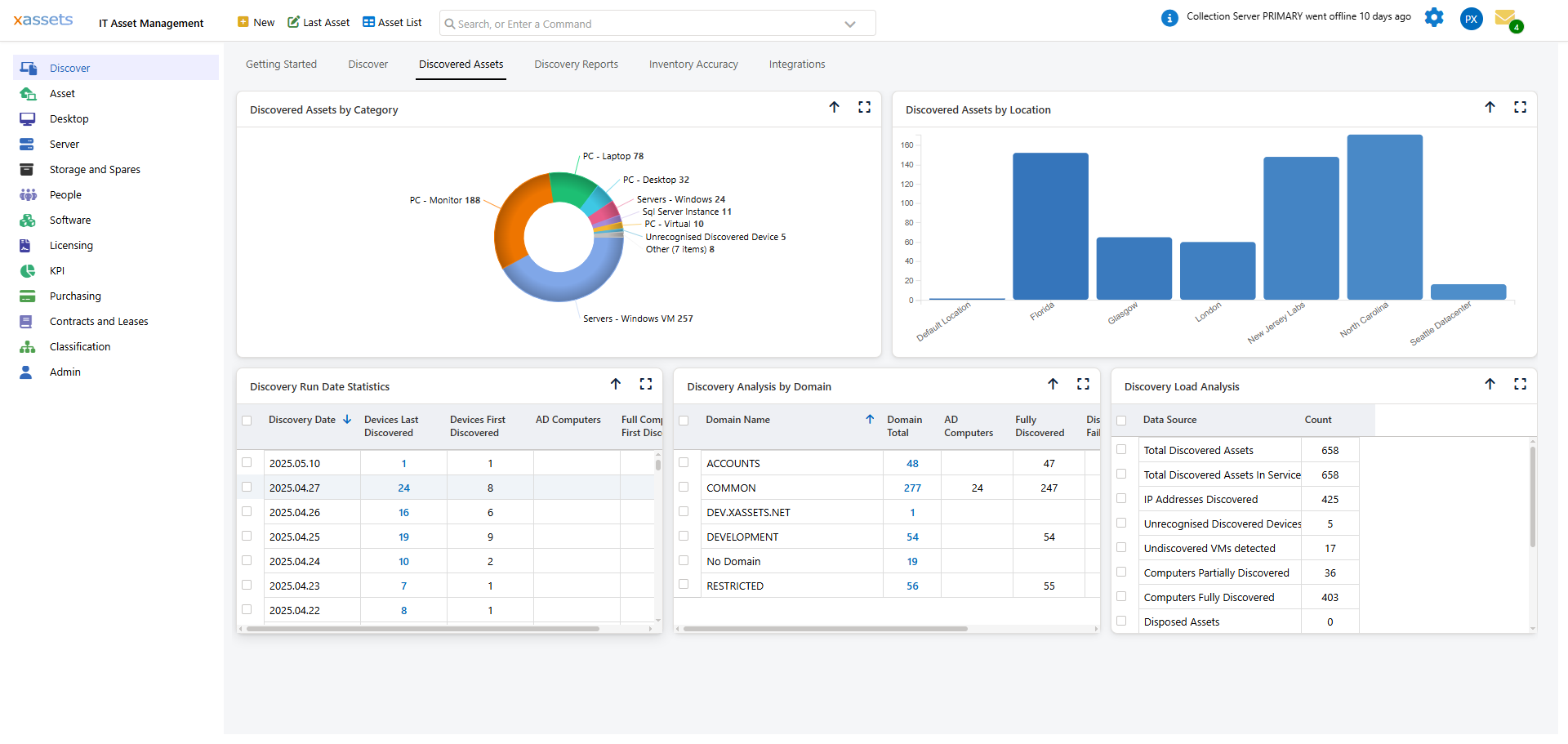
For summary information with drill-down capability, open the Discovered Assets tab of the Discovery Dashboard. Discovery Run Date Statistics lists each run date with the number of devices discovered, and the counts link through to the assets concerned; Discovery Analysis by Domain and Discovery Load Analysis sit alongside it:
Discovery Reports
Navigate to Discover > Discovery Dashboard > Discovery Reports to see a dashboard displaying recently discovered assets, discovery trends, and any errors encountered during the scan.
What Happens After Discovery
Once a discovery script finishes scanning, the collected data is written to files on the Collection Server (PCA, PCZ, PCV, and PCS files). This data is then loaded into the xAssets database either:
- Automatically -- the data loader runs after each discovery by default
- Manually -- using Discover > Load Now (see Loading Discovery Data)
Tips
- Start with a small scope (a single subnet) to verify that discovery is working before expanding
- If you have many subnets, schedule them to run at staggered times to reduce network load
- Check the Discovery Dashboard after each run to confirm assets were discovered and loaded
Related Articles
- Preparing for Discovery — setting up locations and IP ranges
- Loading Discovery Data — importing results into the database
- Analysing Discovery Problems — troubleshooting failed scans
- Scheduling Discovery Scripts — automating regular scans
- Credential Packs — managing authentication for discovery