Scheduling Discovery Scripts
Scheduling discovery scripts ensures that your asset database stays current without manual intervention. This page explains how to create, configure, and manage discovery schedules.
Prerequisites
- Configuration User or Administrator access
- At least one discovery script or template must exist (see Editing Discovery Scripts)
- The Batch Processor service must be running on the application server
Creating a Schedule
There are two ways to access the scheduling screen:
Method 1: From the Scheduled Transformations List
- Navigate to Admin > Transformations > Scheduled Transformations
- Click New... to create a new schedule
- When prompted, choose the transformation to schedule -- for example, Discover All Locations
Method 2: From the Discovery Script
- Navigate to Admin > Transformations > Network Discovery > xAssets Discovery Scripts
- Click the description of the script you want to schedule (e.g., "Discover All Locations")
- Click the Schedule tab
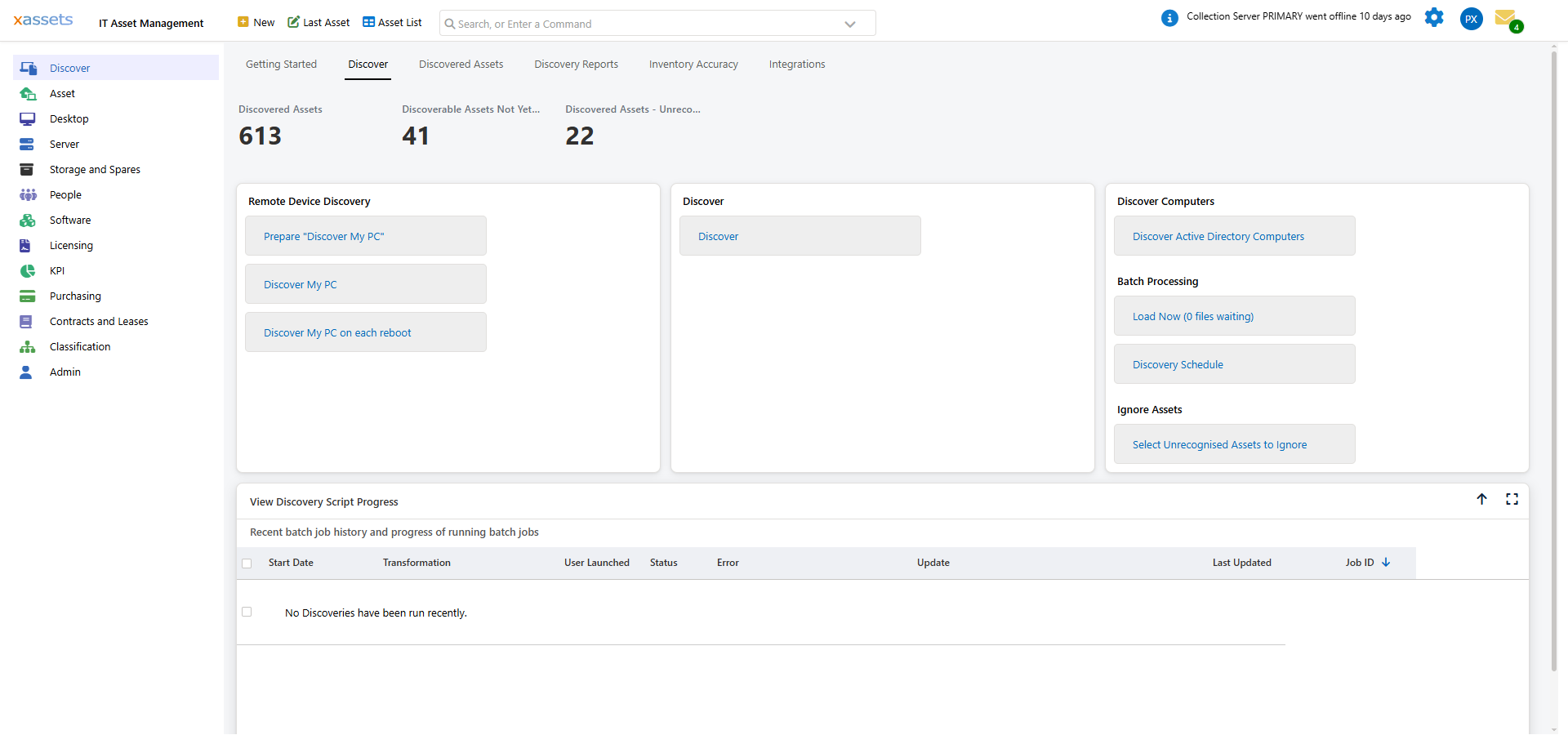
Configuring the Schedule
- Click the Add a New Schedule link
- Set the following options:
- Start Date -- when the first scheduled run should begin
- Period -- how often the script runs (e.g., Daily, Weekly)
- Frequency -- the specific interval within the period
- Schedule Enabled -- tick this checkbox to activate the schedule
- If the scheduled run requires specific credentials different from those configured in the IP range mappings, tick the Credentials checkbox and select the appropriate Credential Pack
- Click OK to save the schedule settings
- Click OK again to save and exit the transformation
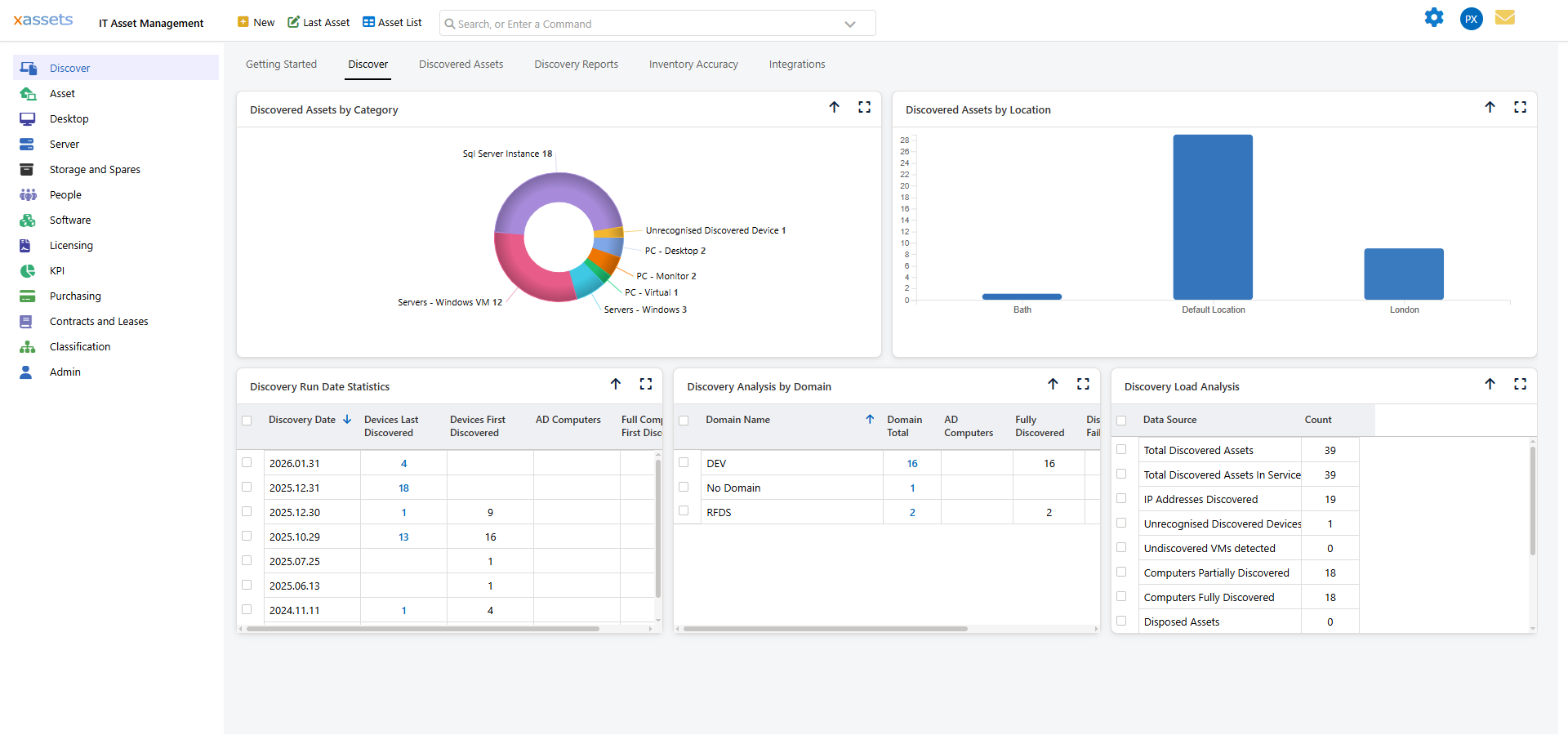
The Batch Processor will then launch this script at the prescribed intervals.
Scheduling Best Practices
| Practice | Reason |
|---|---|
| Schedule discovery during off-peak hours | Reduces impact on network performance and end-user productivity |
| Stagger schedules across locations | Prevents all subnets from being scanned simultaneously |
| Keep track of which scripts are scheduled | Avoids accidentally running overlapping scans that compete for network bandwidth |
| Start with weekly schedules | Daily discovery may be unnecessary and creates excessive load; increase frequency only if your environment changes rapidly |
| Monitor thread count | Too many simultaneous discovery threads can saturate the network -- adjust in the XDSL script settings |
Warning: Take care to ensure that the number of threads and frequency of discovery does not cause excessive load on your network. Monitor network utilisation during the first few scheduled runs and adjust accordingly.
Disabling or Modifying a Schedule
- Navigate to the discovery script's Schedule tab
- Untick Schedule Enabled to disable the schedule without deleting it
- To change the timing, edit the Period and Frequency fields
- Click OK to save changes
Related Articles
- Running Discovery — launching a manual discovery scan
- Editing Discovery Scripts — customising what data is collected
- Credential Packs — managing authentication for scheduled runs
- Bandwidth Requirements — understanding network impact