Logging on for the First Time
This page explains how to access xAssets and sign in for the first time. xAssets supports two authentication methods: Windows Authentication (single sign-on) and Database Authentication (username and password). Your administrator will tell you which method is configured for your organisation.
Prerequisites
- A supported browser (Chrome, Firefox, or Edge). See Preparing the Browser.
- Your xAssets URL, provided by your administrator.
- If using database authentication, your username and password.
Accessing xAssets
Open your browser and navigate to your xAssets URL:
- Hosted implementations:
https://yourcompany.hostedprefixname.xassets.com-- replace "yourcompany" with your organisation's subdomain - On-premises installations:
https://servername/xassets/-- replace "servername" with your application server's hostname or IP address
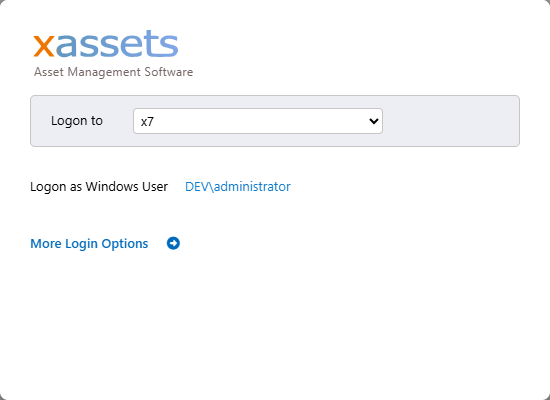
The logon screen will appear:
Signing In with Windows Authentication (Single Sign-On)
If your organisation uses Windows Authentication:
- Click the blue link under Windows Logon on the login screen.
- Your Windows credentials are passed automatically -- no username or password entry is needed.
- The system authenticates you and displays your default dashboard.
This is the simplest login method and is recommended where available. It uses your existing Active Directory identity, so you do not need a separate xAssets password.
Signing In with Database Authentication
If Windows Authentication is not available, or if you need to log in with a different identity:
- Click More Login Options on the login screen.
- Enter your username and password in the fields provided.
- Click Logon.

If you do not know your credentials, contact your xAssets administrator.
First Login Experience
On your first login, the system displays your default dashboard. The dashboard you see depends on which profile has been assigned to you by your administrator. Common profiles include:
- IT Asset Management -- shows the Asset Inventory Dashboard with KPI tiles and charts
- Software Asset Management -- focuses on software licence compliance
- Fixed Asset Management -- shows financial asset tracking
You can change your home page at any time from User Settings. See Using the System for details.
Troubleshooting Login Issues
| Problem | Solution |
|---|---|
| "Windows Logon" link does not appear | Windows Authentication is not configured for your site. Use database authentication instead, or ask your administrator to enable it. |
| Login fails with "Invalid credentials" | Check that your username and password are correct. Passwords are case-sensitive. |
| Page does not load or shows an error | Check that the URL is correct and that your browser is supported. Ensure popup blockers are disabled for the xAssets site. |
| Single sign-on redirects to a blank page | Your Windows account may not be mapped to an xAssets user. Contact your administrator. |
Tip: Disable popup blockers for the xAssets site in your browser settings. Several features (lookup dialogs, reports, and print views) open in popup windows and will not work if popups are blocked.
Next Steps
Once logged in, proceed to Using the System to learn how to navigate the interface, use dashboards, and find your way around.
Related Articles
- Preparing the Browser — Browser requirements and configuration
- Using the System — Navigating the user interface
- IT Asset Management Overview — Introduction to the IT asset management module
- How to Create a New User — Setting up new user accounts and permissions