Generating Work Orders
With Service Processes and Service Plans in place, you can now generate work orders. This can be done manually on demand, or scheduled to run automatically as a batch process.
Running the generation
To generate work orders for all Service Plans, go to Maintenance > Generate Work Orders > Generate Work Orders, or from the Service Plan Management screen choose Service Plans Menu > Generate All Work Orders.
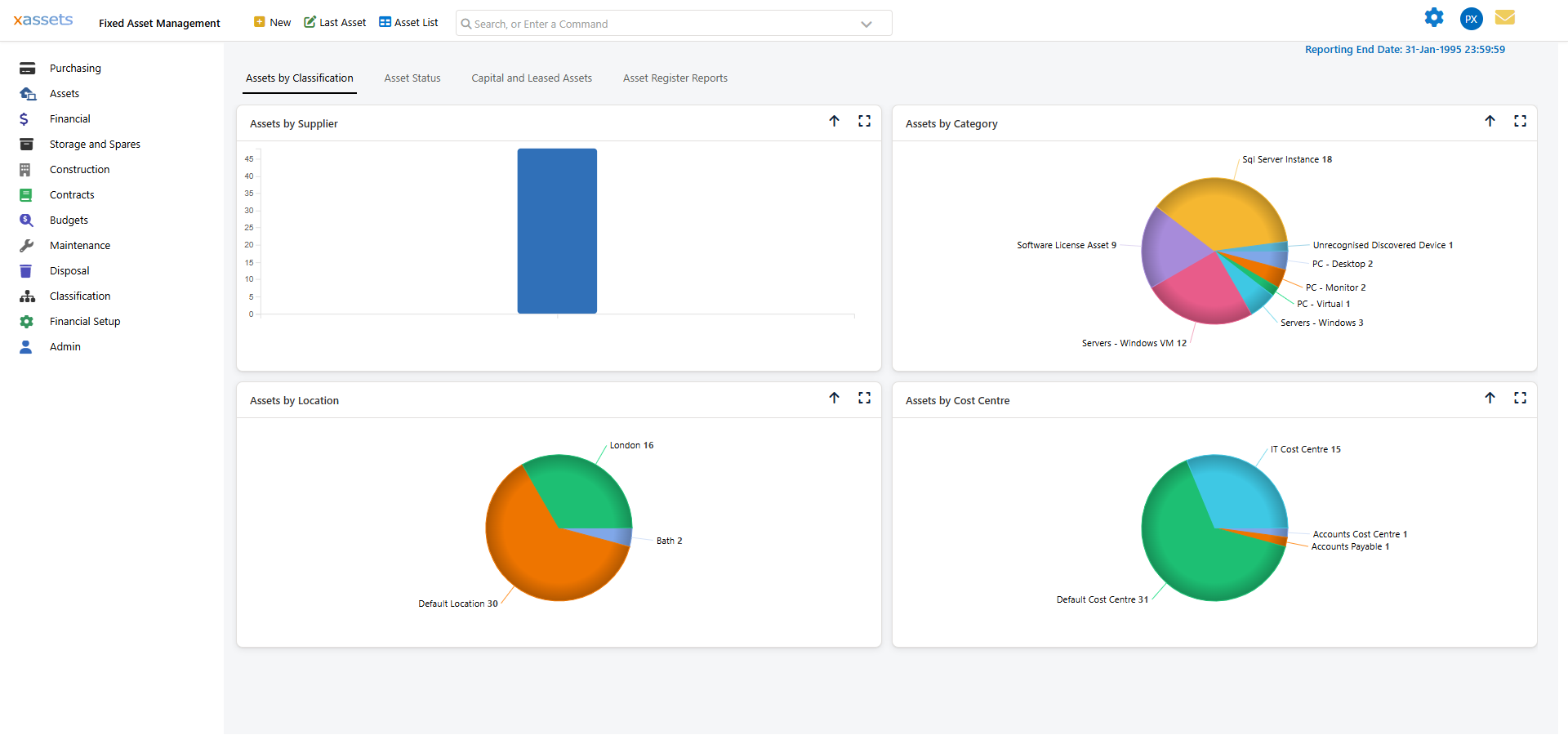
The dialog has four settings:
| Setting | Description |
|---|---|
| From Date | Defaults to the earliest plan start date, or the GENERATEWORKORDERSDATE setting if no plans specify a start date. Dates before today are adjusted to today. |
| End Date | Defaults to the From Date plus the number of days in GENERATEWORKORDERSFORWARD. Work orders are generated for any services falling due between these two dates. |
| Delete existing outstanding work orders | If checked, removes existing work orders with an "OUTSTANDING" status for the same Service Process and asset where the due date is before the End Date. See WORKORDERDELETESTATUSES for more control over this behaviour. |
| Allow Automatic Assignment | If checked, applies Task Assignment Rules to the generated work orders. |
Click OK to start generation. Work orders are created as a batch job and may not appear immediately.
Viewing generated work orders
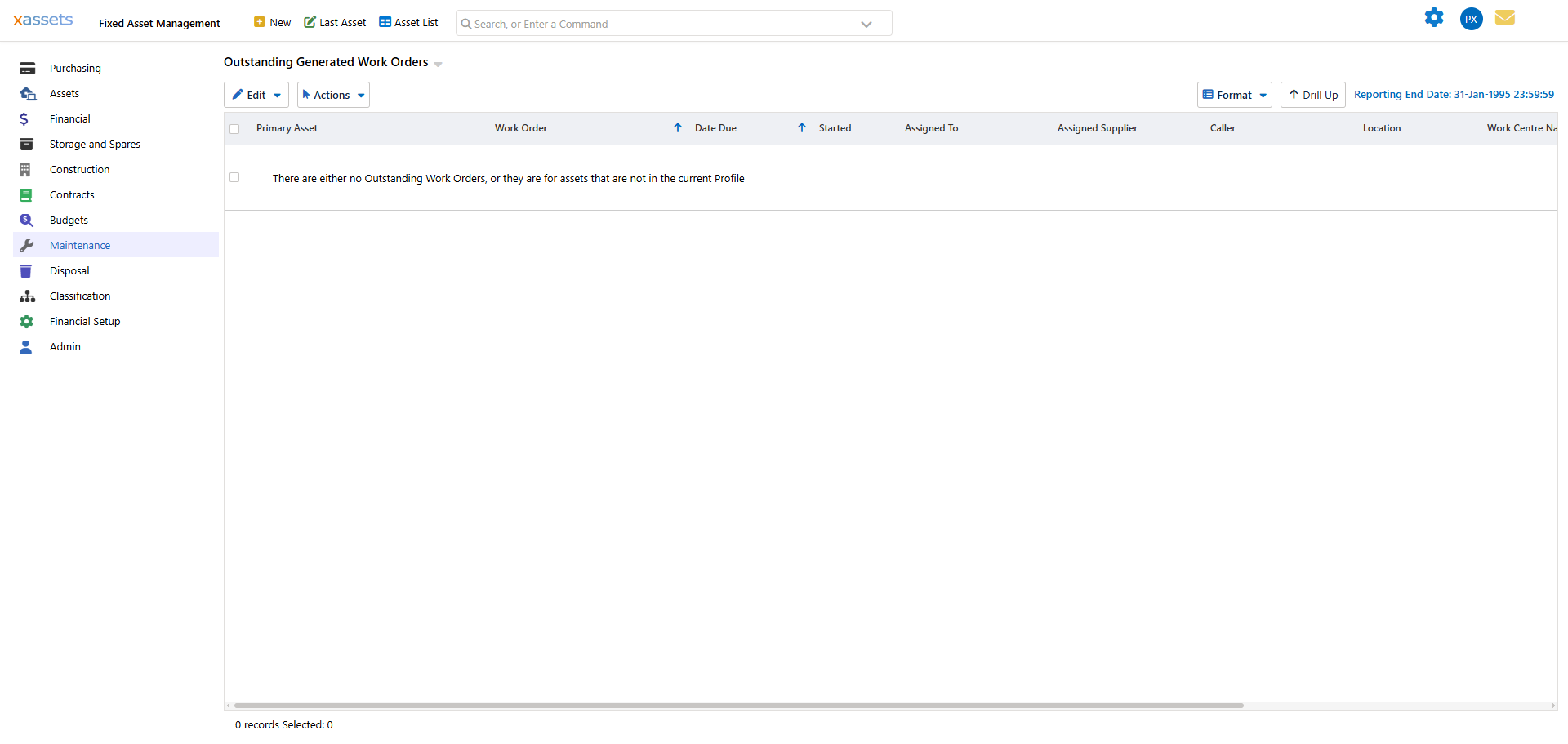
- Maintenance > Work Orders > Outstanding Generated Work Orders — shows all outstanding work orders
- Asset Editor > Maintenance or Service Desk section — shows work orders for a specific asset
- Service Plan Management screen — click the work order count for any plan
Generating for specific plans or assets
You can also generate work orders selectively:
- For specific Service Plans — select one or more plans in the Service Plan Management screen and click Generate Work Orders. The dialog shows the selected plans and lets you adjust the selection.
- For specific assets — from the Service Plan Management screen, choose Service Plans Menu > Generate Work Orders for Specified Assets and select the assets.
An asset must have at least one valid Service Plan to generate work orders. If an asset has multiple active Service Plans, work orders are generated for all of them.
Related Articles
- Steps to Generate Work Orders — The steps involved in generating work orders
- Creating a Service Plan — How to create a service plan
- Generating Work Orders for Non-Clock Based Assets — Work order generation for time-based maintenance
- Tolerance in Servicing Plans — How tolerance settings affect service triggers
- Introduction to Work Orders — Overview of work orders