Creating a Service Plan
A Service Plan links a Service Process to one or more assets and defines the servicing frequency (for example, "service every 6 months" or "service every 5,000 miles"). Each asset that needs servicing has its own Service Plan record, but you can create Service Plans one at a time or deploy them to many assets in a single step.
Before you start
If the Service Process uses a clock-based interval (miles, hours, print count, and so on), verify that each asset's service data is correctly configured. Edit the asset and check Maintenance > Service Data in the Asset Editor:
In this example, the asset has an initial clock reading of 12,780 miles with an estimated 22,000 miles per year. See Asset Clock Readings for details on how these values are used.
Managing Service Plans
Go to Maintenance > Service Plans > Manage and Deploy Asset Service Plans to view all Service Plans currently in the system. You can also reach this screen by clicking the Manage Service Plans button on the Manage Service Processes screen.
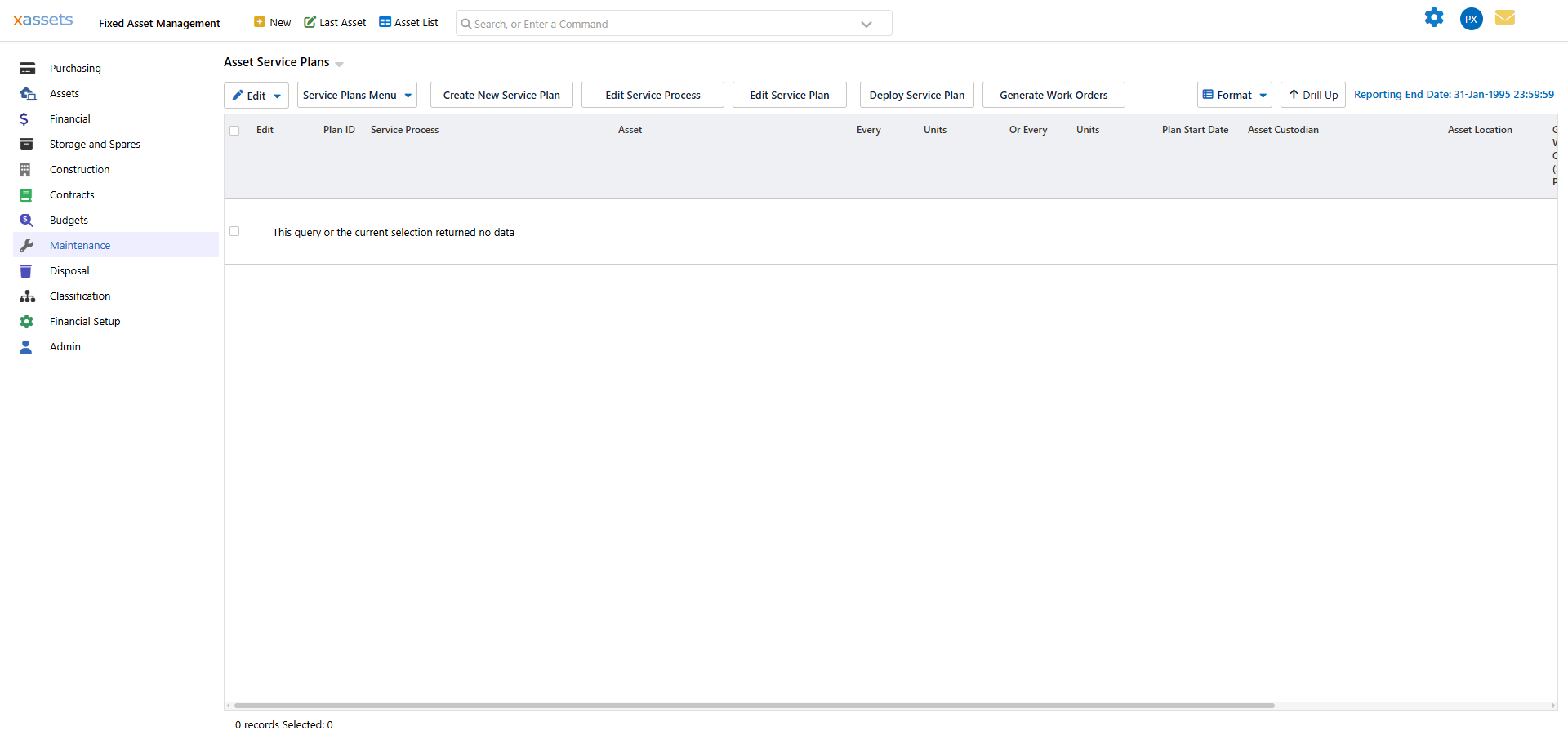
The grid lists every Service Plan with its frequency ("Every" / "Units" and the alternative "Or Every" / "Units"), the linked Asset, Service Process, Plan Start Date, Asset Custodian and Asset Location. The toolbar above the grid provides:
- Create New Service Plan - opens the new Service Plan dialog for a single asset (see below).
- Edit Service Process / Edit Service Plan - open the selected record for editing.
- Deploy Service Plan - deploy a Service Process to many assets at once (see "Deploying to multiple assets" below).
- Generate Work Orders - runs work order generation for the selected plans.
- Service Plans Menu - a dropdown with the same actions plus additional options: Create a New Asset Service Plan Record, Edit Selected Service Plan, Deploy a Service Plan to Multiple Assets, Delete the Selected Service Plans, Edit Service Process, Create a New Service Process Template, Generate All Work Orders, Generate Work Orders for Selected Plans, Generate Work Orders for Specified Assets, and Show Generated Work Orders.
If no Service Plans have been created yet, this screen is shown empty ("This query or the current selection returned no data") until at least one is created or deployed.
Creating a Service Plan for a single asset
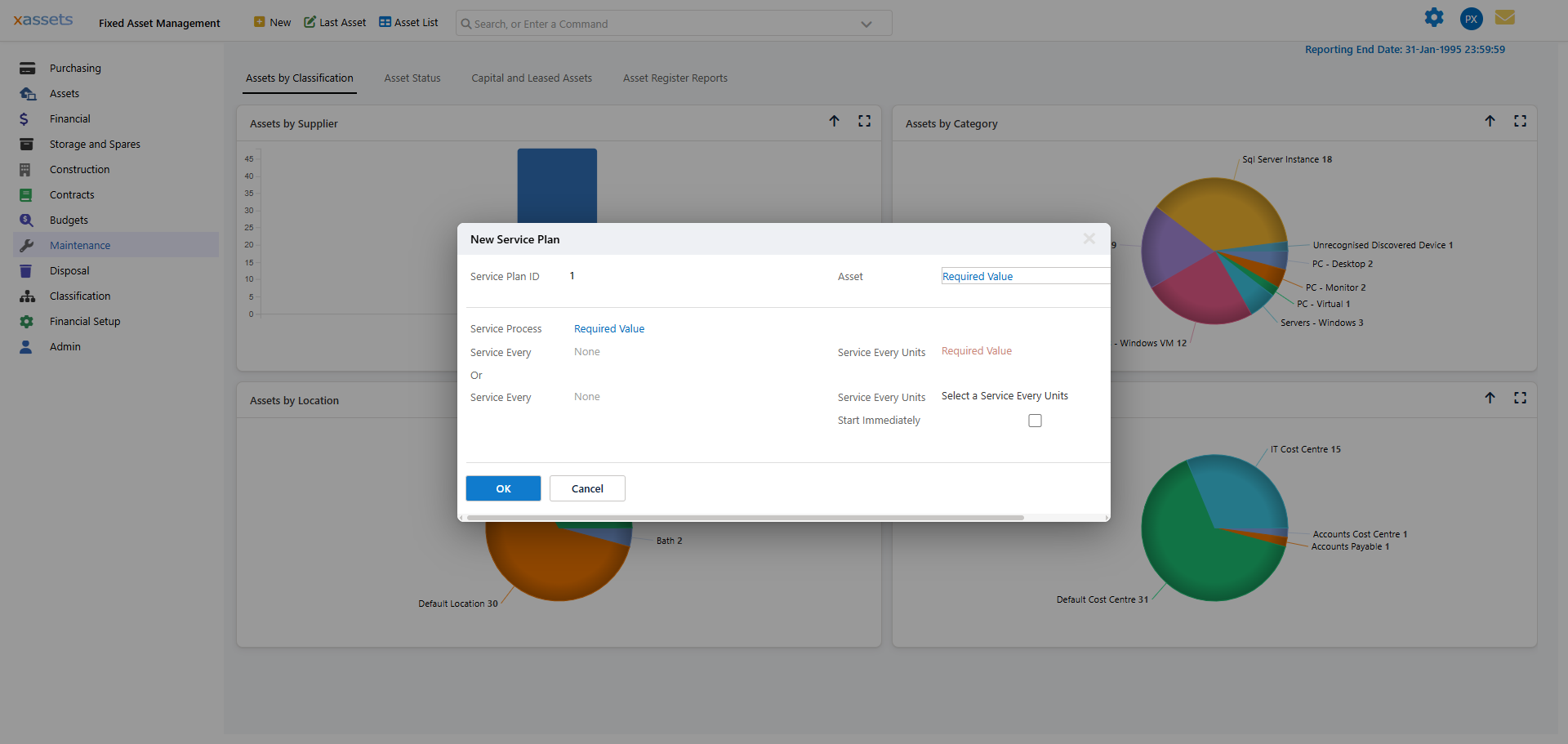
Go to Maintenance > Service Plans > Create a New Asset Service Plan for an Asset, or click Create New Service Plan on the Manage and Deploy Asset Service Plans screen. You will need to select the asset and the Service Process:
Deploying to multiple assets
To create Service Plans for many assets at once, go to Maintenance > Service Processes > Manage Service Processes, select a Service Process, and click Deploy As Service Plan. You will be prompted to select the Categories and Locations of the assets to include:
In this example, Service Plans will be created for every asset in the 2 selected Categories that is also in one of the 5 selected Locations.
Creating from the Asset Editor
When editing one or more assets, select Maintenance > Service Plans from the left menu and click Add Service Plan. The dialog will automatically pre-select the assets being edited.
Service Plan settings
Every plan requires at least one frequency and unit combination:
- Service Every - a number paired with a Service Interval Unit. For example, "1 Year" or "12 Months" both specify an annual service.
- Alternative schedule - you can specify a second interval so the service triggers on whichever comes first. For example, a car might be serviced every 30,000 miles or every year.
- Start Date (time-based units only) - delays work order generation until this date. If omitted, the plan takes effect immediately.
- Service Immediately - if checked, a service is due right away when work orders are first generated, regardless of interval or clock reading. If unchecked, the first service is scheduled only after the first interval has elapsed.
Tip: When deploying service plans to many assets at once, leave "Service Immediately" unchecked unless all those assets genuinely need servicing right away - otherwise the system will generate a large batch of work orders immediately.
Related Articles
- Creating a Service Process - How to create a service process within a plan
- Steps to Generate Work Orders - The steps involved in generating work orders
- Generating Work Orders - How the system generates work orders
- Tolerance in Servicing Plans - How tolerance settings affect service triggers
- Maintenance Setup - Configuring maintenance plans and intervals