Creating a Catalog Entry
This page covers manual creation of a Software Catalog entry. Most entries are created automatically by the "Load Now" process — see Software Catalog Overview. Manual creation is for cases where you need an entry before automatic creation has caught up.
Workflow
1. Open the Create Form
From Licensing → Licensing Position, use the Software Product Catalog Menu to select Create a new Software Catalog Entry:
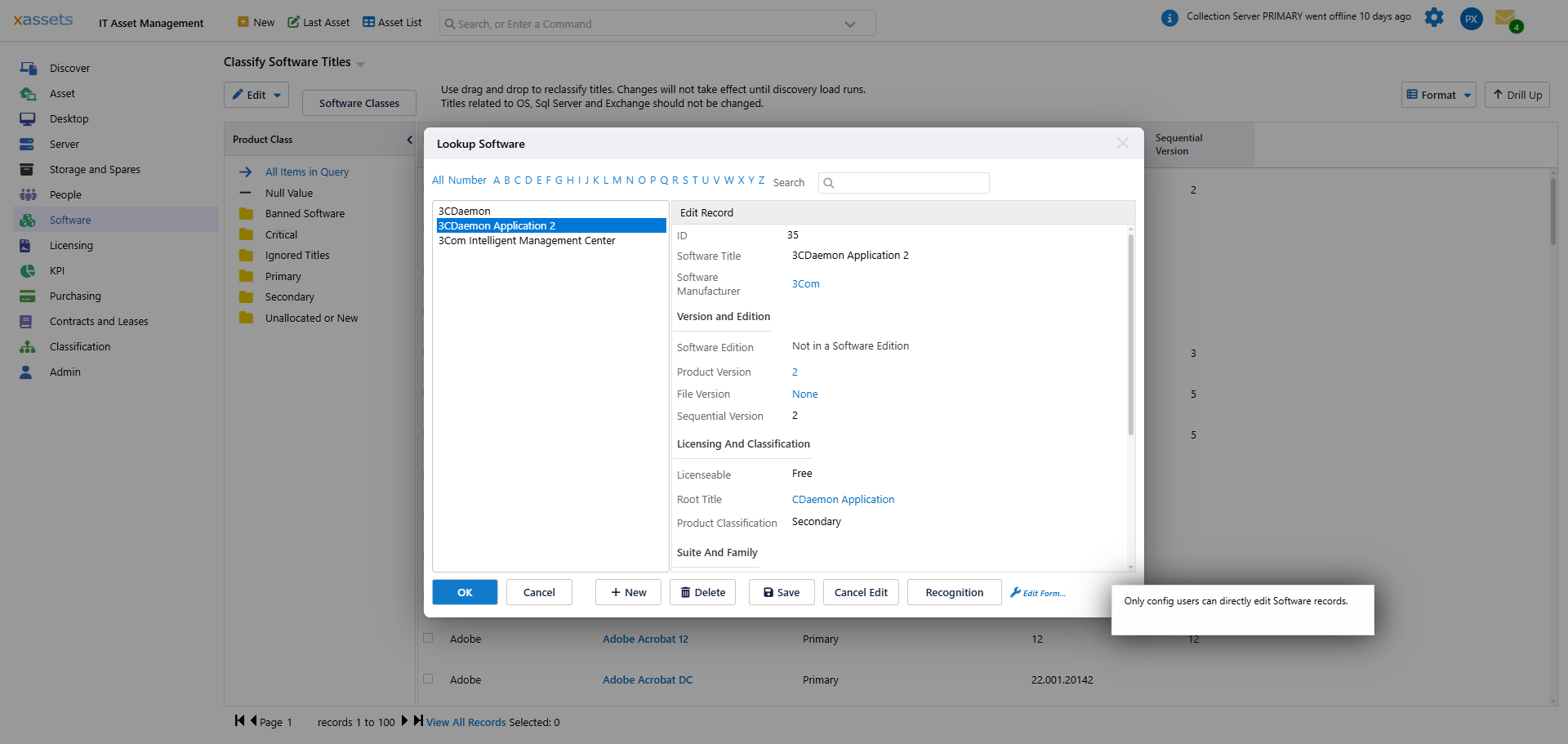
An entry screen opens for the new product.
2. Fill in the Core Fields
| Field | What to Enter |
|---|---|
| Description | The human-readable product name (e.g., "Microsoft 365 Apps for Business") |
| Product Code | The lookup key that license imports will match against. Leave blank to use Description, or set a short code if you prefer one. See Product Code vs Description. |
| Manufacturer / Publisher | The vendor (e.g., Microsoft, Adobe). Used for grouping in reports. |
| License Type | The metric for this product. Critical — see below. |
| Downgrade Rule | None / One / Any. See Concepts: Downgrade Rules. |
| Default Allocation Rule | "Use Default Rules" for most products. Set to "Allocate by Department / Location / Cost Centre" (or a combination) when the publisher licenses per organisational unit. All licenses for this product inherit the choice unless they override individually. See Per-Product Configuration. |
Click OK to save.
3. Set the License Type Correctly
The License Type is the most important single field on the catalog entry. It determines:
- How consumptions are metered (per user, per device, per core)
- What "Seats" on attached licenses means
- Whether the product appears in compliance numbers at all (free products are excluded)
See Concepts: License Metrics for the full list of license types and when to use each.
The most common defaults:
| Product Style | License Type |
|---|---|
| SaaS subscription per user (M365, Adobe CC, Salesforce) | USER |
| Boxed desktop software | SERVER (per computer) |
| SQL Server Standard / Enterprise | CORE or CORE4 |
| Windows Server Datacenter | CORE8 |
| Free utilities, dev editions | FREE |
Set this at creation time. Changing License Type later requires a recalculation, and any consumptions posted with the old metric will be re-metered. It is much cheaper to get it right at creation.
4. Add Defining Titles
After saving, the catalog entry exists but has no defining titles. Without those, no consumptions will be posted for the product. See Defining Titles for the workflow.
5. Verify
After saving and adding defining titles:
- Run Licensing → Calculate Licensing Position to recalculate.
- Open the catalog entry and check the Installed column has populated.
- Add license records (see Software Licenses) and recalculate again.
- Confirm the product appears in the Licensing Position with the correct numbers.
Bulk Catalog Creation
For loading dozens or hundreds of catalog entries at once, the standard workflow is the same as license import — a tab-separated file with one row per product. The transformation is similar to Standard License Import but targets CategoryID = 143 (Software Product) instead of CategoryID = 10 (Software License).
If you are setting up SAM from scratch and need to bulk-create the catalog before importing licenses, contact xAssets support for the catalog import template — the workflow is similar to license import but uses a different transformation.
Related Reading
- Defining Titles — making the entry actually count installs
- Per-Product Configuration — license type, downgrade, scoping flags
- Concepts: License Metrics
- Importing Licenses: Preparing the Catalog