Tree Filtering
A tree down the left of a query narrows the rows on the right. Click a node and the grid shows only what belongs to it. This works for queries built in the query designer, and — since it was extended — for queries written directly in SQL.
What a Tree Gives You
A long result set is hard to work with. Sorting helps, filtering helps more, but both need the user to know what they are looking for. A tree shows the shape of the data first: how many licences there are, which departments exist, which locations have assets. The user picks from what is actually there.
It also keeps context. Filtering by search replaces the result set; clicking a tree node narrows it while leaving the tree in place, so moving between nodes is a click rather than a re-query.
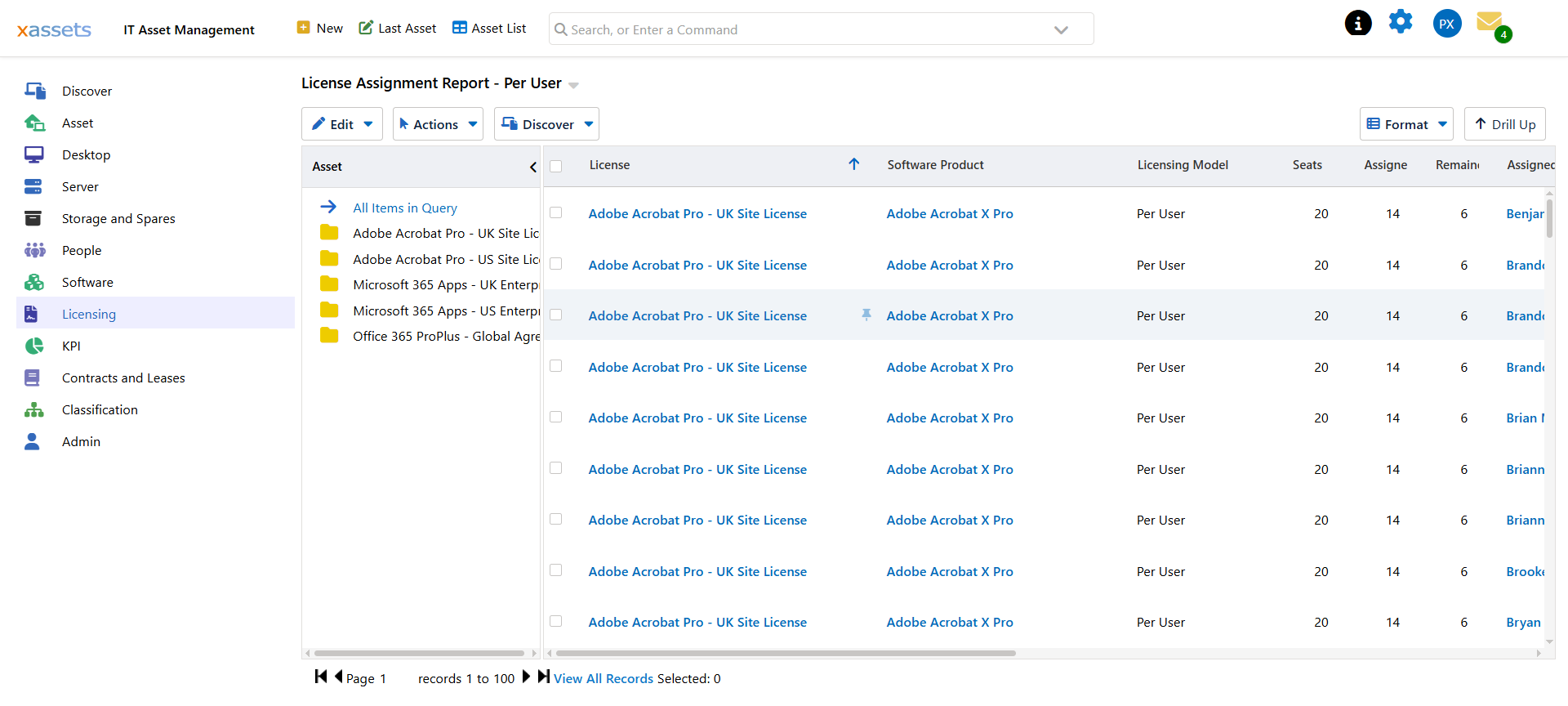
Every tree carries an All Items in Query node at the top, which clears the filter.
Adding a Tree to a Query
A tree needs two things: what the nodes are, and how clicking one filters the rows.
The nodes come either from a field in the query — group by department, and the tree lists departments — or from a separate query that returns the list. A separate query is the better choice when you want the nodes labelled or ordered differently from the way they appear in the grid, or when the tree should show entries that have no rows yet.
The filter is applied automatically for queries built in the designer: xAssets knows which field the tree came from and filters on it.
Trees on SQL Queries
For a query written directly in SQL, xAssets cannot infer where to apply the filter — so you mark the spot yourself with a filter placeholder in the query's where clause. When somebody clicks a node, the placeholder is replaced with the condition for that node. With no node selected, it resolves to nothing and the query returns everything.
The placeholder accepts options controlling how it joins to the rest of your where clause — whether it should supply the WHERE keyword itself or add to an existing clause — so it works whether or not your query already filters on something.
For multi-level trees, each level maps to the field it should filter on, so clicking a department filters by department and clicking a location beneath it filters by both.
This is the mechanism behind the tree on the License Assignment Reports, which are SQL-based and use a separate query to build the licence list.
For the exact syntax, see Advanced Query Techniques.
Practical Notes
- Keep trees shallow. Two levels is usually plenty. Three is navigable; four is a filing cabinet.
- Order nodes usefully. Alphabetical is fine for names. For anything with a natural order — periods, sizes, severities — set the order deliberately.
- Check the empty case. A tree built from a separate query can list nodes with no matching rows. That is often desirable — an empty department is information — but the grid should say so rather than looking broken.
- Sorting and filtering still work. A tree narrows the rows; the user can still sort and search within what is left.
Related Reading
- Advanced Query Techniques — the filter placeholder syntax
- Creating a Query
- Query Parameters
- License Assignment Reports — a worked example