All Main Screens
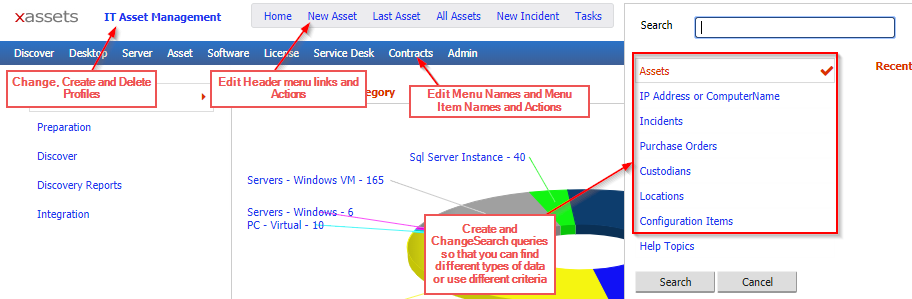
- Change Create and delete Profiles
Profiles are accessed through the Admin > Menus > Profiles screen. It is possible to create new profiles each containing their own set of menu items, and set the default filters for each menu item to determine which records are exposed in that profile.
- Edit Header Links and Actions
The header links are menu items and can be configured by admins directly from a Ctrl click. Header links can be different in each profile or shared between profiles (if they exist in the Global profile)
- Edit Menu Names and Menu Item Names and Actions
Menu items and menu categories can be added, and each menu title and menu item in the menu dropdowns can be edited, moved, renamed, deleted or its functionality altered.
These menu items have the type "Standard Menu Item". Standard menu items can be different in each profile or shared between profiles (if they exist in the Global profile)
It is possible to create new areas of functionality using menus
- Create and change queries that Search Uses to Find Records
By default, Search will search within the currently displayed query if there is one on the screen when the user types in the search box. If no query is displayed, or the user selects an option from the search menu, then searches will be made in the pre-defined search queries. These queries can be added to the menu below the Search box so that the user can select which one to use for the search they are performing. The search query takes a parameter of "searchfor", which is referred to in the filter as %searchfor% - this will be replaced with the text entered in the search box each time the query runs.
Related Articles
- What Can Be Configured Overview — Overview of all configurable areas
- Asset Entry — Configuring the asset entry screen
- Dashboards — How dashboards can be configured
- Forms — How forms can be configured
- Profiles — How profiles can be configured