Dashboards
Dashboards provide a convenient means of displaying multiple data on the screen in different formats such as tables or charts and a quick means of accessing relevant and frequently used menus linking to queries and actions.
There are many ways in which a dashboard can be configured and customised:
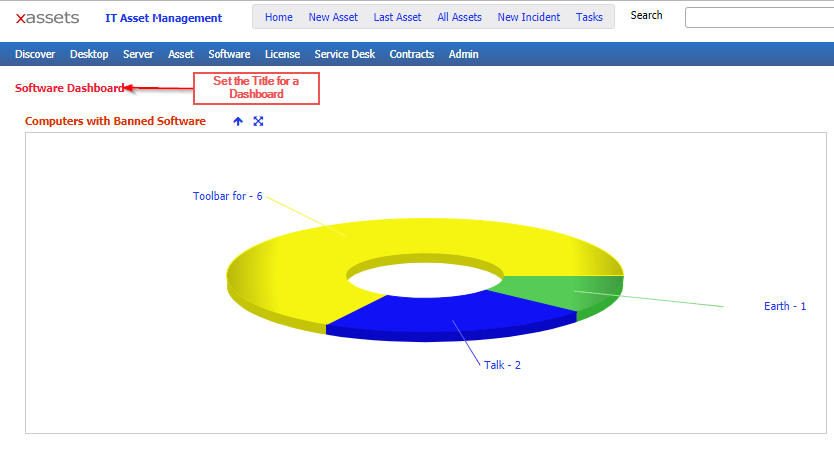
- Set the Title for a Dashboard
The title is set via the title= query string parameter and this can be set in the menu item command builder. The Title is only displayed for a full dashboard. Sub dashboards do not have titles as their links in the dashboard container list serve as the titles
- Set the Sub Category Name for a Group of menu items
The Sub Categories are taken from the sub category on each menu item record which is displayed.
- Display a horizontal menu of options
If a Menu on a dashboard is configured with a Display Type of "Horizontal Menu" then it will display horizontally next to the previous menu item on the dashboard. The tab strip at the top of every dashboard (for example Servers, Roles and Features, Server Inventory, Additions and Changes, Virtual, Operating System Updates, Server Health and Spares and Storage on the Server Dashboard) is built from this same mechanism.
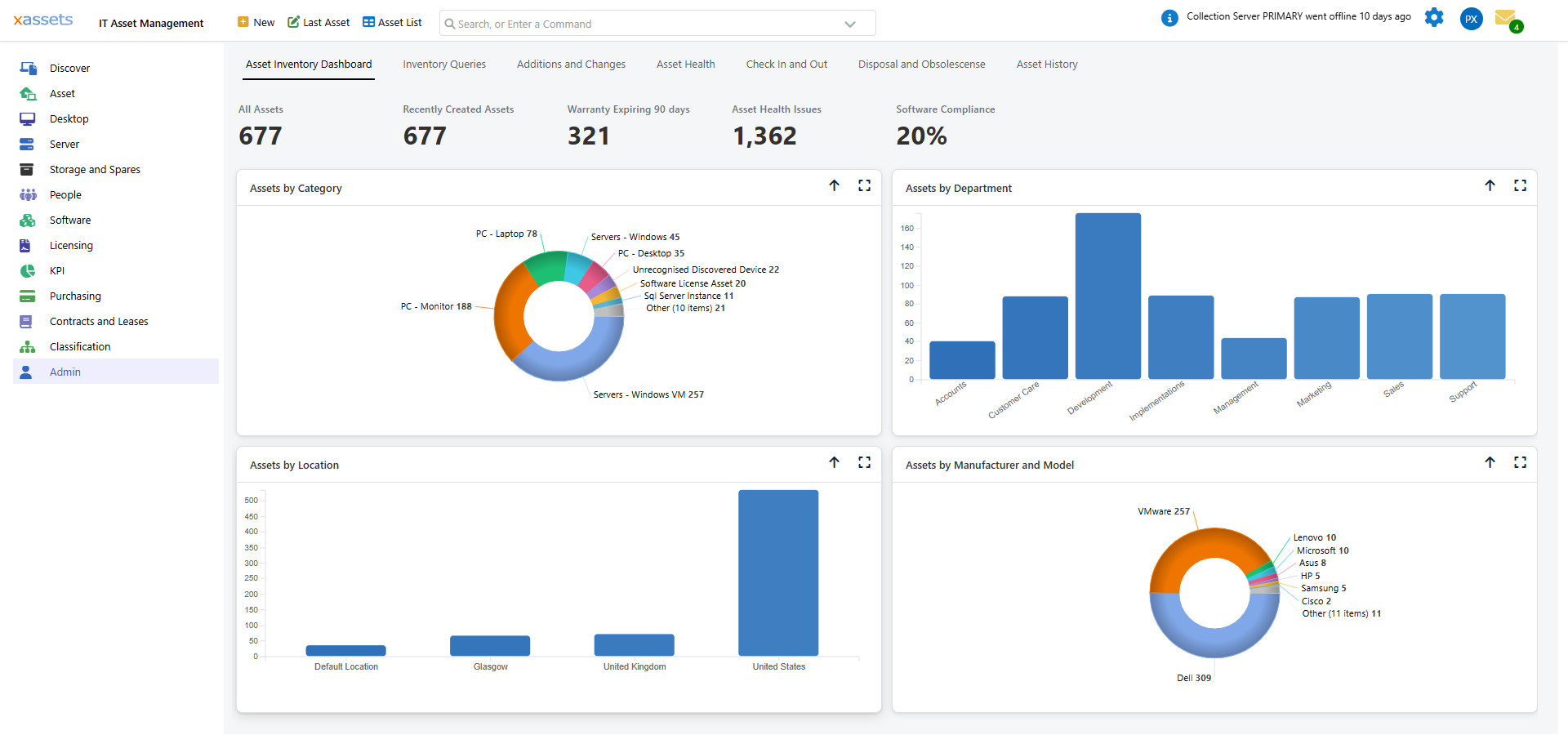
- Display a Table of data with optional Help Text above it
A query displayed in a dashboard is a menu item with a query command and the Display Type set to "Query or Chart" so that the query is displayed on the dashboard rather than being a menu link to the query. To include help text above the displayed query on the dashboard, the Display Type for the dashboard menu item should be set to "Query with Help Text". The help text to display is the Tooltip for the menu item.
- Display Charts with optional Help Text above it
A chart is defined by a query with its presentation set to the chart type required. A chart in a dashboard is a menu item with a chart command and the Display Type set to "Query or Chart" so that the chart is displayed on the dashboard rather than being a menu link to the chart. To include help text above the displayed chart on the dashboard, the Display Type for the dashboard menu item should be set to "Query with Help Text". The help text to display is the Tooltip for the menu item.
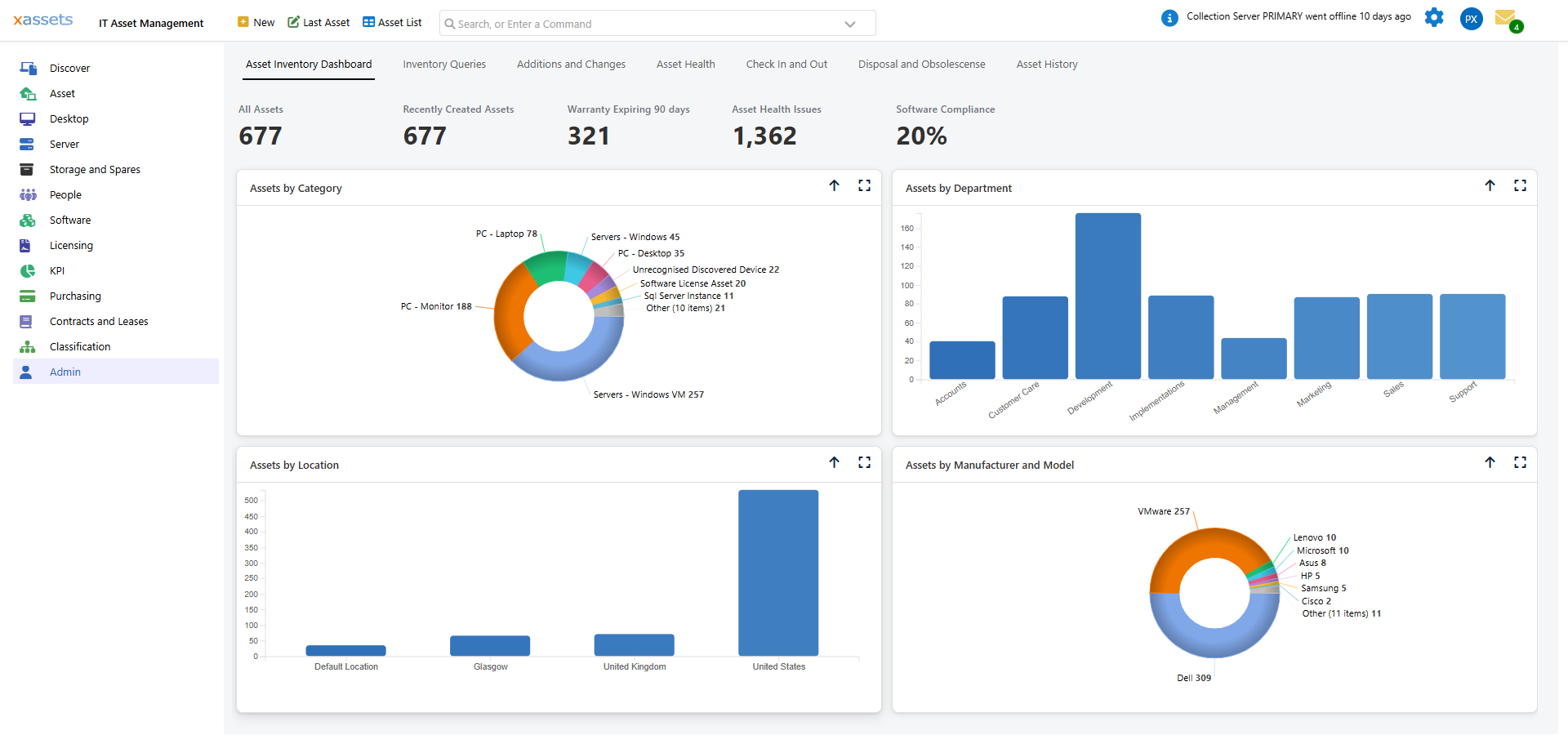
- Define the number of columns to display on the dashboard
The number of columns is set via the columns= query string parameter and this can be set in the menu item command builder. The number of columns determines how many menu items are displayed across the dashboard. Horizontal menus are an exception to this as they display horizontally within the column.
- Define Menu items and their actions
Each item on a dashboard is sourced from a menu item, and each column has a dedicated menu category for that dashboard containing those menu items.
Menu items can be edited by right clicking them, and clone can be used to right click a menu item and create a new item from it.
It is also possible to group multiple sub-dashboards using a Dashboard container so that it is quick and easy to switch between dashboards. The Discovery Dashboard is an example of this: the tab strip across the top (Getting Started, Discover, Discovered Assets, Discovery Reports, Inventory Accuracy and Integrations) switches between separate sub-dashboards without leaving the screen.
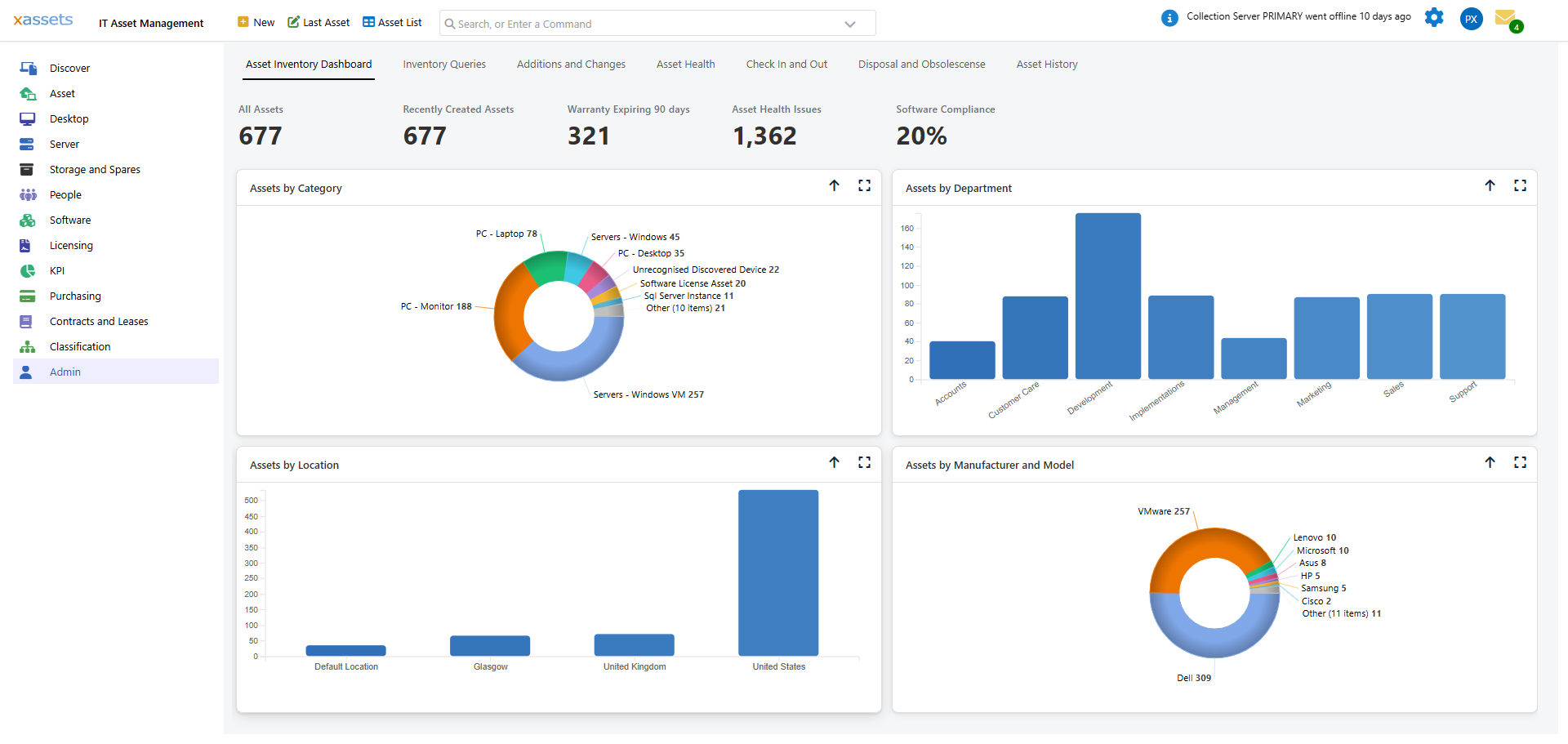
Dashboard Containers are a form called Dashboard Container which displays a Menu Category that contains Menus for each of the Sub Dashboards to display.
Related Articles
- What Can Be Configured Overview - Overview of all configurable areas
- Dashboards Overview - Detailed guide to creating and managing dashboards
- Creating a Dashboard - Step-by-step dashboard creation
- How to Create a Custom Dashboard - Practical guide to building a dashboard