Asset Entry
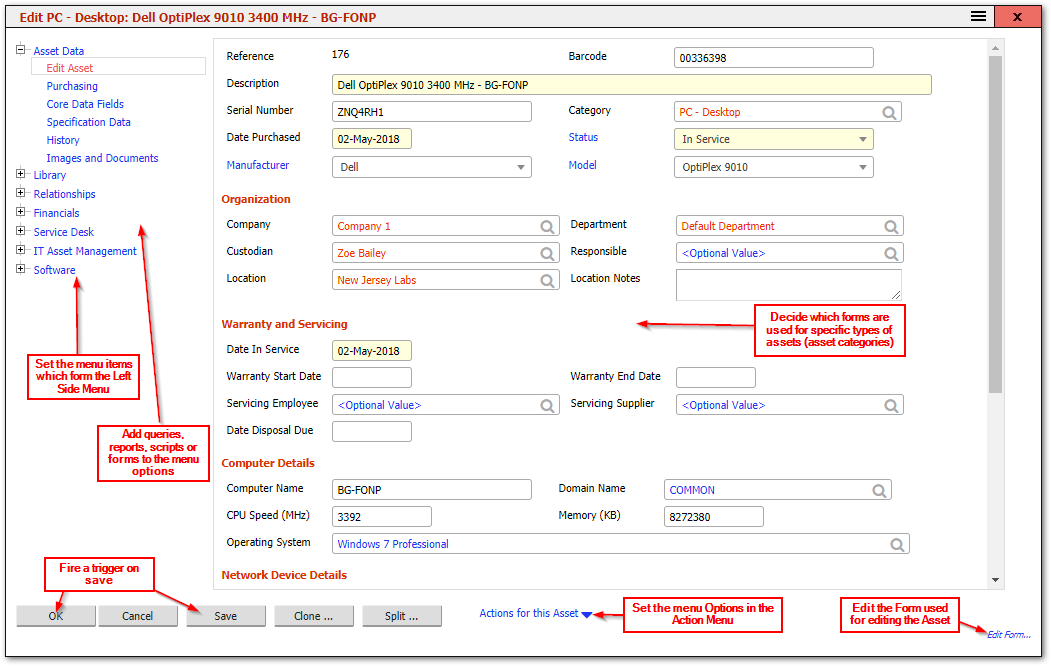
- Set the menu items which form the Left Side Menu
These left side links are menu items of type "Asset Entry Screen Left Links" and can only be configured from the menu entry screens.
By setting a category context on these menu links, different left link menus can be displayed for different types of assets. For example, the "IT Asset Management" link in the above menu is not displayed for non-IT assets.
- Add queries, reports, scripts, or forms to these left side menu links
These menu items can run specific "leftmenu" functions, or can run queries, forms, or transformations.
- Edit the Form used for editing the Asset
Decide which fields are displayed, create new fields, change presentation, dropdown content, color, font, dropdown source query, field name, validation, and mask
Fields on the currently displayed form can be configured by clicking the "Configure (admin only)" link.
- Decide which forms are used for specific types of assets (asset categories)
The overall form displayed is determined firstly by the "Asset Edit Key" of the current main menu group/profile, and secondly by the category of the asset being edited. Each form can have a number of versions for different categories or for category groups.
- Fire a Trigger on save which can validate, edit data, launch a report into a PDF window or send email
The save action can run specific validation, updates, Sql triggers, Sql updates, or any transformation both on precommit and postcommit. This allows for reports or emails to be generated based on specific database conditions.
- Set the menu Options in the Action Menu
The Action menu contains menu options that can act on the asset currently being edited. Simply use %key% as the parameter value to pass to any transformations or queries run from this menu to specify the ID of the asset currently being edited.
Related Articles
- What Can Be Configured Overview — Overview of all configurable areas
- Forms — How forms can be configured
- All Main Screens — Overview of all main screens
- Forms Overview — Detailed guide to forms and the form editor
- Default Values for Asset Fields — Setting up default values for asset fields