Currencies and Exchange Rates
Every financial amount in xAssets has an associated currency code. This page explains how to configure currencies and manage exchange rates. Even single-currency organisations need to define their home currency - the system requires at least one currency to function.
Prerequisites
- You must be in the Fixed Asset Management profile (see Fixed Asset Management Profile).
- Your home currency should be defined in Admin > Settings before configuring exchange rates.
Single-Currency vs. Multi-Currency
| Environment | What You Need to Do |
|---|---|
| Single currency | Define your home currency with an exchange rate of 1. No further currency setup is needed. |
| Multi-currency | Define all currencies you use, maintain exchange rates for each, and ensure your home currency has a rate of 1. |
Accessing Currencies and Exchange Rates
Navigate to Financial Setup > Financial and Depreciation > Currencies and Exchange Rates:
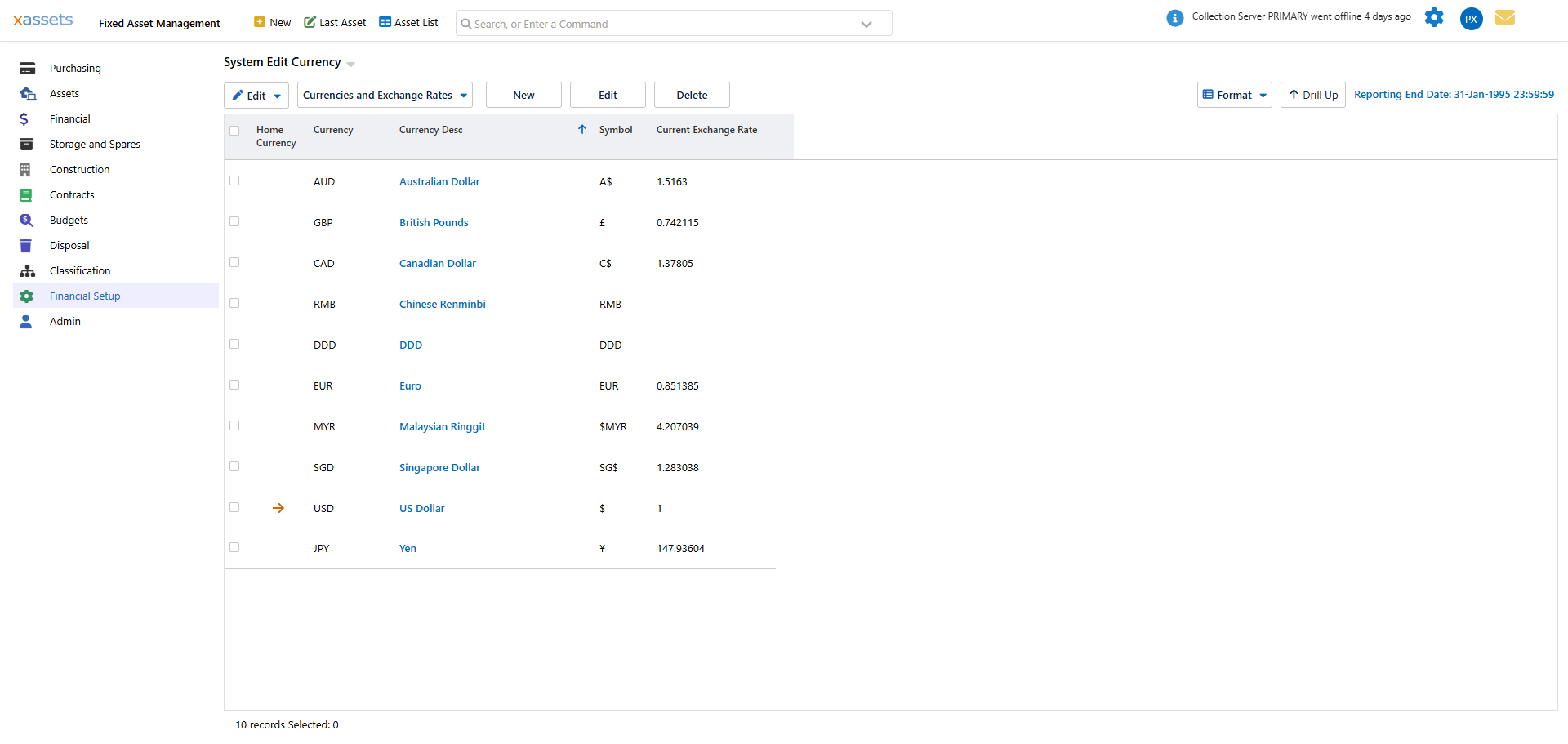
The grid lists every currency code, its description, its display symbol, and its current exchange rate. A small arrow in the Home Currency column marks whichever currency is your home currency - its exchange rate should always read exactly 1.
Setting Up Your Home Currency
Your home currency is defined in Admin > Settings. Make sure that currency also exists in this Currencies and Exchange Rates list with an exchange rate of exactly 1. All other currencies are valued relative to it.
Warning: If your home currency does not have an exchange rate of 1, all financial calculations and reports will produce incorrect values. Verify this as part of your initial setup.
Creating a New Currency
To create a new currency:
- On the Currencies and Exchange Rates screen, click New (or choose Add Currency from the Currencies and Exchange Rates dropdown menu in the toolbar).
- Enter the Currency Code (use ISO 4217 codes such as USD, GBP, EUR for compatibility with the automatic exchange rate import feature).
- Enter the Currency Description and the Currency Display Symbol.
- Add at least one exchange rate (see below).
- Click OK or Save.
Existing currencies can also be removed with Delete on the toolbar, or Delete Currency from the dropdown menu, if they are not referenced by any transactions.
Editing a Currency
Click a currency's description in the list to open its Edit Currency dialog. This shows the Currency Code, Currency Description and Currency Display Symbol, plus the Exchange Rates grid for that currency.
Managing Exchange Rates
Exchange rates determine how foreign currency amounts are converted to your home currency for reporting purposes. Each currency keeps its own history of rates, shown in the Exchange Rates grid inside its Edit Currency dialog: Start Date, End Date, Exchange Rate, Average Exchange Rate, Other Rate, and (for reference) the number of Asset Transactions that have used the rate and the date of the Last Transaction.
Adding an Exchange Rate
To add an exchange rate to a currency:
- Open the currency record (click its description in the list).
- Click Add Exchange Rate.
- Enter the Start Date and End Date the rate applies to, and the Exchange Rate itself.
- Click Save.
Because each rate has a start and end date, the system can hold a full rate history and pick the rate that was in effect on any given transaction date. Use Delete Exchange Rate to remove a rate row you no longer need.
Tip: Enter exchange rates as the number of home currency units per one unit of foreign currency. For example, if your home currency is GBP and the rate for USD is 0.80, then 1 USD = 0.80 GBP.
Automatic Exchange Rate Import
If you use ISO currency codes, you can import the latest exchange rates automatically:
- From the Currencies and Exchange Rates dropdown menu in the toolbar, select Import Exchange Rates from Web Service Now.
- The system retrieves rates from a bank web service that publishes exchange rates four times per day.
- Previous rates are preserved in the exchange rate history - the import adds new rate rows without overwriting existing ones.
Scheduling Automatic Imports
To automate exchange rate updates:
- From the same dropdown menu, select Create Schedule for Import of Exchange Rates.
- Configure the schedule (e.g. daily at 9:00 AM).
- The system will automatically import the latest rates on the configured schedule.
- Use View Schedule for Exchange Rate Import from the same menu to check or review an existing schedule.
This ensures your exchange rates stay current without manual intervention.
Tip: For organisations with assets denominated in many currencies, scheduled exchange rate imports save significant time and reduce the risk of using stale rates in financial reports.
How Exchange Rates Affect Financial Calculations
Exchange rates are used when:
- Reporting - Asset values in foreign currencies are converted to your home currency for consolidated reports
- Period-end processing - Depreciation is calculated in the asset's transaction currency
- Valuation reports - Net book values are presented in the home currency using the applicable exchange rate
Warning: Exchange rate changes do not retroactively recalculate past transactions. If you correct an exchange rate, only future calculations and reports will reflect the new rate. Past journal entries remain at the rate that was in effect when they were posted.
Related Articles
- Multi Company Environments - Companies that operate in different currencies
- Valuations - How valuations use exchange rates for reporting
- Financial Setup Introduction - Overview of the setup sequence