SQL Server Discovery
SQL Server Discovery is a specialised agentless discovery tool that identifies SQL Server instances, databases, and associated files across your network. It uses the xAssets database to build a candidate list of servers, then connects to each one to collect detailed SQL Server information.
What SQL Server Discovery Collects
| Data Type | Examples |
|---|---|
| SQL Server Instances | Instance names discovered on each computer |
| Databases | Database names within each instance |
| Database Files | MDF and LDF file paths and sizes |
| Server Details | Version, Edition, Service Pack, Licensing model |
This information is essential for SQL Server licence compliance, since Microsoft licences SQL Server by edition, version, and processor or core count.
Prerequisites
- A previous network discovery must have been run and loaded into the xAssets database. SQL Server Discovery uses the existing asset database to identify candidate servers -- it cannot discover servers that are not already in the database
- A Credential Pack with SQL Server DBA credentials may be required, depending on the authentication mode configured on the target SQL Servers
- The SQL Server Analyser executable must be available on the Collection Server
Running SQL Server Discovery
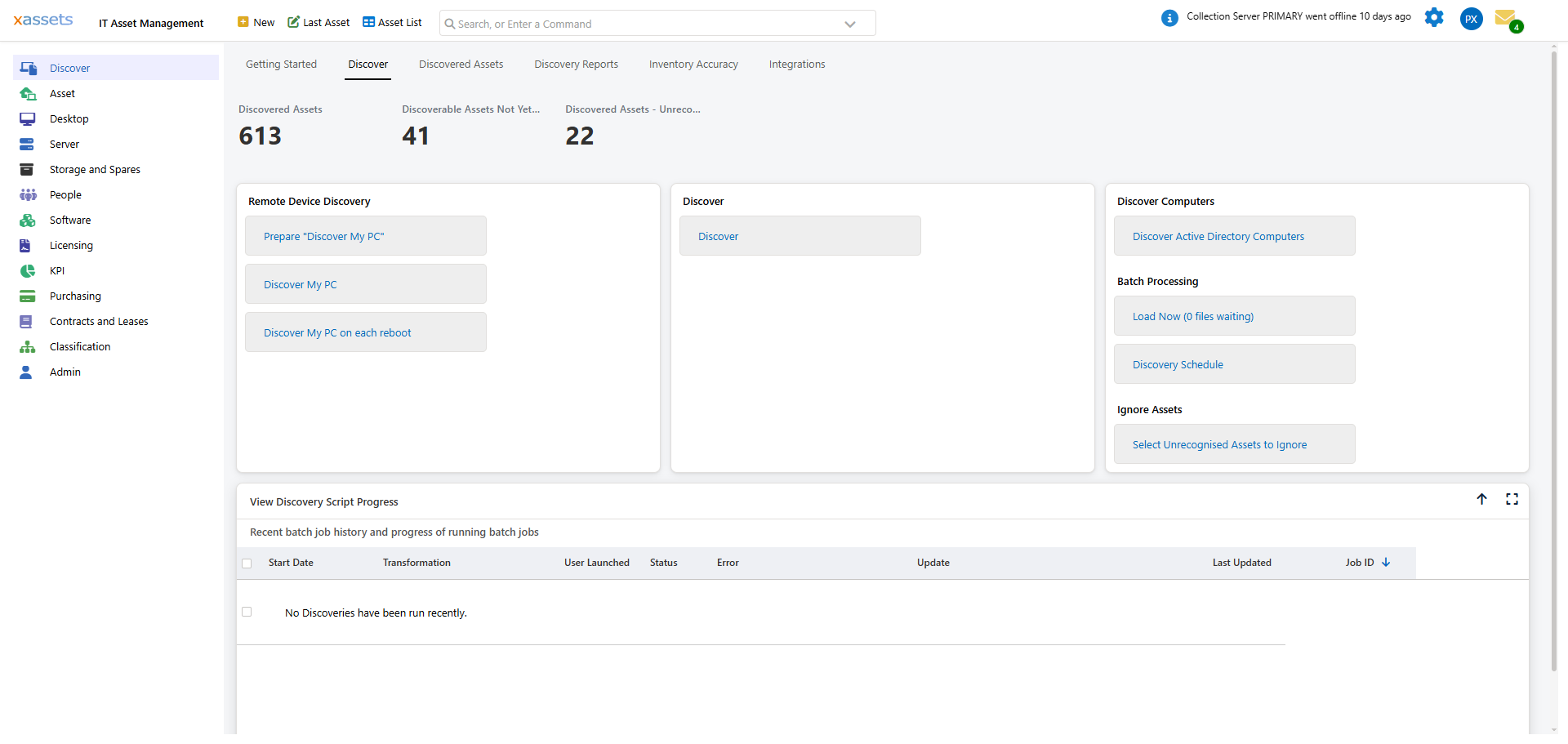
- From the Standard Menu, choose Discover > Discover SQL Server
- A list of candidate servers is displayed -- these are computers already in the database that may be running SQL Server
- Select one or more candidates (use Shift+Click or Ctrl+Click for bulk selection)
- From the action menu, choose SQL Server Discovery > Discover Selected SQL Servers Now
- At the credentials prompt, select the appropriate Credential Pack from the drop-down
- Click OK to start the discovery
How It Works
The discovery process attempts to connect to each candidate server using the provided credentials:
- Successful connections produce PCS files in the PCAnalyser share containing the collected SQL Server data
- Failed connections are logged -- these typically indicate machines that do not actually run SQL Server, or where the credentials provided do not have access
The data loader then imports the PCS files into the database on its next run.
Tips
- Run SQL Server Discovery periodically (e.g., monthly) to catch new instances that have been installed since the last scan
- If many candidates fail, it may mean your initial network discovery is picking up machines as "possible SQL Servers" that are not actually running SQL Server. This is normal and not harmful
- For SQL Server licence compliance reporting, ensure that processor and core count data is also being collected by your main network discovery scripts
Related Articles
- Running Discovery — general network discovery
- Credential Packs — creating and managing discovery credentials
- Loading Discovery Data — importing results into the database
- Licensing Position — how SQL Server license compliance is reported