Reports
Software compliance reports provide a documented view of your licensing position -- how many licences you own versus how many installations exist across your network. These reports are essential for audit preparation, management reporting, and licence renewal planning.
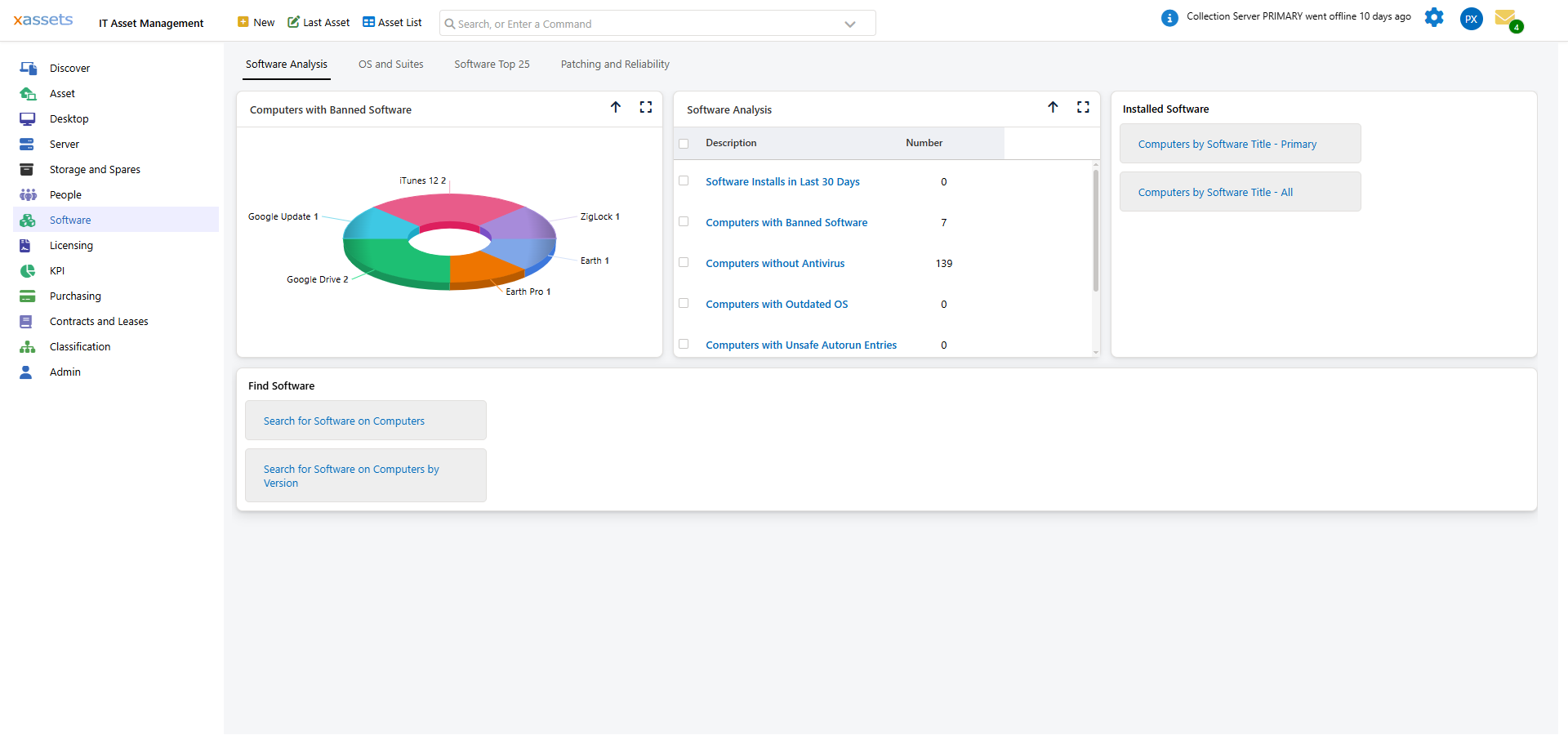
Reports are available from the Software Dashboard and the Software menu, and can be generated in PDF format for printing or sharing.
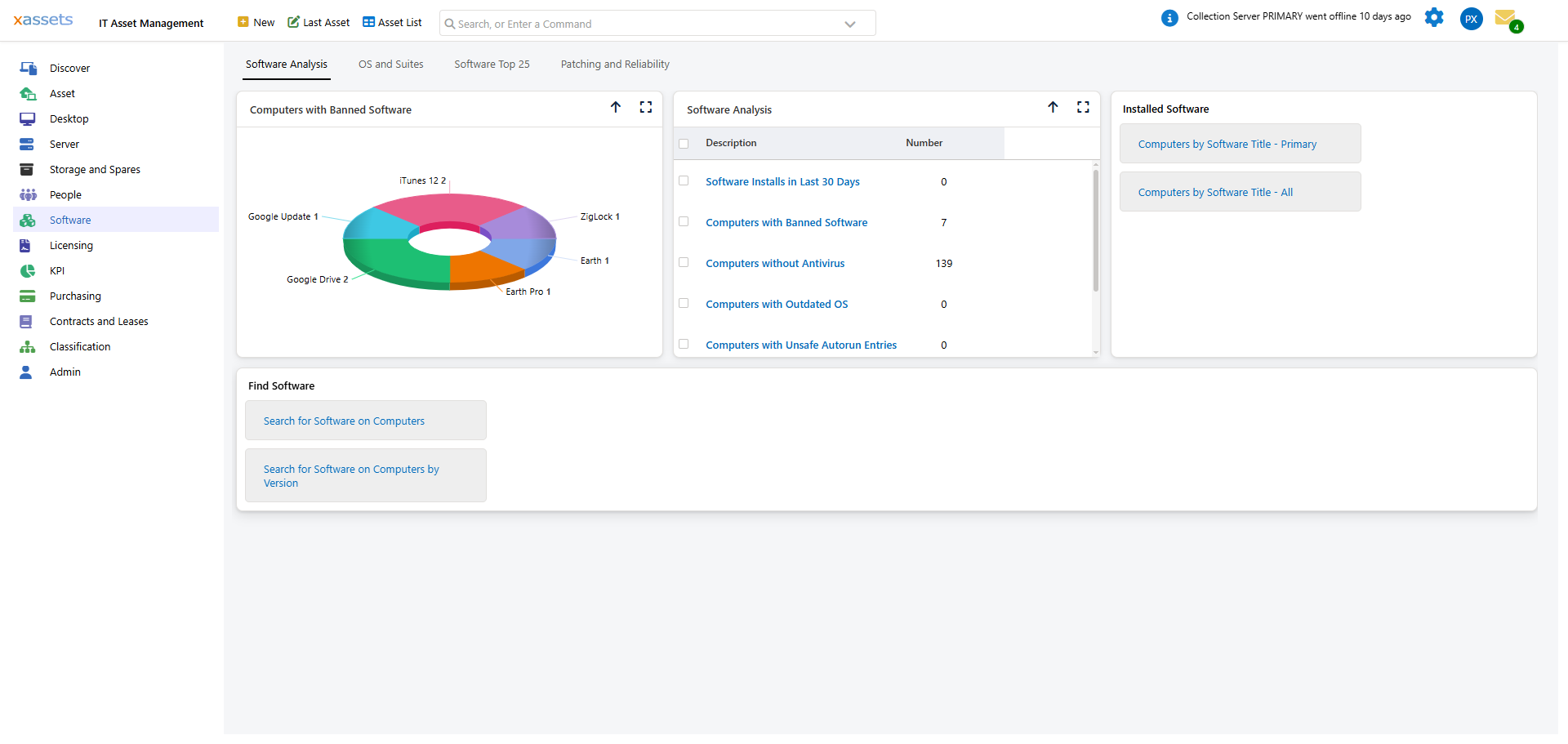
Software Licencing Compliance Summary
The Compliance Summary report provides a high-level view of every managed software product and its compliance status:
| Column | Description |
|---|---|
| Seats | Total licence seats across all licences for this product |
| Base Rights | Rights that do not depend on other rights to qualify (i.e., rights from direct licence purchases) |
| Total Rights | Total rights available after upgrade/downgrade processing |
| Licensable Installed | Number of computers with this product installed that require a licence |
| Assigned | Number of computers explicitly assigned to a licence for this product |
| Computers Allocated | Rights allocated to computers to cover installations |
| Downgrade | Rights taken from this product to cover other products via downgrade rules |
| Unallocated | Licence rights not yet allocated to any computer |
| Used for Downgrades | Downgrades from other products used to cover this product's requirements |
| Remainder | Rights in excess of the number of installations (positive = over-licensed, negative = under-licensed) |
How to Read the Report
- Products with a positive Remainder are compliant or over-licensed -- no immediate action needed
- Products with a negative Remainder are under-licensed -- these require attention
- Products with zero Unallocated rights have all licences in use -- any new installations will create a shortfall
- Products where Assigned is much lower than Licensable Installed may benefit from explicit licence assignment to identify which specific machines are covered
Software Licencing Detail Report
The Detail Report includes the same columns as the Compliance Summary but additionally lists which specific computers are using each software product. Use this report when:
- Preparing for a vendor audit -- the auditor may want to see exactly which machines are running their software
- Identifying candidates for software removal -- machines that have the software but do not need it
- Validating that the compliance summary numbers are correct by reviewing the underlying data
Generating Reports
- Navigate to the Software Dashboard
- Select the report you want from the reports section
- Click to generate -- the report opens as a PDF in a new browser tab
- Print or save as needed
Tips
- Run Calculate Licensing Position before generating reports to ensure the data is current
- Generate the Compliance Summary monthly and share with IT management to demonstrate ongoing compliance
- Keep the Detail Report available for audit purposes -- it provides the evidence behind the summary numbers
- If a product shows unexpected numbers, check the software product's title associations and licence records
Related Articles
- Licensing Position — the interactive compliance view
- Software Products — managing the product catalogue
- Software Licences — the licence records that feed into reports
- Assigning Computers to a Licence — improving the "Assigned" column data