Calculating your Software License Compliance Position
This guide will help you get started with the xAssets Software Asset Management Toolset.
Start with an existing inventory in your xAssets instance, either from Discovery, from demo data,
or from an integration such as SCCM, Intune, Tanium, or ServiceNow.
We use that data to calculate your license consumptions for each software product, then enter or import license entitlements,
then the software will match licenses to software products using a powerful software calculation engine.
This means the software you are using is completely tracked from day one, without the need for manual work. To establish software compliance,
we now need to match the software you are using against the software you purchased.
Documentation is available at this link : SAM Guide.
You can get a free instance here : Contact Us.
Inventory
SAM uses your inventory data to know which devices are consuming a license.
When you load your inventory data, the software recognition engine runs automatically regardless of the source.
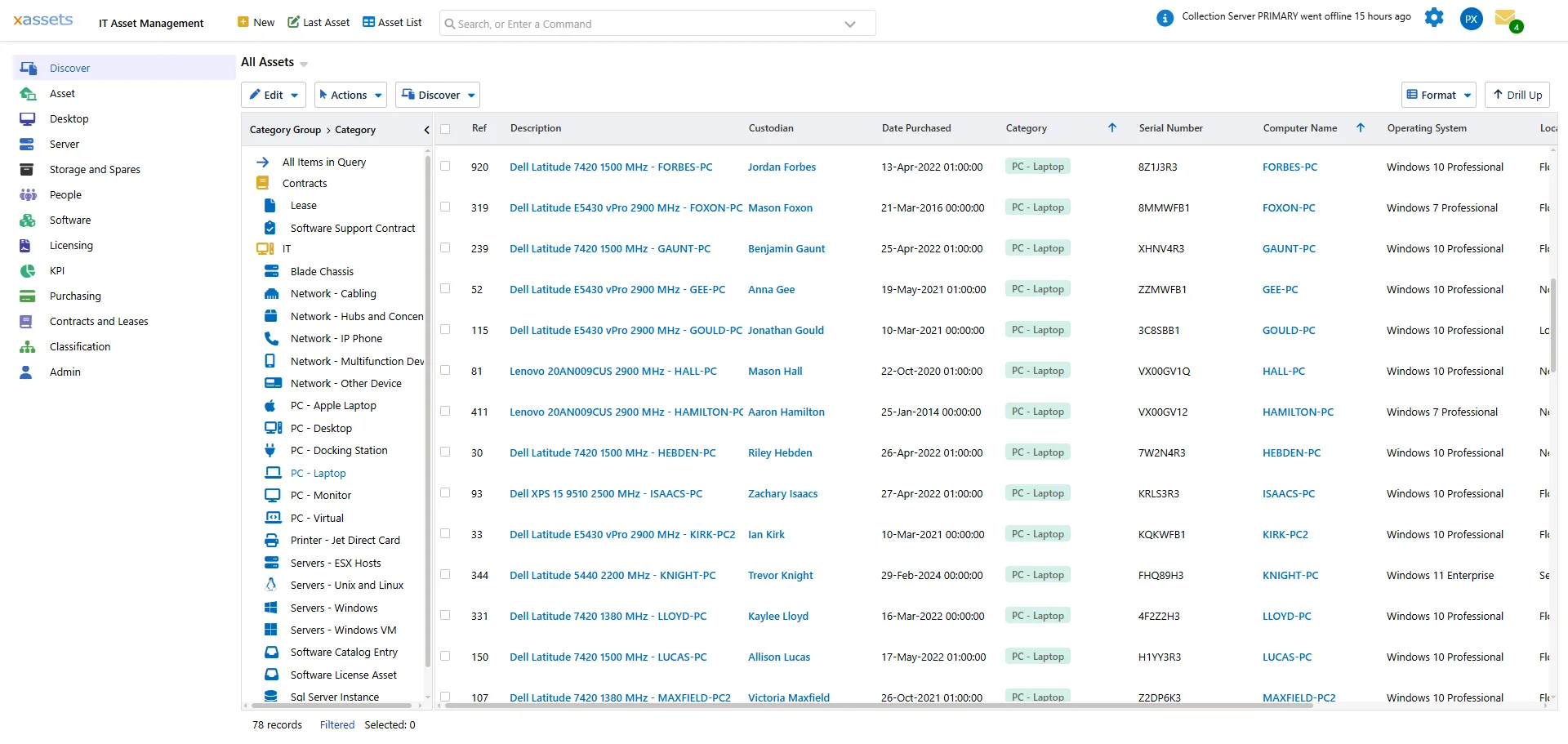
You can check your inventory data using several queries including "Asset List", or the "Asset Inventory Dashboard", or the "Discovery Dashboard".
If you can see most of your expected discovered inventory in the asset list, we are ready to check the Software Catalog
Software Catalog
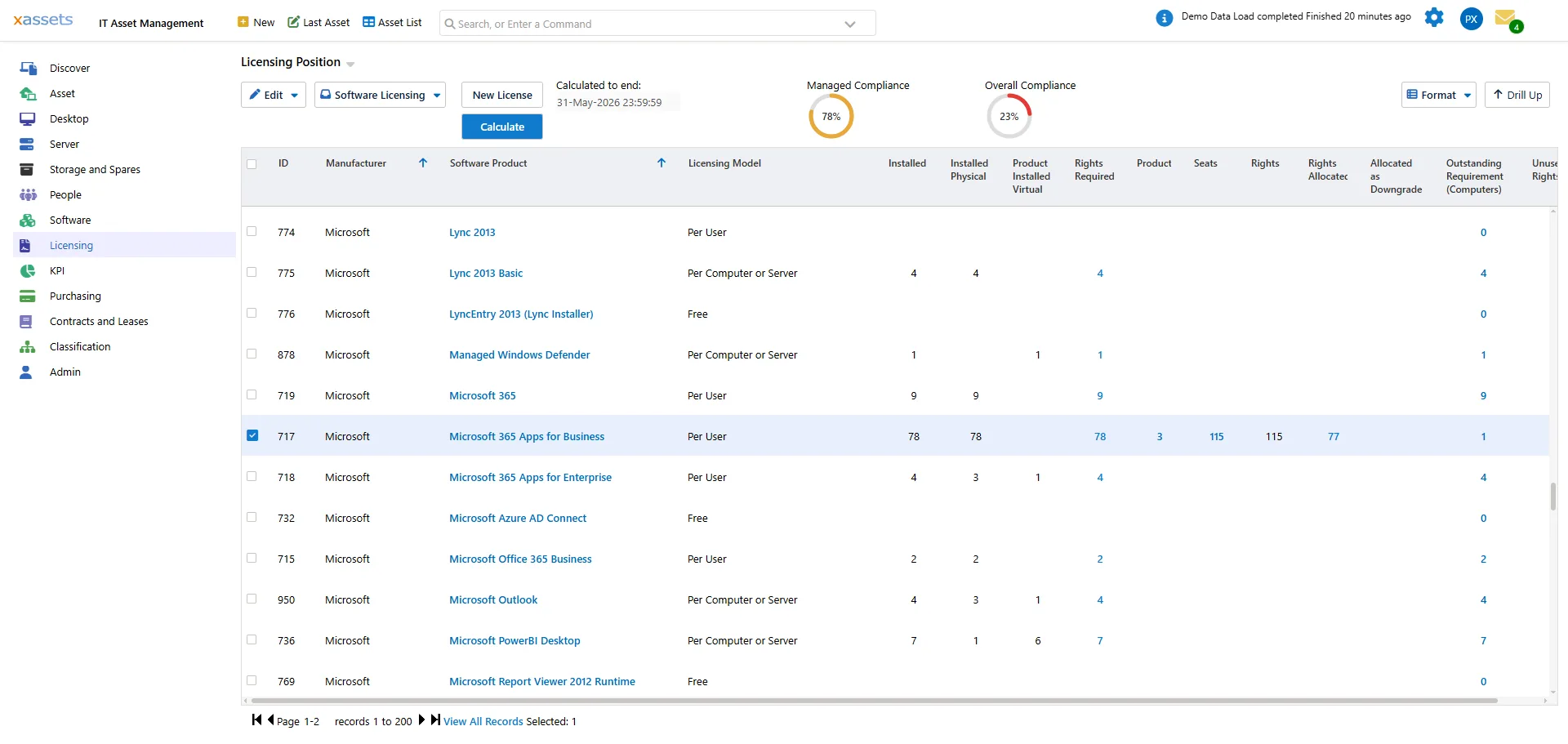
Navigate to Licensing → Licensing Position. This is the software catalog with one row per software product, and the columns show your licensing position for each product.
Find "Microsoft 365 Apps for Business" or "Microsoft 365 Apps for Enterprise".
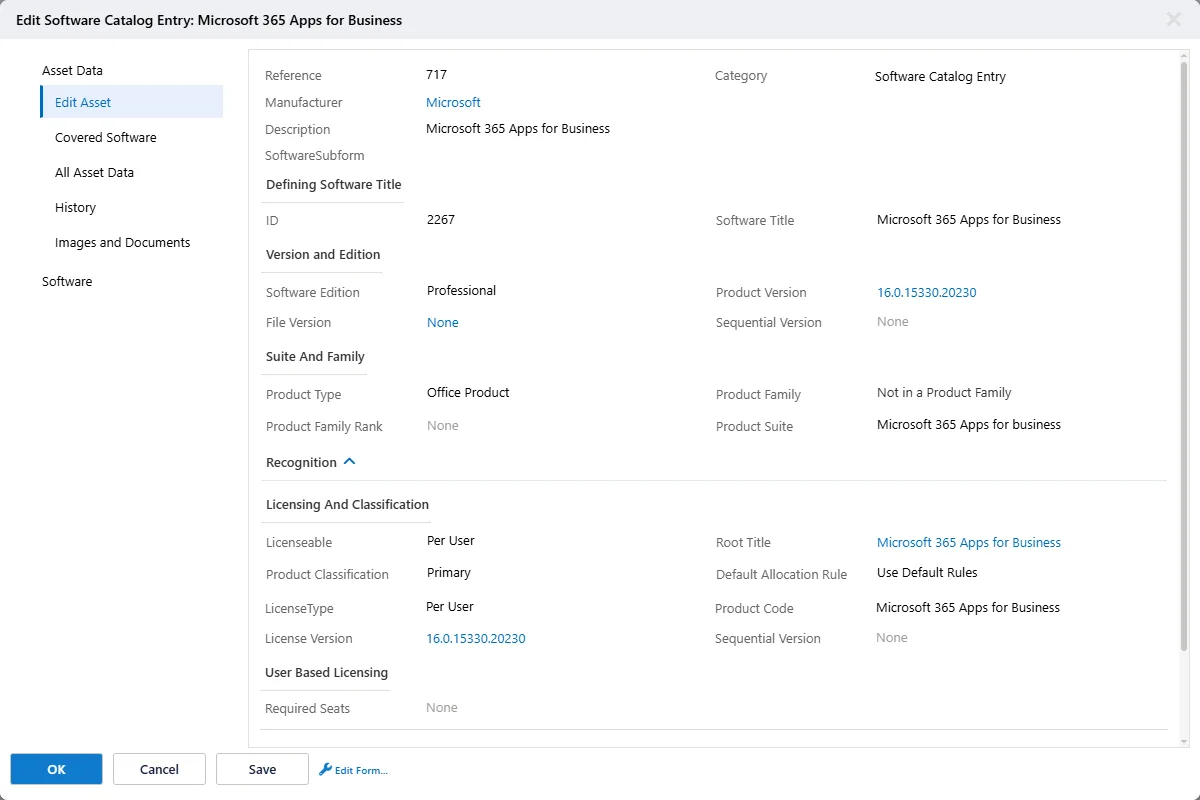
Click into the product to see the catalog entry. "Microsoft 365 Apps for Business" is licensed Per User — Microsoft's metric covers
one named user across up to five devices. If the License Type is "Per Computer or Server", change it to "Per User".
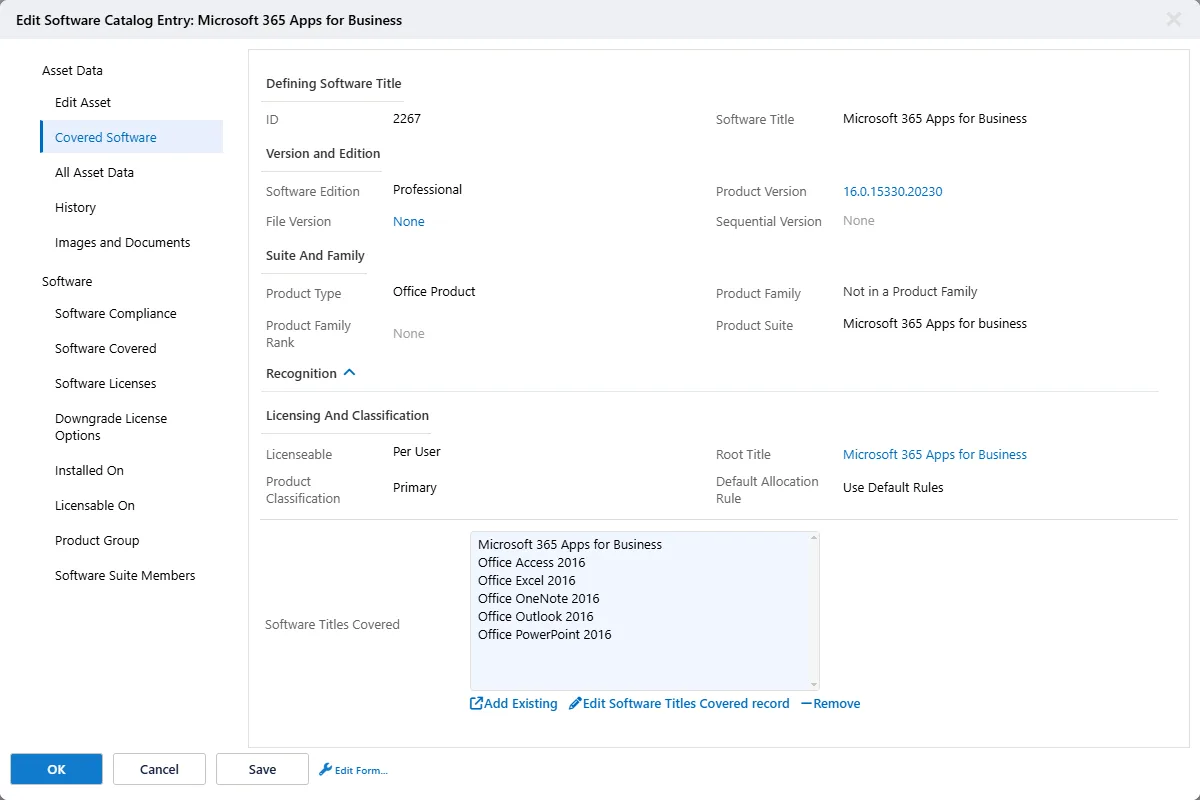
The Covered Software tab on the same dialog tells you which inventory titles roll up to this catalog entry. For Microsoft 365 Apps for Business,
the individual Office components include Excel, Outlook, PowerPoint, OneNote, Access. When discovery finds Office Excel 2016 on a machine, it counts
toward Microsoft 365 Apps for Business consumption, not as a standalone Excel product, so you only need to license the suite.
Import or Enter Licenses
Importing Licenses from a Spreadsheet
Your license data must contain the exact "Software Product" names that appear in the "Licensing Position" query.
If any do not match, the import fails.
For this test we recommend including "Microsoft 365 Apps for Business" or
"Microsoft 365 Apps for Enterprise" in the spreadsheet - choose the one which exists in your discovered data.
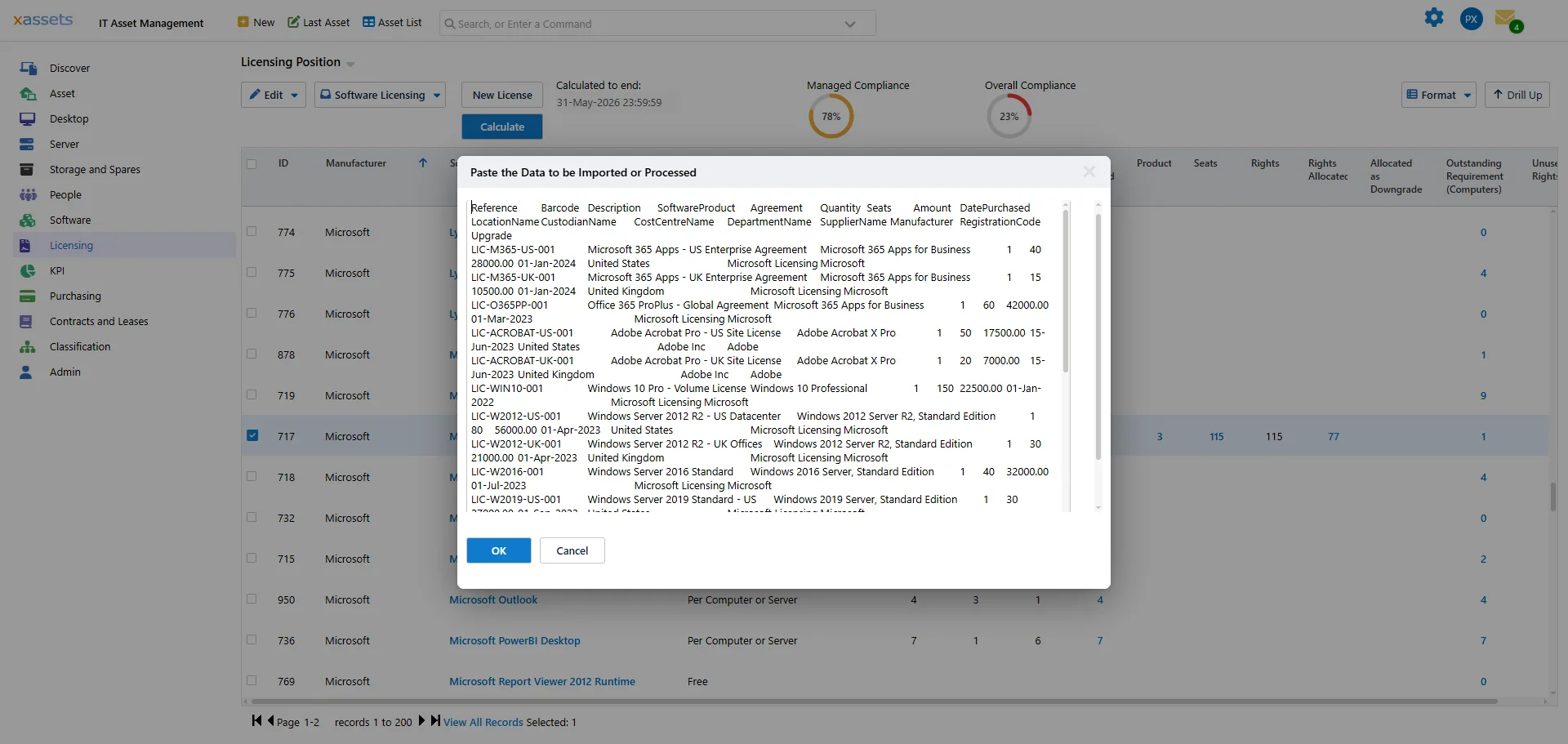
Use the Asset Menu → Import Assets → Standard Import - Software License Assets action to paste your entitlements data from Excel.
That screen also offers a sample file so you can see the layout and field names.
Start with a pilot of 10–20 representative rows that span multiple manufacturers, metrics, and lookup fields.
The import runs as a background batch job. If any rows fail, the batch job query will show the error message.
The import is keyed against the Reference column, so that field should be unique, and if it exists in the database already, it will overwrite it.
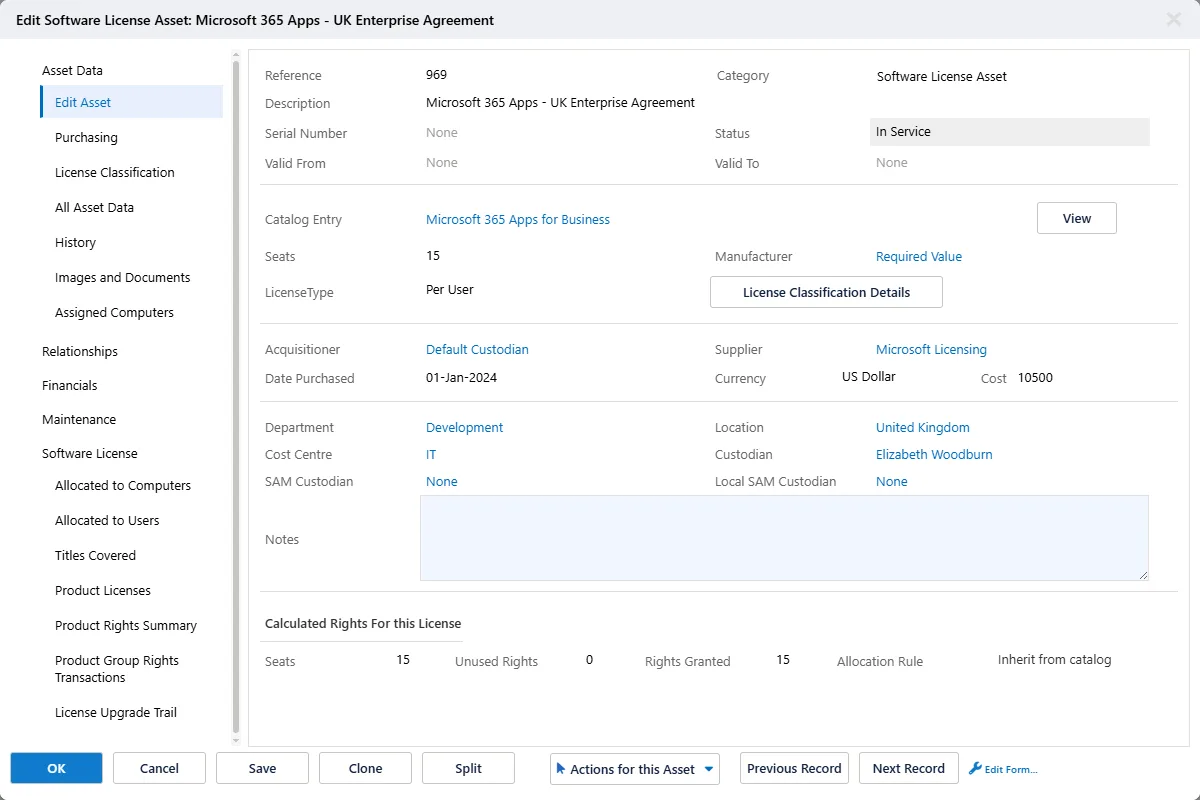
Each imported license has a Software License Asset record which you can view or edit.
For Microsoft 365 Apps - UK Enterprise Agreement we have 15 seats at $10,500 cost, Per User, attached to the "Microsoft 365 Apps for Business" catalog entry.
Entering Licenses Manually
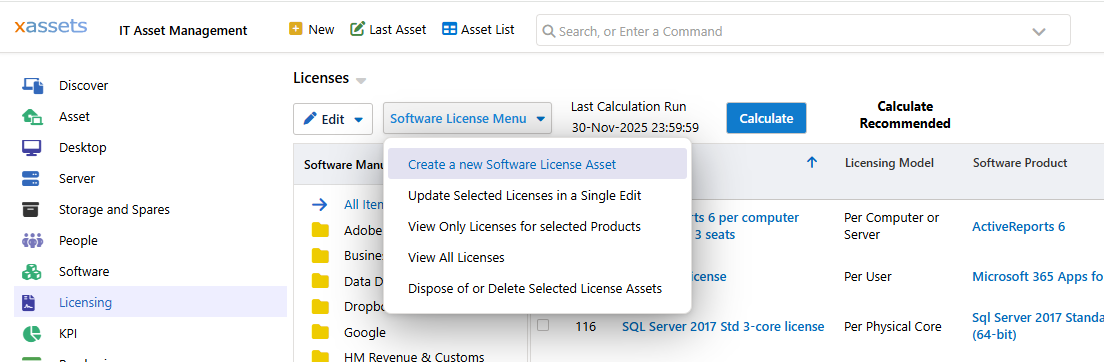
If you don't have a spreadsheet, you can manually create licenses as follows:
- License → Licenses
- New License in the Top menu
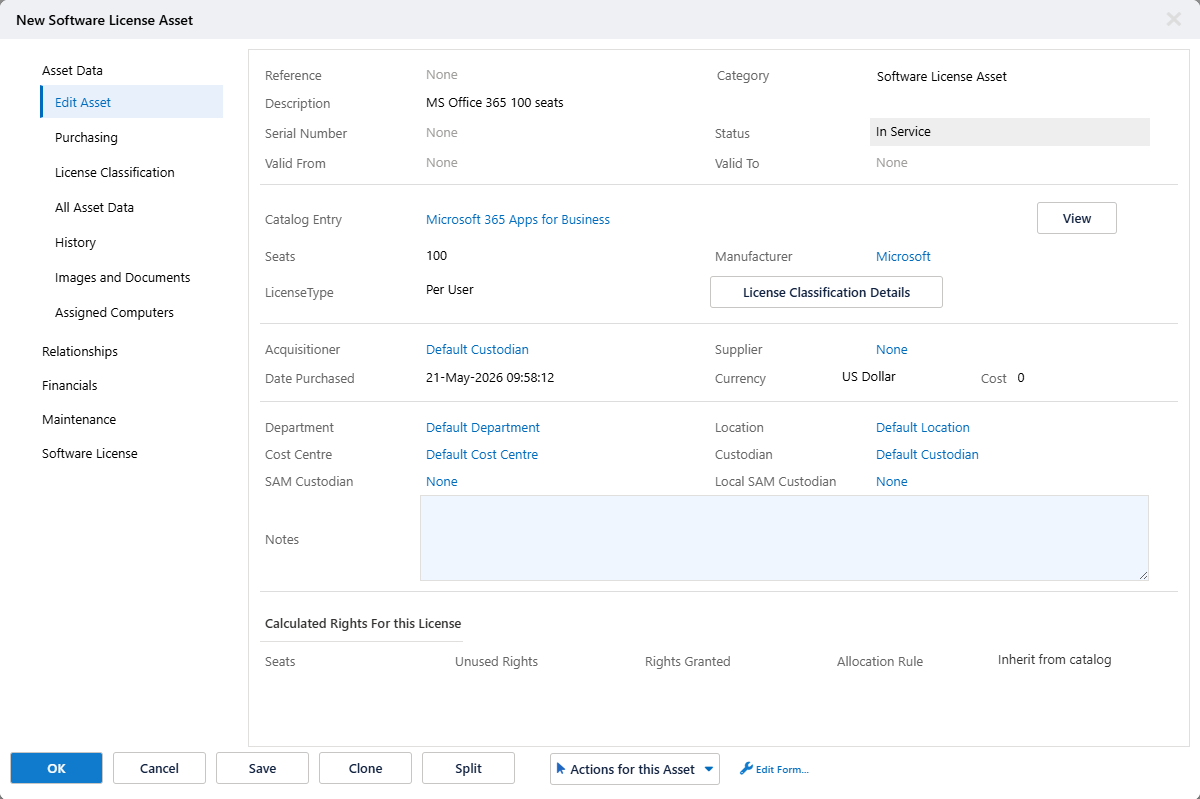
- Fill in the required fields and match the license to "Microsoft 365 Apps for Business"
- Click OK, the new record is listed
Then fill in the fields Description, Seats, Date Purchased, and Catalog Entry
Then click OK to save the new license asset. Now we are ready to calculate.
Calculation
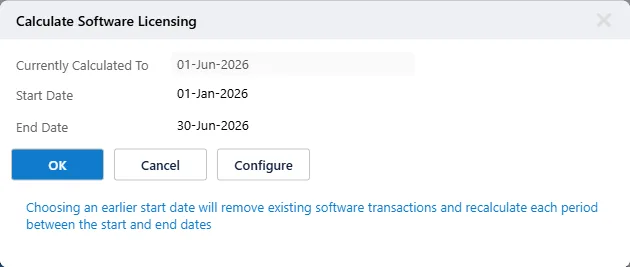
Open Licensing → Calculate Software Licensing. Set the Start Date to the beginning of the period you want covered and the End Date to the end of this month.
xAssets SAM is temporal, it tracks the licensing position period by period. An earlier start date calculates or recalculates every month from the start date.
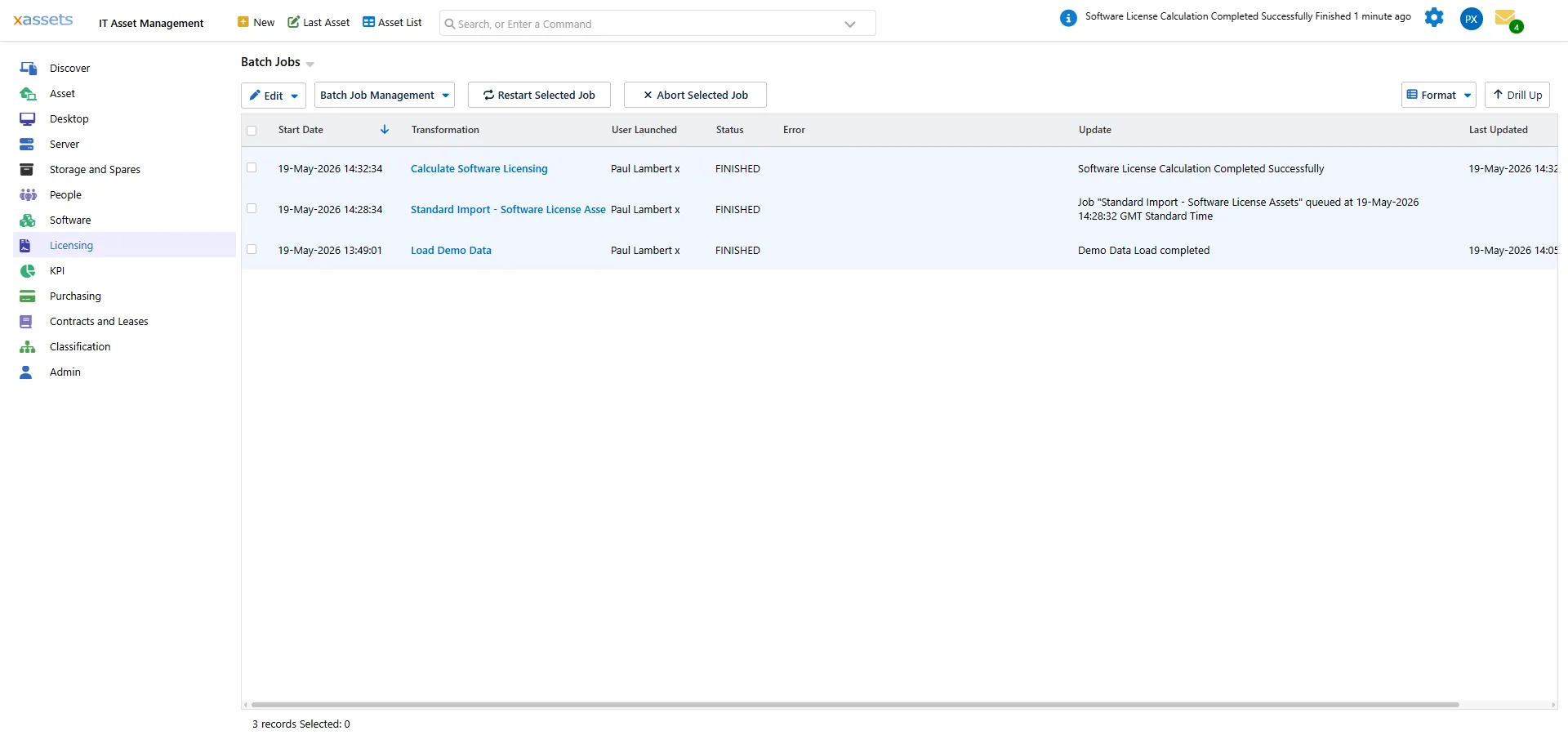
The calculation runs as a background batch job. On the demo dataset (around 900 assets) calculation takes ten seconds.
For a large enterprise database with 25,000 endpoints, calculation takes three to seven minutes depending on the complexity
of licensing rules and the volume of license data.
When finished, the batch job shows "FINISHED" status and the top-right info-bar says "Software License Calculation Completed Successfully".
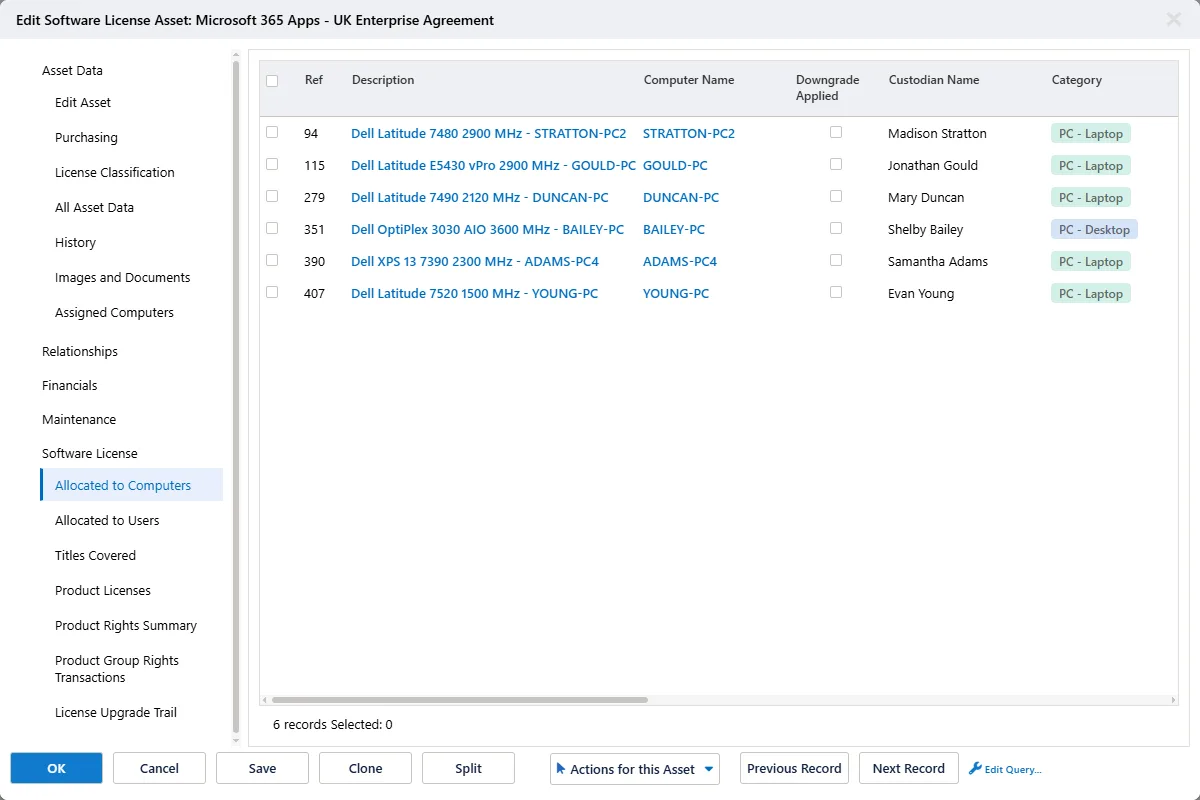
Once the calculation has run, the dialog shown in the "Calculation" section above will now show the computers and users this license has been allocated to:
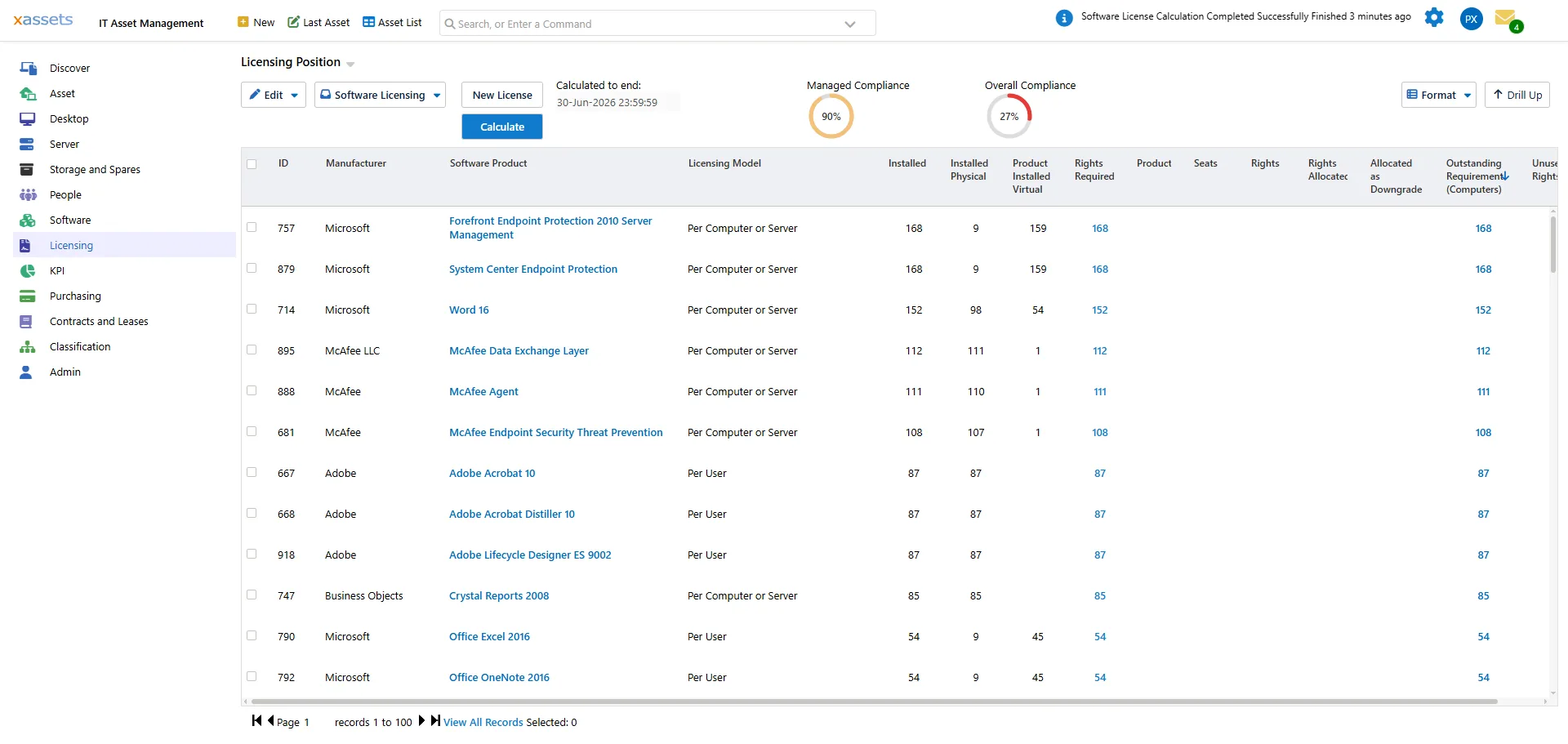
When completed, the license compliance metrics appear in the Licensing Position query.
Licensing Position
Open Licensing → Licensing Position and sort by Outstanding Requirement descending. The top of the list shows
more consumption than entitlement, these are the products that need your attention.
To view products which are over-licensed, use the same query and sort by "Unused Rights" descending.
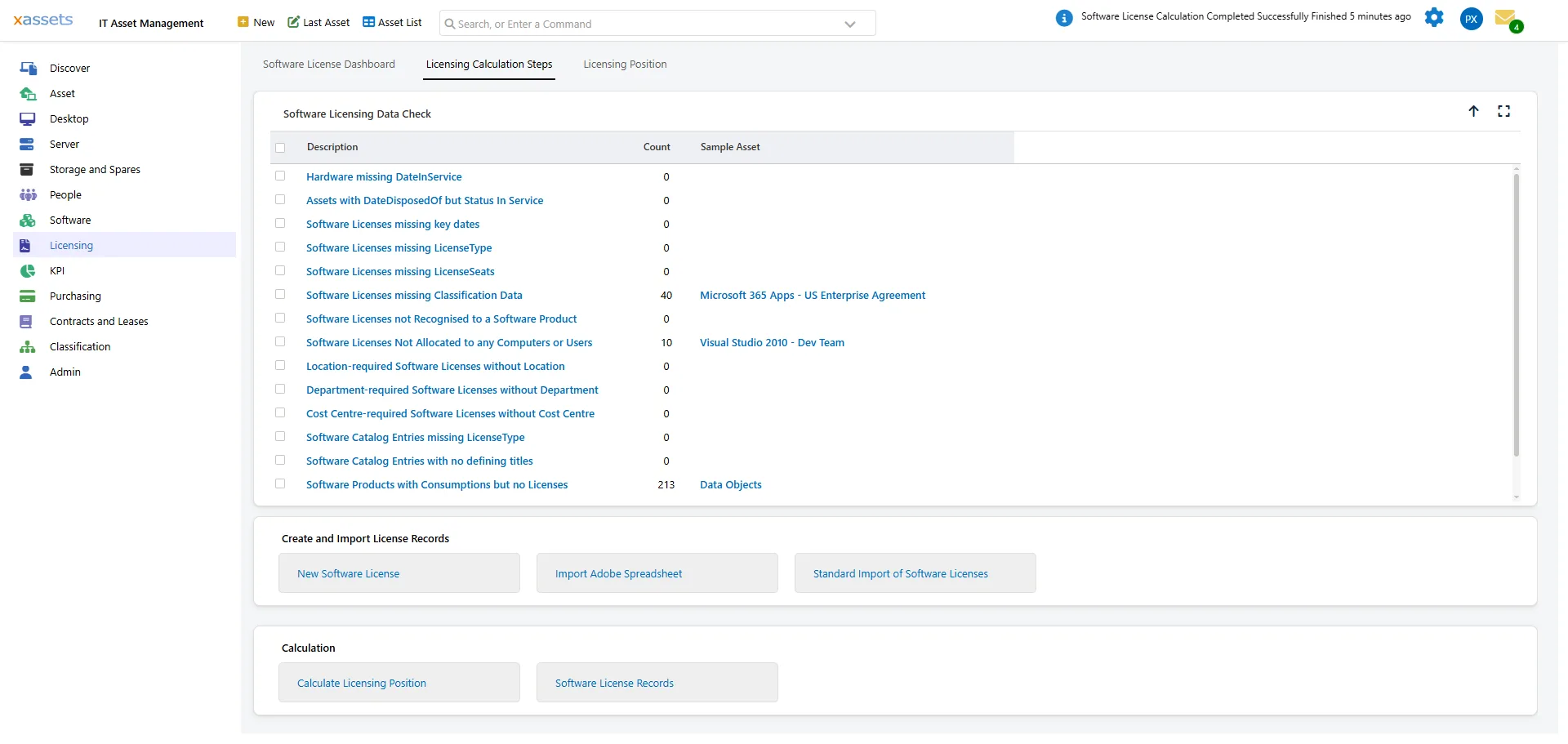
The Licensing Calculation Steps tab on the same dashboard helps with troubleshooting. It provides data-quality checks and any non-zero items should be analyzed.
When completed, products you understand well should show numbers you recognise,
and the data-quality checks have either zero counts or a known explanation for each non-zero row.
Analysing the Results
Use the Licensing → Licensing Position query to analyse results.
If the position doesn't match expectations, check these:
- Inventory is incomplete
- License Type is wrong on a catalog entry or license
- Licenses aren't in the system yet
- Licenses are missing the scope setting
- Check the affinity and requirement rules would allow this allocation
- Direct assignments to assets are missing
If you are a larger organization, you may notice that licenses are applied globally by default. This behaviour can be changed.
Software Products and Licenses can both be given a scope. If a license doesn't have a scope, it will use the scope of the product.
If a product doesn't have a scope, it is global.
If you have a global product with some licenses that are scoped to a specific country,
those licenses will only be applied to consumptions in that country, and the rest of the world will be covered by the global licenses.
Each of these has a dedicated chapter in the SAM Guide's Data Quality section.
The Licensing Calculation Steps tab is the fastest way to tell which one applies.
Setting the Affinity Rules
Only administrator users can change these options.
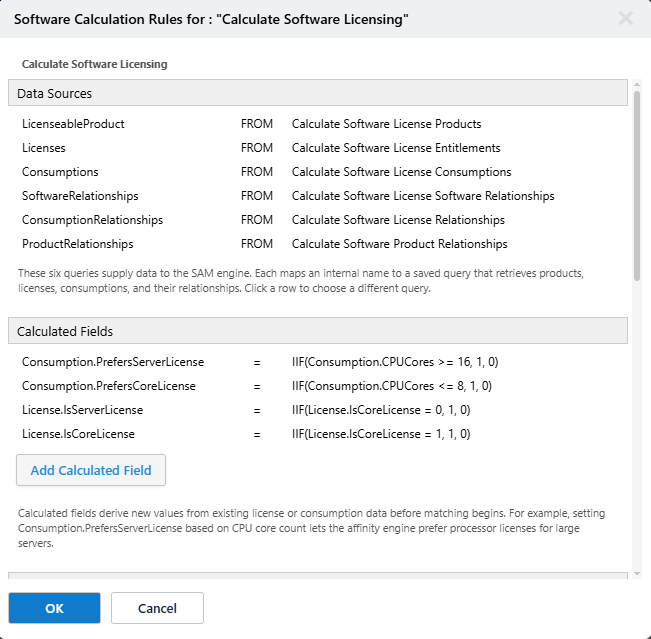
In the calculate dialog box, click the "Configure" button:
Then this dialog box allows you to set Affinity and other Rules:
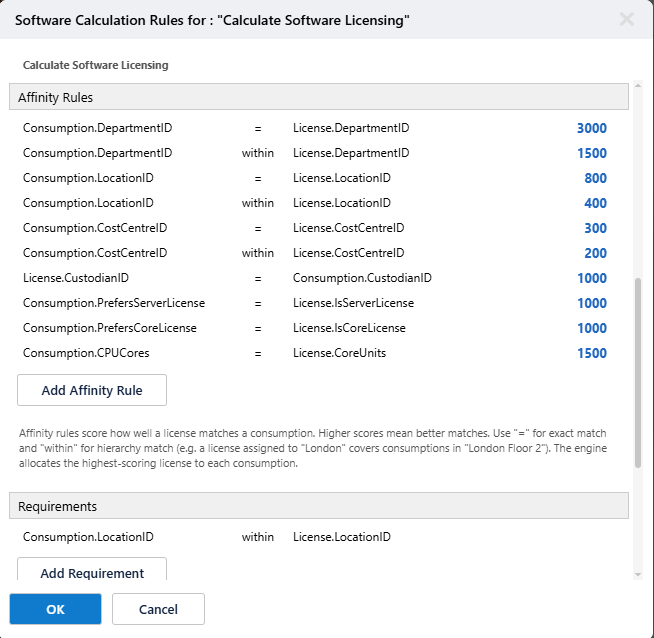
Scroll down to view the Affinity, Requirement and Assignment rules:
Using these rules, you can define relationships between licenses and consumptions (devices using the software titles of the license)
which create an attraction or a requirement.
The software calculation engine scores all rules against every possible license to consumption relationship and the highest scoring combination wins.
These are the main types of rules
| Type of Rule | Meaning | Explanation |
|---|
| Affinity | Attracts Licenses to Consumptions | This license likes consumptions when they are in the same location |
| Requirement | Restricts Consumptions to certain Licenses | Consumptions which do not satisfy this test cannot be assigned to this license |
| Assignment | Ties Consumptions to certain Licenses | This license is tied to this consumption regardless of affinity rules or requirements |
Setting the Scope of a Product or License
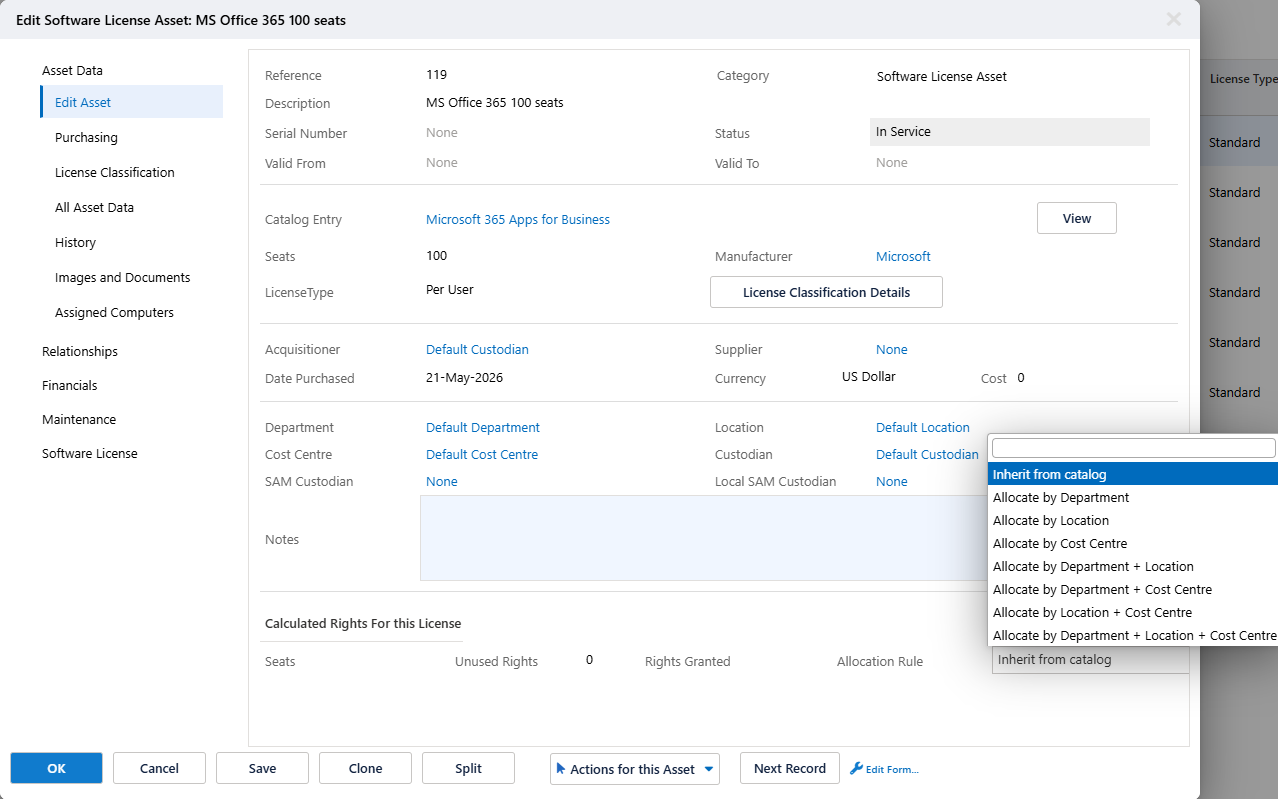
Products and licenses can instruct the engine that they are scoped with the "Allocation Rule" dropdown:
When scoped, for example by Location, a license can only cover a consumption which is in that location or underneath it in the location hierarchy.
Scoping by country is fairly normal, and often a license is bought for a specific department or location.
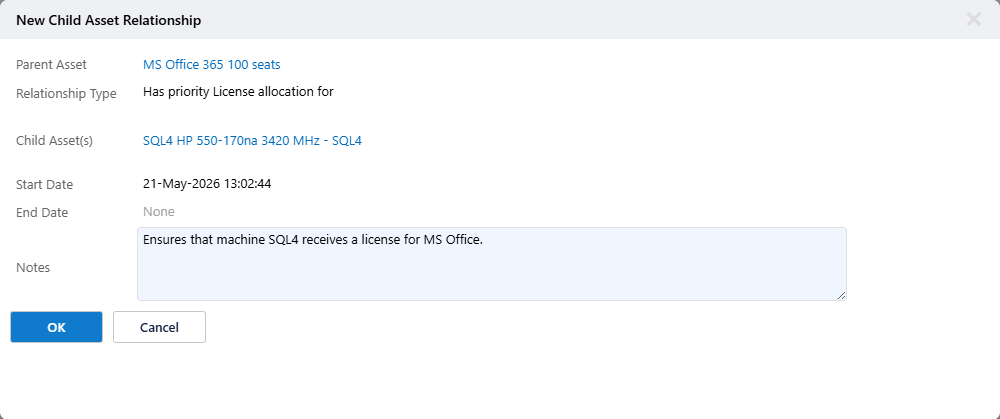
Assigning a Software License to an Asset
When a license is purchased for a specific asset, it's possible to "hard-assign" that license so it will always be assigned to this device.
To make the assignment, open the license, click "Assigned Assets" in the left menu (Asset Data or Relationships), and add the devices as directed.
Behind the scenes, this creates a parent-child relationship between the software license asset (as parent) and the device (as child).
Provided the software product catalog on the license exists in the software inventory for that asset, the assignment will override all affinity rules and requirements.
Timeline
On a fresh xAssets install with inventory already prepared, you can be looking at a first licensing position within a half day.
Once licenses are loaded, the following steps are commonly employed:
- Software Recognition: xAssets will ensure that important licenseable titles within your inventory are recognised. Allow 1-2 weeks per recognition cycle
-
License Scope: Many licenses will not be permitted globally - you set the scope on each product or license, you set the location, department or cost centre,
then recalculate
- Direct Assignment: Where a license was bought for a specific PC or group of PCs, you can assign them manually via an inter-asset relationship
- License Affinity: Where you prefer a license to be assigned to a specific business area
By far the most time-consuming part of the process is finding evidence of software license purchases.
Once the evidence has been collected, it needs to be put into the standard format for import, or manually entered.
If you already have a spreadsheet of entitlements, that helps a lot.
All other steps including discovery, recognition, and calculation are quick and can be automated.
SAM Terminology
| Term | Meaning |
|---|
| Consumption | The use of a software title by a device |
| Entitlement | A license you have purchased |
| Software License | Same as entitlement - a license you have purchased |
| Inventory Data | Data about your devices and the software on them, sourced either from discovery or from an integration |
| Temporal | This means our SAM system works like an accounting system and can report at any date, not just at a fixed point in time |
| Compliance | Whether you have sufficient licenses to cover your consumptions |
| Software Product | These are template records for each "Software Title". E.g. Adobe Acrobat 2026 Professional is a Software Product |
| Assignment |
This is where you hard-wire a license to a device with an inter-asset relationship,
so that device will always be licensed for that software product as a first priority
|
| Allocation | This is where the SAM calculation engine has matched a device to a license |
| Recognition | The mapping of an incoming software title to a canonical/recognised software title. The xAssets team does all software recognition for you as part of the service |
Further Information