Design Mode
Design mode lets you rearrange a dashboard with the mouse — drag charts and tables into a different order, and save the result for yourself, for a user group, or for everybody. No configuration screens, no reloading.
This page covers entering design mode, moving things and saving. Adding and removing items is covered in Adding and Removing Dashboard Items, and sizing in Sizing Dashboard Elements.
Entering Design Mode
Open the dashboard you want to change, then choose Edit layout (beta) from the settings menu in the header.
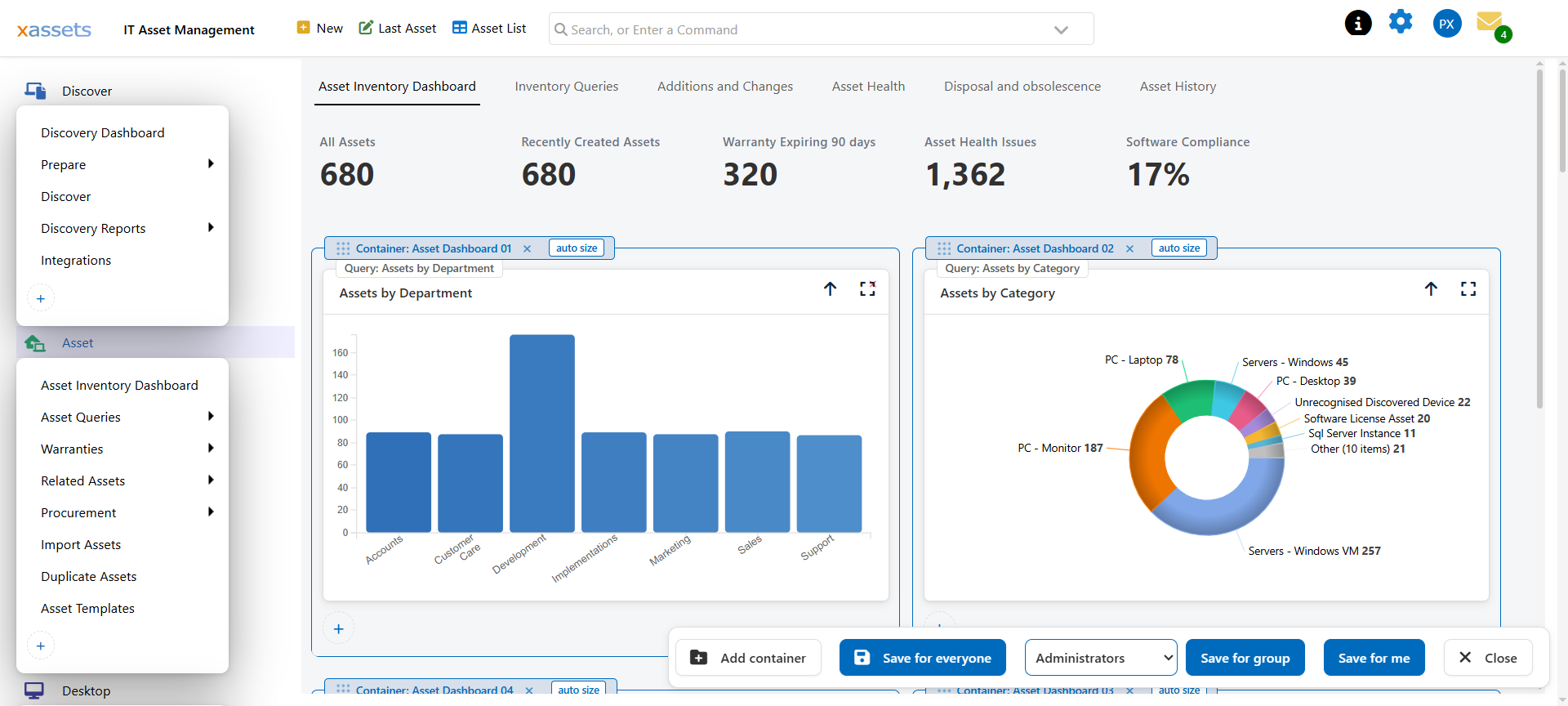
The dashboard gains an outline around everything you can move, a label on each piece, and a bar along the bottom with the save options. Nothing else about the dashboard changes — the charts keep working, and you can leave without saving at any time by clicking Close.
Design mode is a desktop feature. It is suppressed on phones and small tablets, where dragging is impractical.
Containers and Items
Dashboards nest two levels deep, and design mode labels both so you can tell what you are grabbing.
| Label | What it is |
|---|---|
| Container: name | A panel that holds one or more items. Its label carries a drag handle, a remove ×, and an auto size button |
| Query: name | A chart or table inside a container |
| Menu item: name | A button inside a container |
The labels matter, because a chart sits inside a container and it is easy to grab the wrong one. If a drag is not doing what you expect, look at which label you took hold of.
Moving Things
Drag by the label.
- Moving an item within its container reorders it against its siblings.
- Moving an item to another container takes it out of one panel and puts it in the other.
- Moving a container reorders the panels on the page.
An insertion bar shows where the item will land as you drag. It follows the mouse, so what you see is where it will go — release when the bar is where you want it.
To copy rather than move, hold Ctrl while you drag. The original stays where it is. This is the quickest way to put the same chart on two dashboards.
Dragging Outside Design Mode
If you start dragging a dashboard item without entering design mode first, xAssets offers to enter it for you — a short countdown appears, and design mode starts if you keep holding. Press Esc or let go to cancel. This exists so a user who instinctively tries to drag something is not simply ignored.
Saving
Nothing is written until you choose one of the save buttons. The three are the point of the feature: the same dashboard can look different depending on who is looking at it.
| Button | Who sees the change |
|---|---|
| Save for me | Only you |
| Save for group | Everybody in the user group chosen in the dropdown beside the button |
| Save for everyone | Every user, as the new default layout |
Save for me is always available. Save for group and Save for everyone change what other people see, so they are limited to configuration users — see below.
Personal and group layouts sit on top of the system layout rather than replacing it. If an administrator later changes the base dashboard, users who have saved a personal layout keep their arrangement of the things they moved, and pick up the changes elsewhere.
Design mode closes after a save. There is nothing else you can usefully do on the page while it is open, so it gets out of the way once the work is done.
Who Can Change What
| User | Can do |
|---|---|
| Any user | Save for me |
| Member of the configuration user group | Save for me, Save for group, Save for everyone |
Membership of the configuration user group is what separates "changing my own view" from "changing everybody's". Grant it to the people who own your xAssets configuration and no one else — see User Groups.
Undoing a Change
- Before saving — click Close. Nothing is written.
- After saving your own layout — reset to the default from design mode to drop your personal layout and go back to what everybody else sees.
- After saving for everyone — the previous layout is not kept. Treat Save for everyone as a deliberate act, and check the result on a dashboard you know well before rolling it out widely.
Related Reading
- Adding and Removing Dashboard Items
- Sizing Dashboard Elements
- Customising Menus — the same design mode applied to the navigation menu
- Dashboard Layout — the underlying layout model
- Creating a Dashboard