Customising Menus
The same design mode that rearranges dashboards also rearranges the navigation menu. You can reorder menu items, move them between groups, add and remove them, and save the result for yourself, a user group, or everybody.
Entering Design Mode
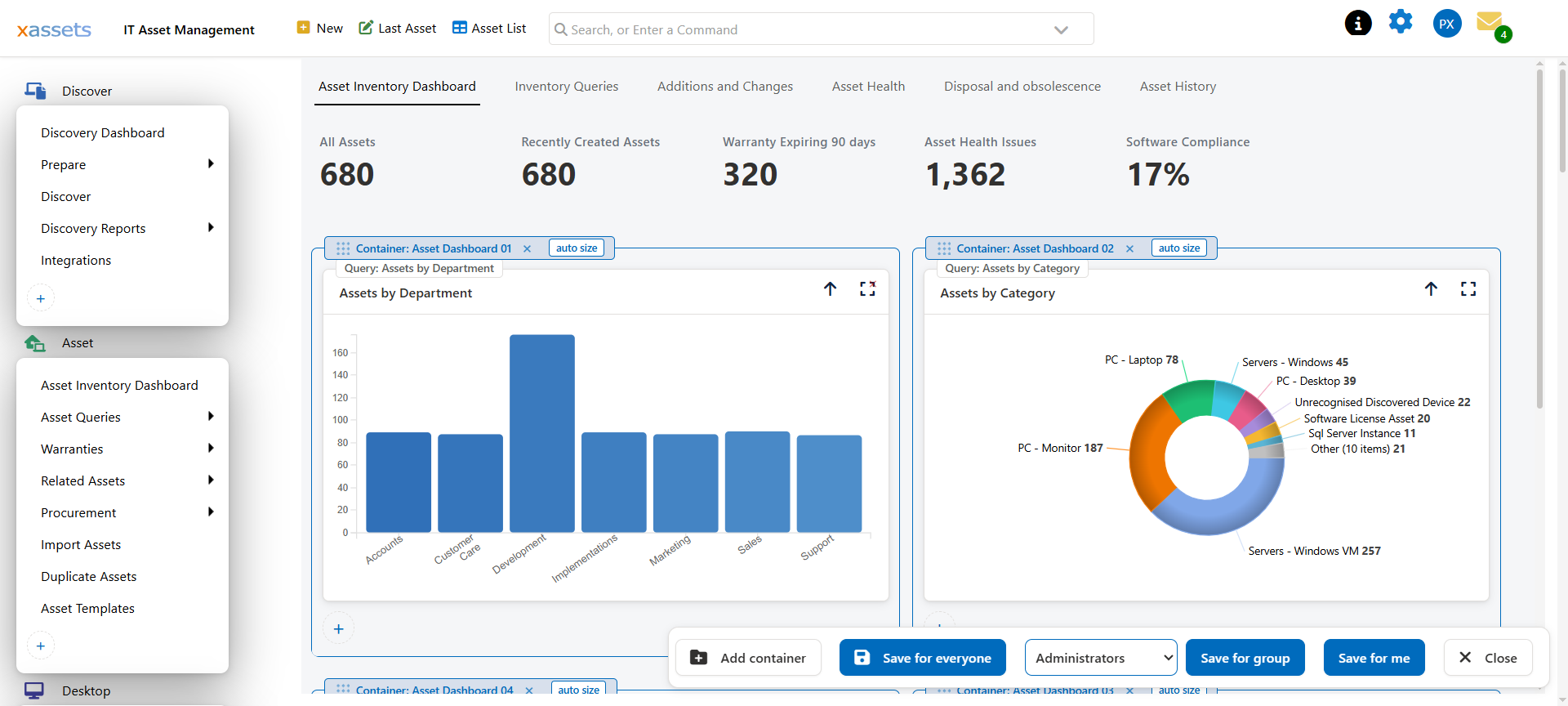
Choose Edit layout (beta) from the settings menu in the header. The navigation menu gains the same outlines, labels and save bar as a dashboard — see Design Mode for the shared behaviour.
Reordering
Drag a menu item to move it. An insertion bar shows where it will land.
- Within its group — reorders it against its siblings.
- Into another group — moves it there.
- Into a sub-menu — hover over the sub-menu while dragging and it opens, letting you drop inside.
- Groups themselves can be dragged, which reorders whole sections of the navigation.
Dropping an item at the very top or very bottom of a group works the same as anywhere else — the insertion bar is the guide, and the item lands where the bar is.
Hold Ctrl while dragging to copy rather than move, which is how you put a frequently used item in two places.
Adding and Removing
Each group carries a + to add an item, and each item a red × to remove it.
Adding offers the menu items available to you. Removing behaves the same way as on a dashboard — under Save for me it hides the item from your own menu, and under Save for everyone it removes it for all users. Nothing is deleted; a removed item can be added back.
Saving
The save bar carries the same three options as dashboards:
| Button | Who sees the change |
|---|---|
| Save for me | Only you |
| Save for group | Everybody in the chosen user group |
| Save for everyone | All users |
Save for group and Save for everyone need membership of the configuration user group. Save for me is available to anyone.
Nothing is written until you save, so a rearrangement you dislike is undone by clicking Close.
What This Is Good For
Shortening the menu for a role. Most people use a handful of screens. A user group whose menu shows only those screens is markedly easier to work with than the full navigation.
Promoting what your organisation actually uses. If your team lives in one report, move it to the top rather than teaching everybody where it is.
Hiding what you do not use. Modules you have not adopted can be removed from the menu for everyone, without disabling anything.
Cautions
- Save for everyone changes what your users see. Check the result before leaving it — a menu item moved somewhere unexpected generates support calls.
- Removing is not disabling. A removed menu item is hidden from navigation, not turned off. Anyone with a direct link or a permission to it still reaches it. For genuine access control use menu permissions on the user group — see Users Menu Options — not menu layout.
- Personal layouts persist. A user who has arranged their own menu keeps that arrangement. If you later add an item for everyone, they will still see it, but not necessarily where you put it.
Related Reading
- Design Mode — the shared behaviour, in full
- Adding and Removing Dashboard Items
- Menus Overview
- Menu Categories