Discovering the Network
Once you have completed the prerequisite setup steps, you are ready to run network discovery. This page provides a quick-start guide for launching your first discovery scan and monitoring its progress.
Prerequisites
Before running network discovery, ensure these tasks are complete:
- Product installation and basic configuration -- xAssets and the Collection Server are installed and running
- Active Directory Integration (optional) -- run the AD import to pre-populate locations, users, and computer records (see Active Directory Integration)
- Location hierarchy -- locations have been entered or imported and reviewed
- IP range mappings -- locations have been associated with IP ranges (see Setting up Reference Data)
Accessing Discovery
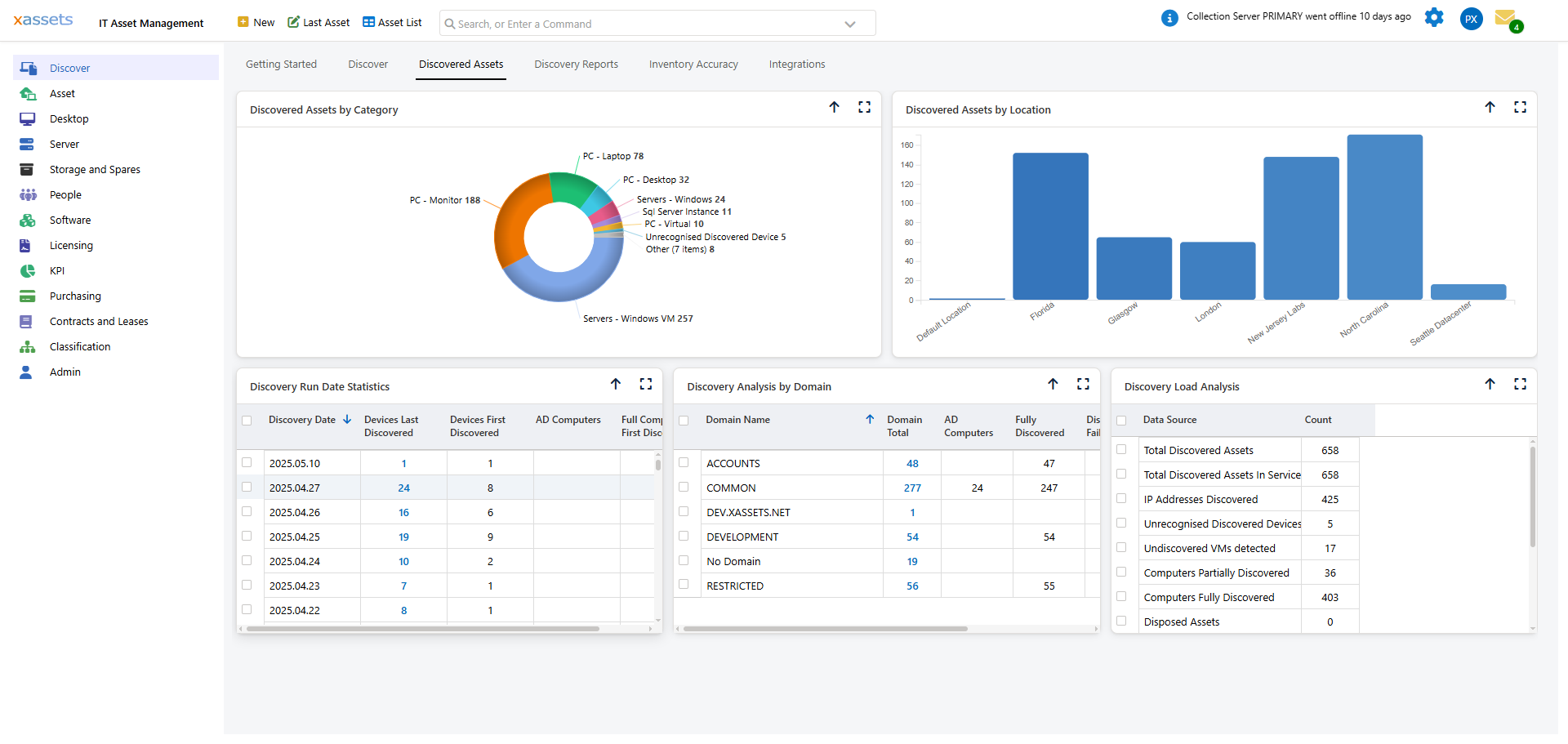
All discovery actions are accessible from the Discover menu in the left-hand navigation. Discover opens the discovery dialog directly; Prepare holds the collection server, credentials and IP range set-up; Discovery Reports and Integrations open the corresponding dashboard tabs:
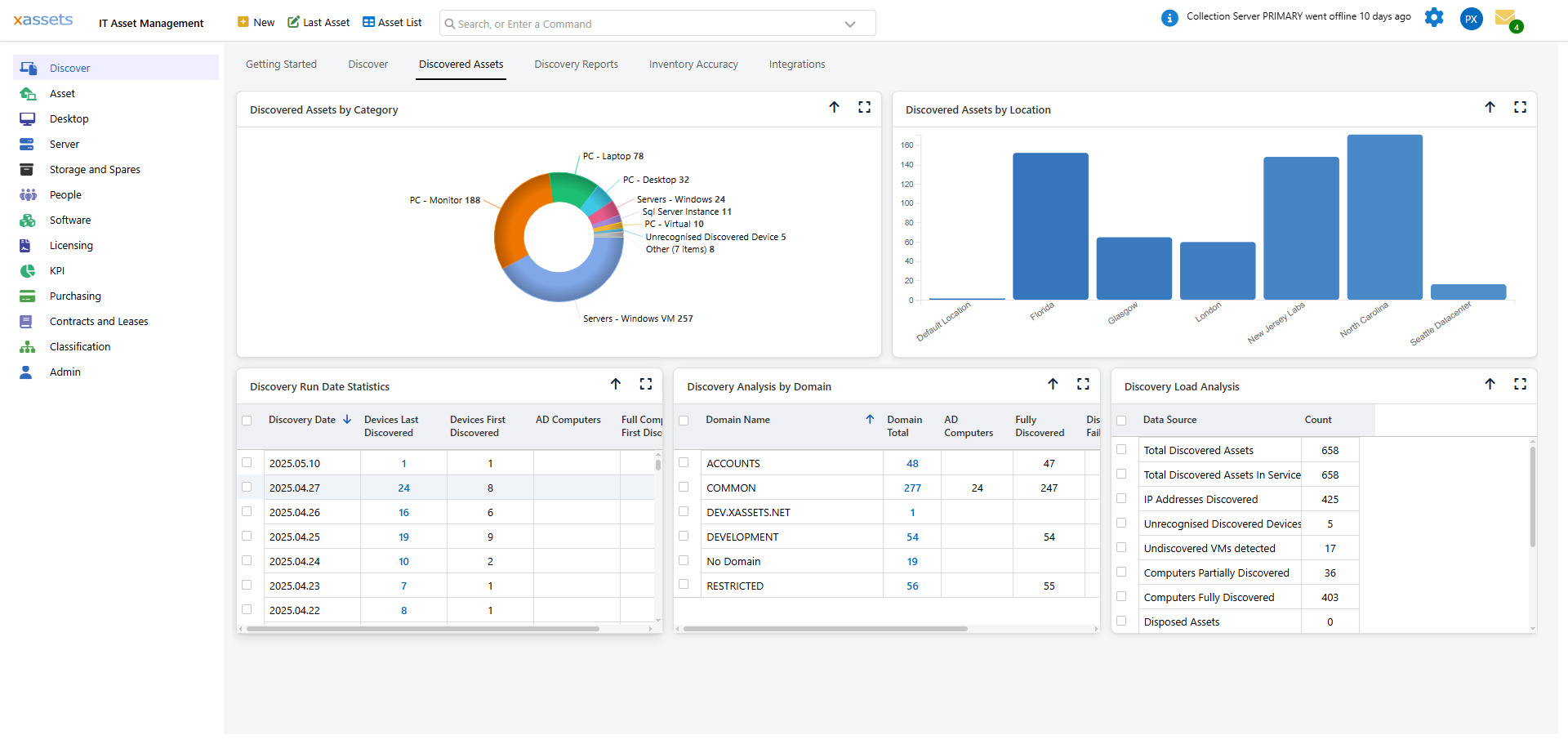
The same actions are on the Discover tab of the Discovery Dashboard (Discover > Discovery Dashboard), together with the recent discovery job history:
Discovery Options
The Discover Assets dialog has three tabs. The first two are the ways of choosing what to scan; Load Discovered Assets loads any discovery files waiting on the collection server without scanning.
Discover Locations
Tick one or more locations in the tree (or Discover All Locations). Discovery scans all IP ranges associated with those locations.
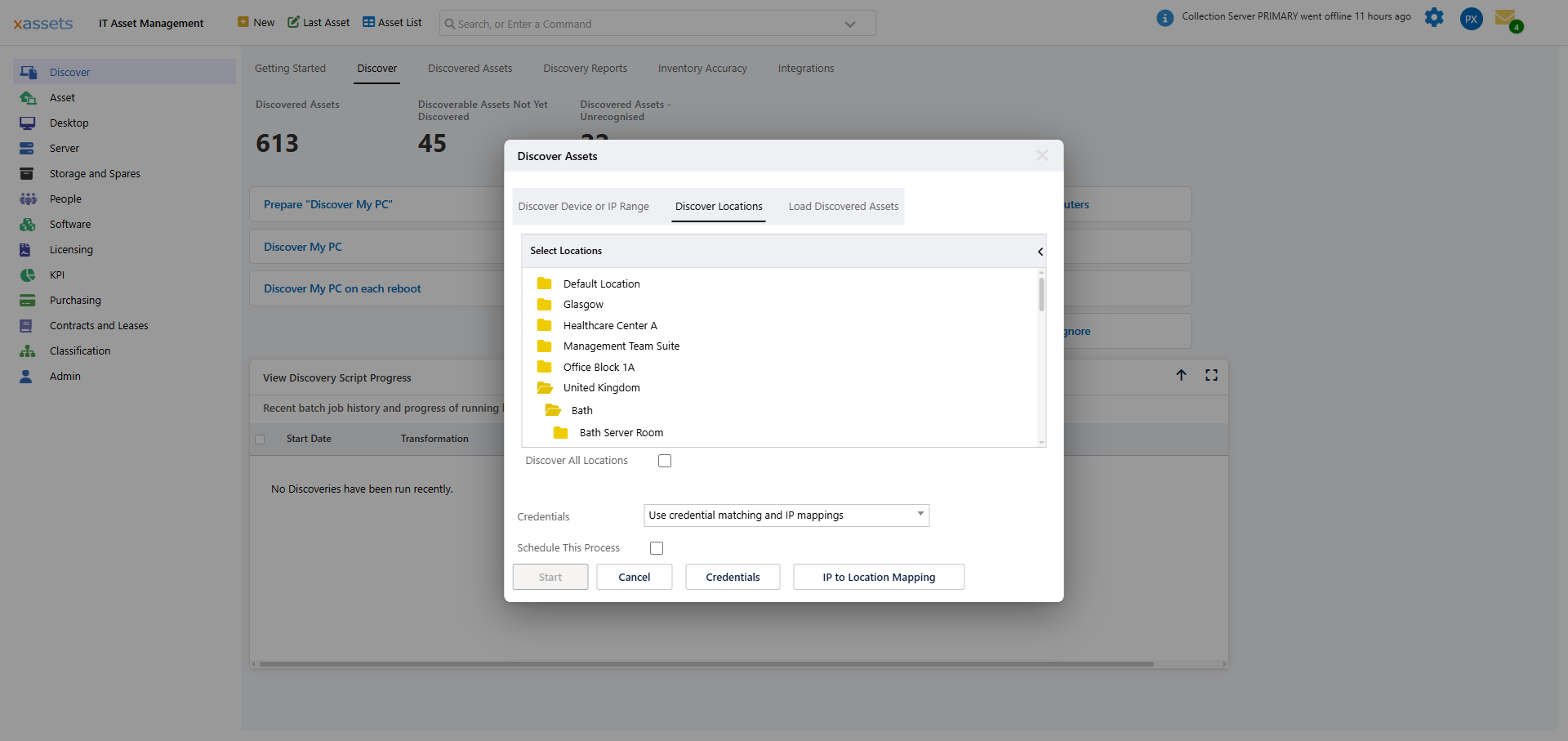
Note: This option only works if locations have been set up correctly and assigned to IP ranges.
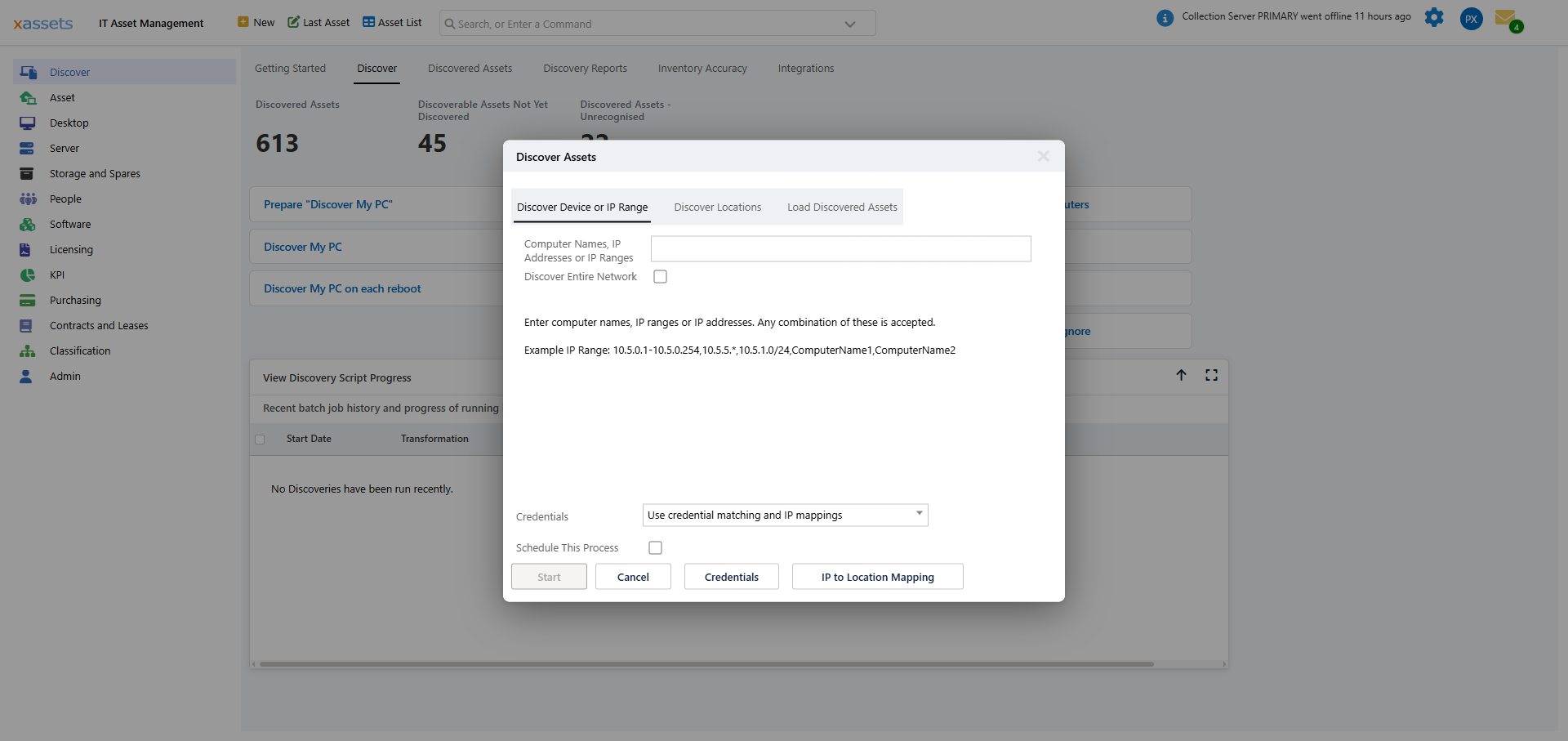
Discover Device or IP Range
This tab lets you enter one or more IP addresses, ranges, CIDR blocks or computer names directly, in any combination, or tick Discover Entire Network:
Choosing Credentials
- To use the Windows logon credentials of the batch processor service, select Default Credentials on server <CollectionServer>
- To use different credentials, select a Credential Pack from the drop-down (see Credential Packs)
Note: When different credentials are specified, the discovery process runs in a hidden window (hidden window station) on the application server and is not visible on the desktop.
Monitoring Progress
From the Collection Server
Each discovery option runs a discovery script behind the scenes. On the Collection Server (usually the application server), start the Collection Server Viewer:

Right-click and choose Run as administrator. The viewer shows real-time progress for the current script. If the application is already running, look for its icon in the system tray 

The discovery process runs as a Windows service -- the viewer simply displays data from the local database.
From the Web Interface
Progress is also visible in the browser:
- From any dashboard, check the batch job status area
- Navigate to Admin > Batch > Recent and Running Batch Jobs for a detailed view
After Discovery Completes
Once discovery finishes scanning, a separate process loads the discovered data into the xAssets SQL Server database. In smaller installations this happens immediately; in larger installations (typically more than 1,000 assets), loading may be configured to run overnight.
After loading completes, discovered assets appear in:
- The Asset Inventory Dashboard
- All relevant queries and reports
- The Discovery Dashboard under "Discovered Assets"
Tips
- Start with a single location or small IP range to verify everything works before scanning your entire network
- If discovery appears to run but finds nothing, check the PCAnalyser share permissions and Credential Pack access (see Analysing Discovery Problems)
- Schedule regular discovery runs once you have confirmed the initial scan works correctly
Related Articles
- Running Discovery — detailed discovery instructions
- Credential Packs — managing authentication
- Loading Discovery Data — importing results into the database
- Analysing Discovery Problems — troubleshooting