Your Own Recognition Rules
xAssets ships tens of thousands of recognition rules and updates them regularly. Sometimes you need something different — an in-house application xAssets has never seen, or a title classified in a way that does not match how your organisation licenses it. Rules you write yourself take precedence over the shipped ones, and survive recognition updates.
How Precedence Works
Every recognition rule belongs to one of two sets:
| Set | Where it comes from | What happens on a recognition update |
|---|---|---|
| Shipped rules | xAssets, delivered with recognition updates | Replaced with the latest version |
| Your rules | Created on your own system | Left alone |
When a discovered title could match a rule from each set, your rule wins. You do not need to do anything to make that happen — rules created on your system are automatically marked as yours.
This means you can correct a shipped classification without your correction being undone the next time recognition data updates. It also means a wrong rule of your own will keep winning until you fix it, so it is worth being deliberate about what you create.
Creating a Rule
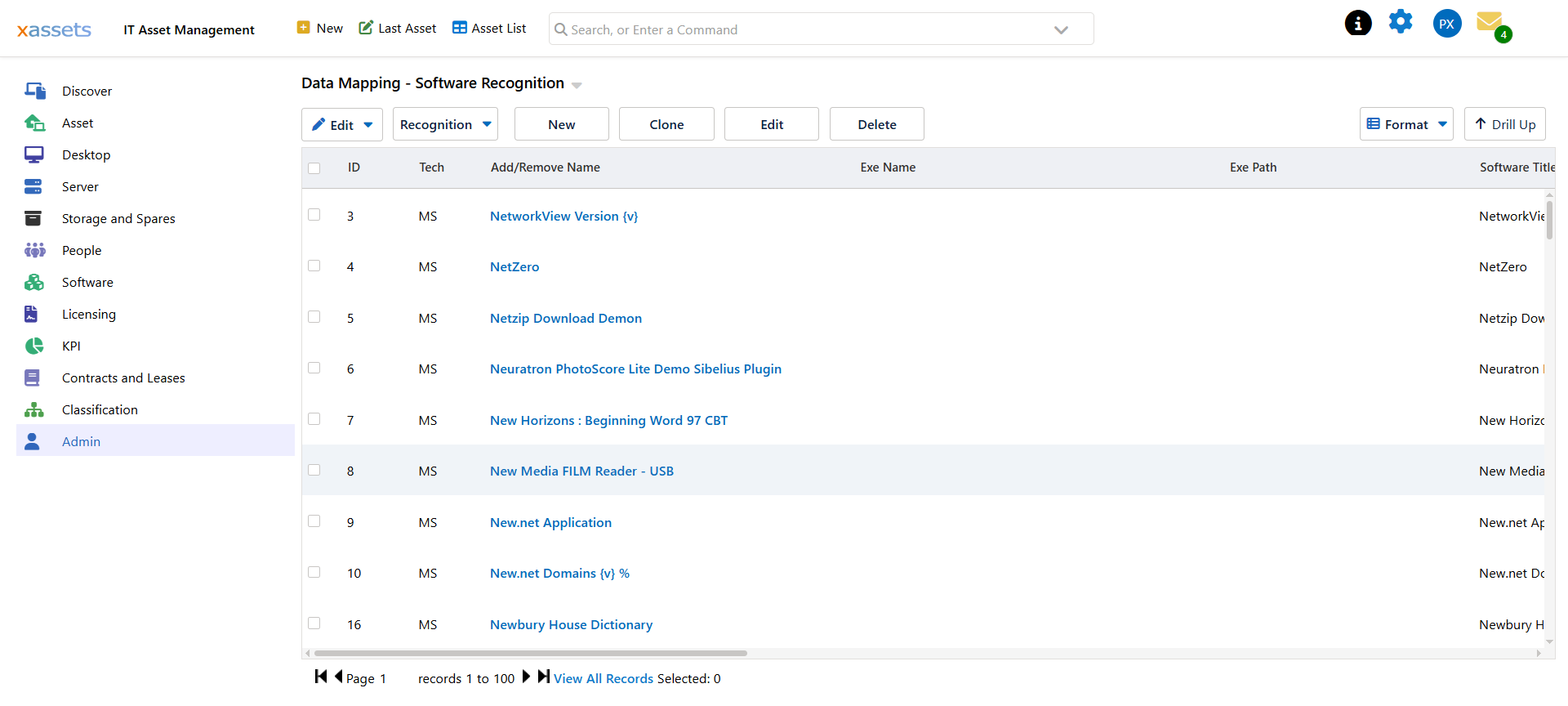
Go to Admin → Software Recognition and click New.
The rule form is in two halves — what was discovered, and what it should be recognised as.
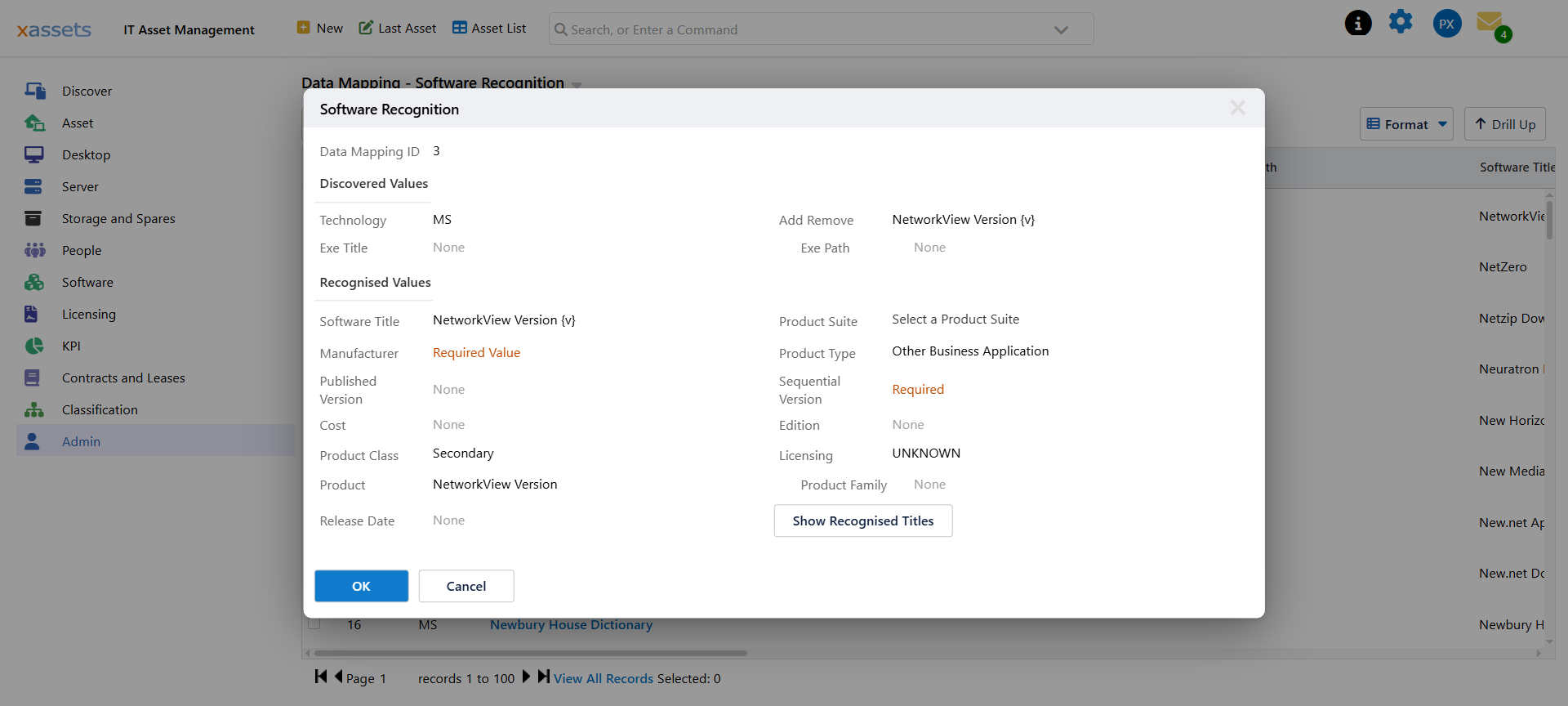
Discovered Values — what the rule matches:
| Field | Purpose |
|---|---|
| Add Remove | The pattern matched against the title as it appears in Programs and Features. Use % as a wildcard |
| Exe Title / Exe Path | Used instead when matching software found by scanning the disk rather than from Add/Remove |
| Technology | The discovery technology the rule applies to |
Recognised Values — what it becomes:
| Field | Purpose |
|---|---|
| Software Title | The canonical title to record. Supports {v}, {y}, {e} and {s} placeholders |
| Manufacturer | Who makes it |
| Product | The version-independent product key — every version of one product must share it |
| Product Type / Product Suite / Product Family | Classification |
| Published Version / Sequential Version | Leave empty when using {v} — they fill in automatically |
| Cost | An indicative price per licence, used for compliance costing — see Product Pricing |
| Edition | The edition, where the title has one |
| Product Class and Licensing | Whether this title needs a licence, and what kind |
Product is the field most often got wrong, and the one with the worst consequences. Every version of a product must carry the same Product value, or your catalog fragments into one entry per version and compliance reporting stops making sense.
For the full field reference and the placeholder syntax, see Data Mapping.
Overriding a Shipped Rule
To change how an existing shipped title is classified, create your own rule whose Add Remove pattern is character-for-character identical to the shipped one. Your rule then replaces it entirely.
The easiest way to get that exactly right is not to type it:
- Find the shipped rule in Software Recognition.
- Select it and click Clone.
- Change only the classification you want different — typically Licensing and Product Class.
- Save.
The clone carries the original's match pattern, so the override is guaranteed. Cloning is safer than a new rule for this reason, and it is the recommended route.
If the pattern does not match exactly, you end up with two rules competing rather than one overriding the other, and which one wins is not something you should rely on.
Making a Change Take Effect
A rule change does not reclassify software that has already been recognised. Two things have to run, in this order:
- Load Now, to re-recognise installed software against the new rule.
- Calculate Licensing Position, to rebuild compliance figures from the new classification.
Recognition alone is not enough — the licensing position keeps showing the old picture until the calculation runs. See Running the Calculation.
Editing the Catalog Instead
Not everything needs a rule. If you want to change one product's classification and nothing else — marking a title as banned in your organisation, for example — you can edit the software catalog entry directly.
Be aware of the difference:
| Change | Survives re-recognition |
|---|---|
| A recognition rule of your own | Yes |
| A direct edit to a catalog entry | No — rebuilt from the rule on the next load |
Direct catalog edits are fine for something you are looking at today. For anything that must stay true, change the rule.
Good Practice
- Prefer Clone over New when a similar rule exists — you inherit a working pattern.
- Keep your rule set small. Every rule you own is one xAssets will not maintain for you.
- Submit titles rather than rule around them. An in-house application genuinely needs your own rule. A commercial product xAssets classifies wrongly is better reported — see Unrecognized Software — so the fix reaches everyone and you carry nothing.
- Re-check after a major recognition update. Your rules still win, but a shipped rule that has improved may have made yours redundant.
Related Reading
- Unrecognized Software — titles no rule matches
- Software Updates — how shipped recognition data is kept current
- Data Mapping — the full field and placeholder reference
- Creating Software Titles Manually