Query Results Display
After running a query, clicking a tree node, or performing a search, the main screen displays the matching asset records. This short page describes what happens at that moment. For the full reference on the results screen itself -- the tree panel, toolbar menus, sorting, paging, and export -- see Search Results, which is the primary reference page for this screen.
What Happens When Results Are Returned
Whichever route you used to get there -- running a saved query, clicking a node in the left-hand tree, typing into the toolbar search box, or opening a dashboard tile -- the system executes the underlying query and displays the matching records in the same grid: the Search Results screen. The results area occupies the centre of the screen, with the tree panel on the left and the toolbar (Edit, Actions, Discover on the left; Format and Drill Up on the right) along the top.
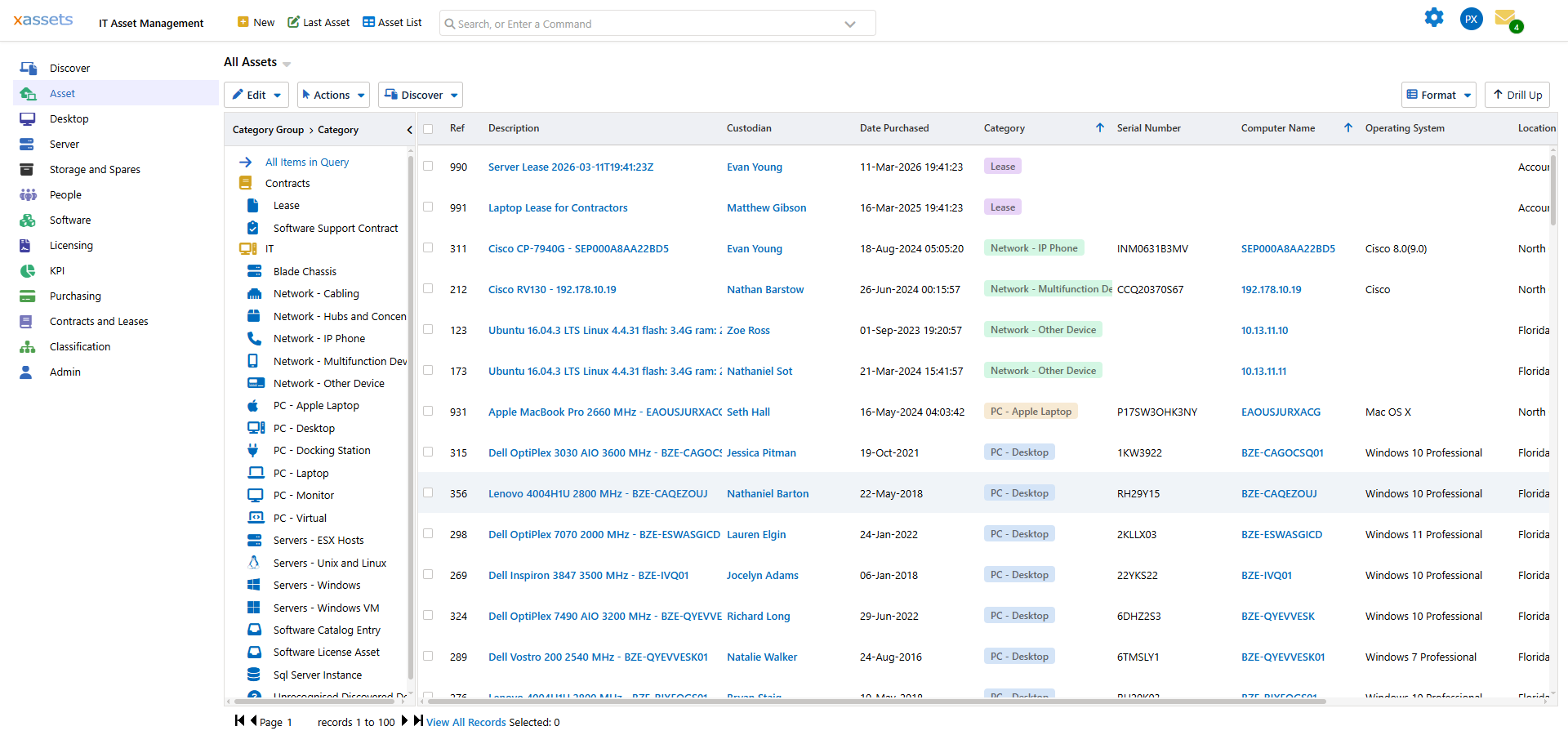
Each row is one record; the columns shown depend on the query that was run, since different queries display different columns (for example a hardware query typically includes Reference, Description, Category, Location, Custodian, Status, and Serial Number). Column order, which columns appear, and the default sort are all part of the query configuration -- administrators can edit these from Admin > Queries. See the Configuration Guide for details.
From Here
Once results are on screen, the Search Results page covers everything you can do with them: sorting and resizing columns, filtering with the tree, selecting records, running bulk actions, switching to a chart or tile view, and exporting to Excel, CSV, or PDF via Format. See also:
- Finding Assets -- how to search for and locate assets in the first place
- Selecting Assets -- selecting one or more records for bulk actions
- Bulk Update -- applying changes to multiple selected assets at once
Tip: If a query returns more records than expected, use the tree panel to narrow the results. Clicking a tree node filters the displayed records to that node and its children; click All Items in Query at the top of the tree to remove the filter.
Related Articles
- Search Results -- detailed reference for the Search Results screen controls
- Selecting Assets -- how to select one or more records for bulk actions
- Finding Assets -- how to search for assets using the toolbar search box and tree navigation
- Bulk Update -- applying changes to multiple selected assets at once